

Assign an automation to a moment
Every automation can belong to one moment on the Journey map, such as Pre-onboarding or First day. The Automations table groups rows by moment in map order, and the moment’s panel on the map lists its flows, so assigning the moment is how the two views stay in step.
Before you start
Section titled “Before you start”- The moment exists on your journey map. Templates added from the catalogue arrive already attached to their moment.
-
In Pyn, open Flows in the left navigation, then Automations.
-
Open the … menu at the right of the row, select Assign Moment and choose a moment from the submenu.
-
Inside the editor, you can do the same: select Details on the right-hand rail, then under Moment select Select a moment and choose one.
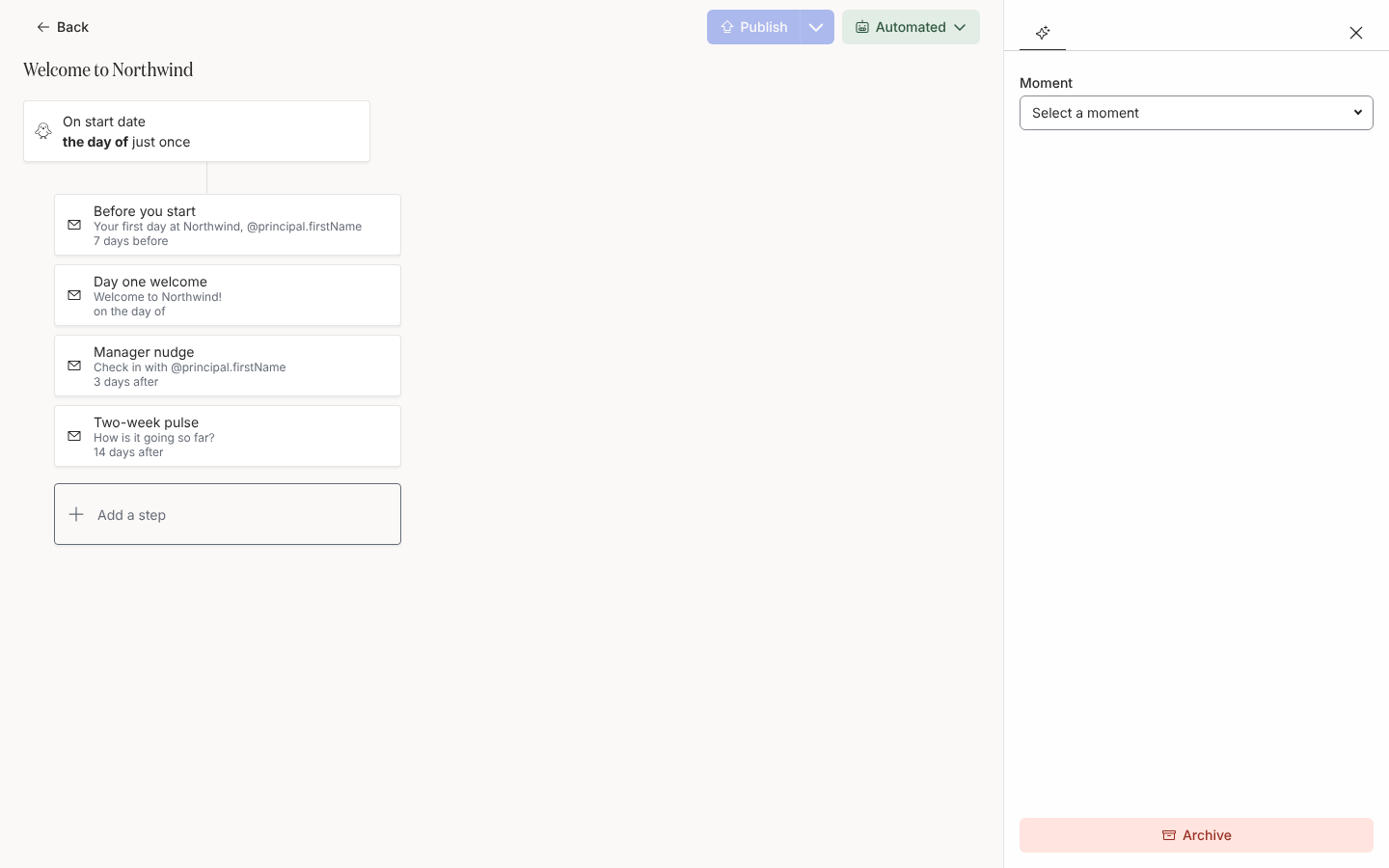
Details holds the automation's moment on the journey map.
What you should see
Section titled “What you should see”The row moves under the moment’s heading in the table, with the table ordered by journey category and moment. On Journey, the moment’s panel lists the automation on its Flows tab.
Related
Section titled “Related”- Journey for categories and moments.
- Sort the Flows list for the other orderings.
- Create an automation for templates that arrive with a moment.