

Profile
Your profile in Pyn is the user record the workspace keeps for you: a display name, a preferred name, a primary email, a photo, a role and a status. You see it as the avatar in the bottom-left corner and as your row, marked (You), under Settings, Current Users.
Where your details come from
Section titled “Where your details come from”Pyn fills your profile from the account you sign in with. Google supplies a display name and photo at the first sign-in; Microsoft supplies them once you open its verification email; a magic link supplies only the email address, so the avatar shows the first letter of it. Pyn writes a value only when the field is empty, so a later sign-in with a different provider adds what is missing and leaves what is set.
Admins see the same fields in your row under Current Users: User (name and avatar), Email address, Last Seen, Role and Status. Selecting the row opens a panel with the full property list; the fields are read-only there.
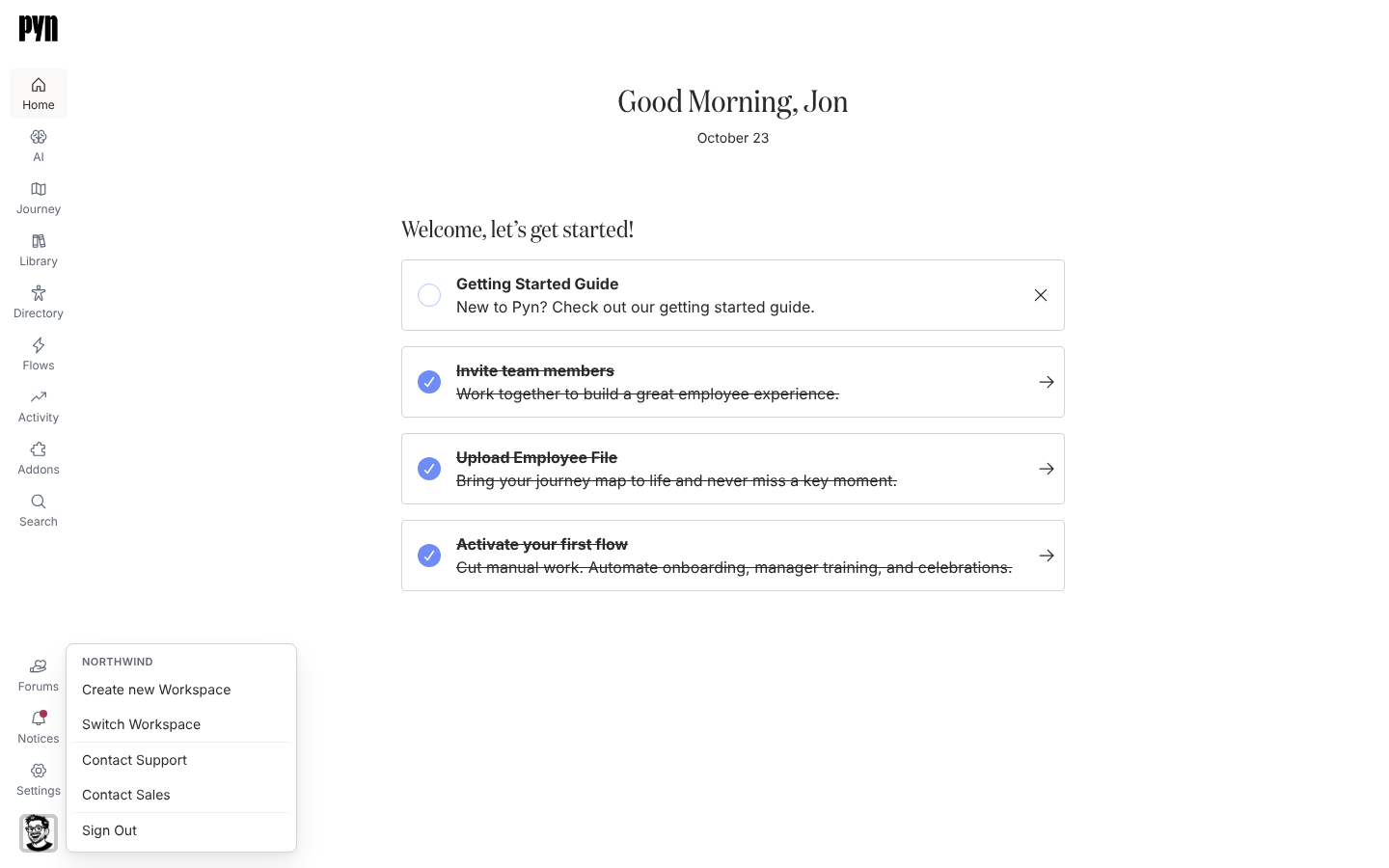
The profile menu
Section titled “The profile menu”Select your avatar (labelled Open profile) to open the menu. The heading is the name of the workspace you are in. The items are:
| Item | What it does |
|---|---|
| Create new Workspace | Opens the form described in Create a workspace. |
| Switch Workspace | Lists the workspaces your email is linked to. See Switch workspace. |
| Contact Support | Opens the Pyn support messenger in the corner of the page. |
| Contact Sales | Opens a request-a-demo form for upgrades and paid features. |
| Exit Playground Mode | Appears only in a playground workspace; returns you to sign-in and your own workspaces. |
| Sign Out | Ends your session. See Sign out. |
Your role and status
Section titled “Your role and status”Your role (Owner, Admin, Power User or User) is set by the admin who invited you, or by a group mapping when your company signs in through SSO, and it decides which navigation items you see. Your status is Pending from the invitation until your first sign-in, then Active. An admin can archive your user, which removes your access to that workspace. Roles and permissions has the detail.
Related
Section titled “Related”- Sign out for ending your session from the menu or by address.
- Switch workspace for moving between organisations.
- Roles and permissions for what your role lets you do.
- General for the Current Users list admins manage.