

Create a static group
Some audiences are a list someone wrote: this quarter’s onboarding buddies, the people on a pilot. A static group holds exactly the people you put in it.
Before you start
Section titled “Before you start”- You are a workspace admin.
- If you are pasting or uploading, you have each person’s work email as it appears in Pyn. A file is
.csv,.xlsor.xlsx; every cell that holds an email address is read, whatever the column.
-
In Pyn, open Directory in the left navigation, then select All Groups under Employee Groups.
-
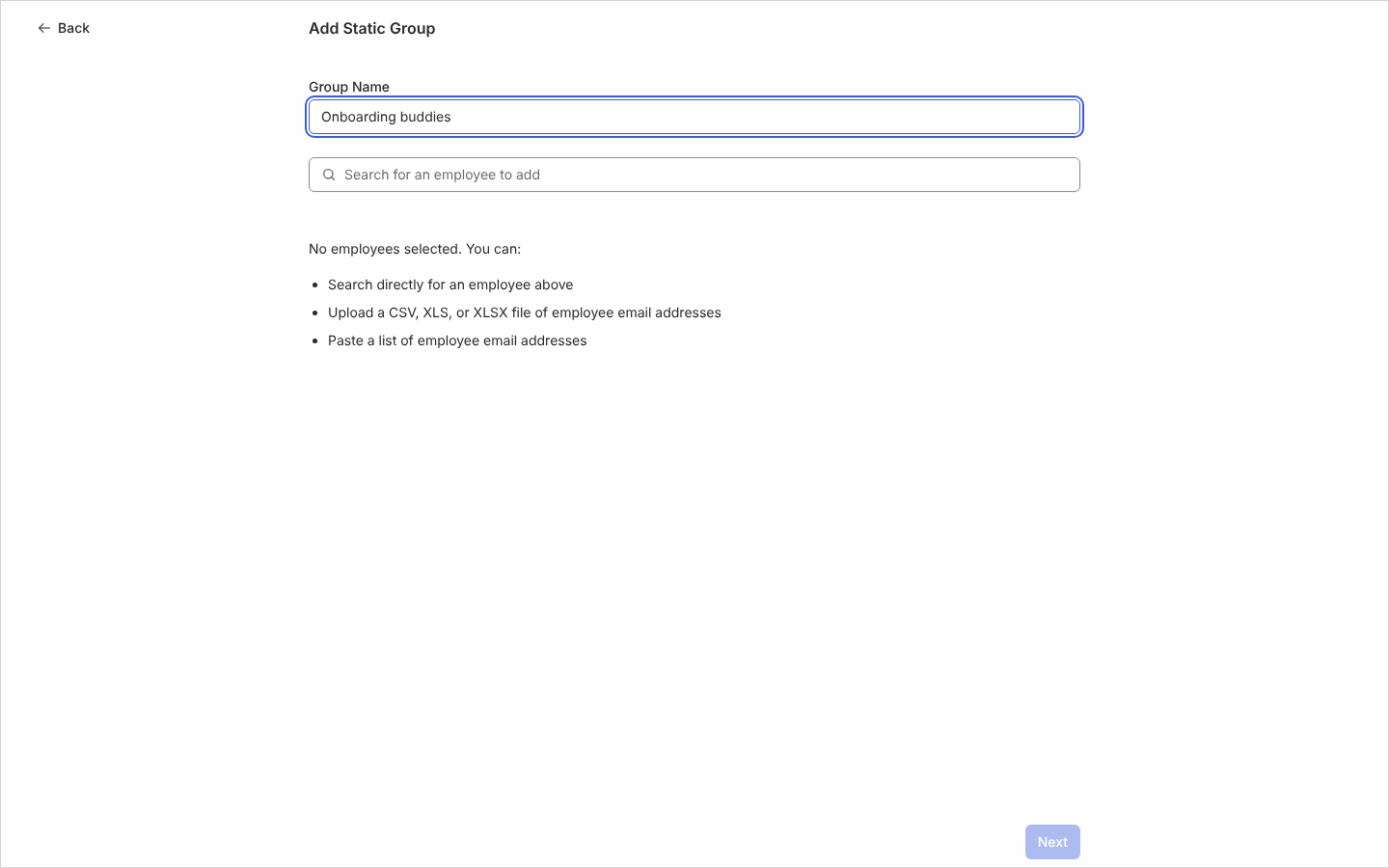
Select Create, then Static in the Create Employee Group dialog. The Add Static Group page opens.
-
Type a Group Name, for example “Leadership Team”.
-
Add people one of three ways: type in Search for an employee to add and select each match; select Paste a list of employee email addresses, paste them separated by commas, spaces or new lines, and select Process Emails; or select Upload a CSV, XLS, or XLSX file of employee email addresses and choose the file.
-
Read the result of a paste or upload. Selected Employees (N) lists who matched; a notice lists any addresses that did not match current employees, with copy to clipboard so you can check them. Remove anyone with the X on their row.
-
Select Next. The Confirm Static Group page reads Confirm to add these N employees to the group; select Confirm.
-
On Your static group has been created. select Done. The group’s panel opens.
What you should see
Section titled “What you should see”The group under All Groups with its members listed under Group Employees:, ready to include or exclude in an automation. Membership is yours to manage: Pyn does not add or remove people from a static group when their data changes.
Related
Section titled “Related”- Create a filter group when the list should follow a rule instead.
- Group types for how static groups differ from the rest.
- Automations for using the group.