

Complete the getting-started checklist
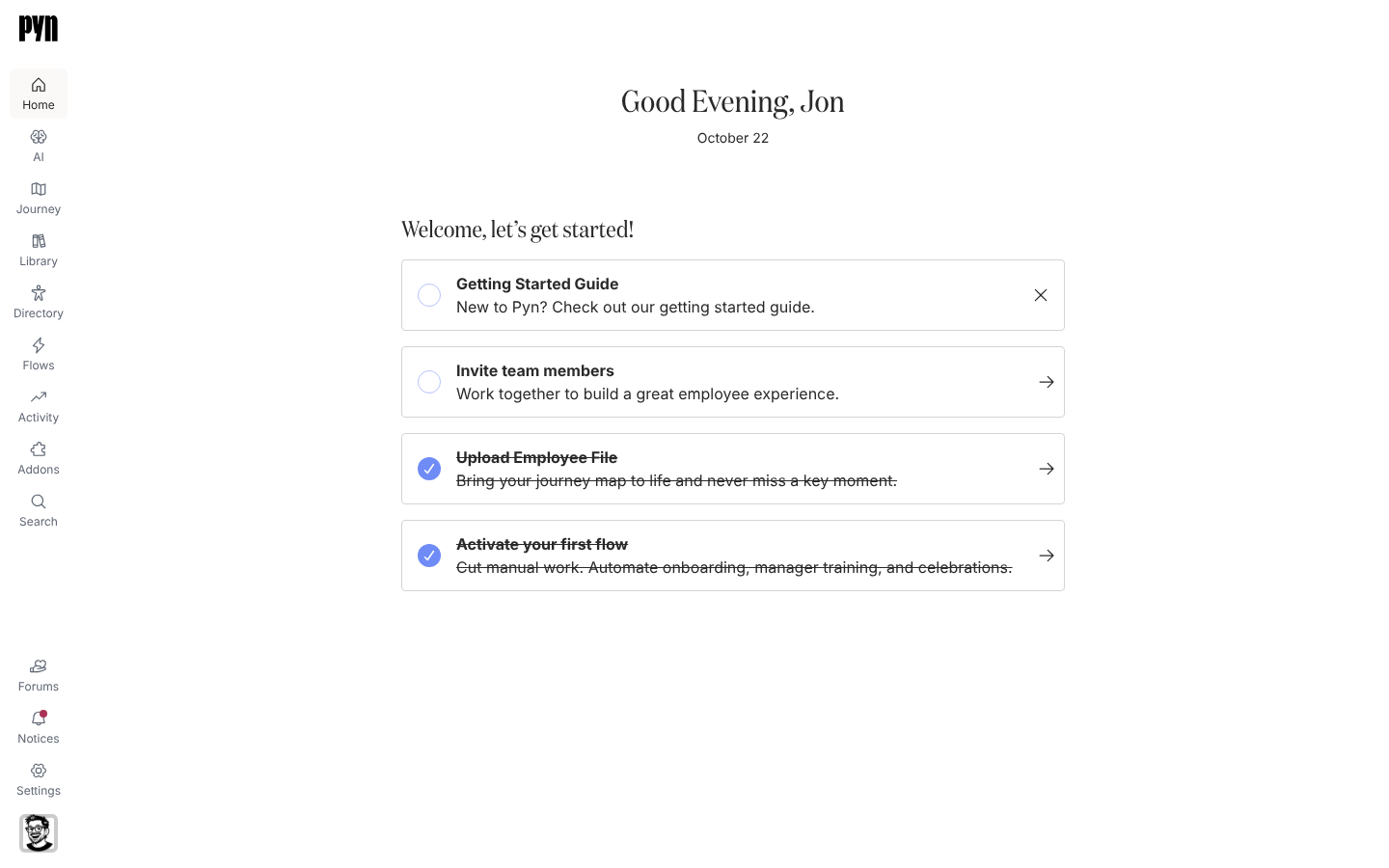
You have a new workspace and Home shows a list of cards under Welcome, let’s get started!. Each card is one setup step. Working down the list leaves you with people data, a channel to send through, a team and a live flow.
Before you start
Section titled “Before you start”- You are an Owner or Admin. The cards lead to Settings, which other roles cannot open.
- For the HRIS card, you have the credentials for your people system to hand, or a spreadsheet of employees for Employee File.
-
In Pyn, open Home at the top of the left navigation. The cards are listed under Welcome, let’s get started!.
-
Select Invite team members. The Invite user dialog opens on top of Home; enter an Email address, choose a Role and select Invite. The card ticks once the workspace has more than one user who is active, pending or created.
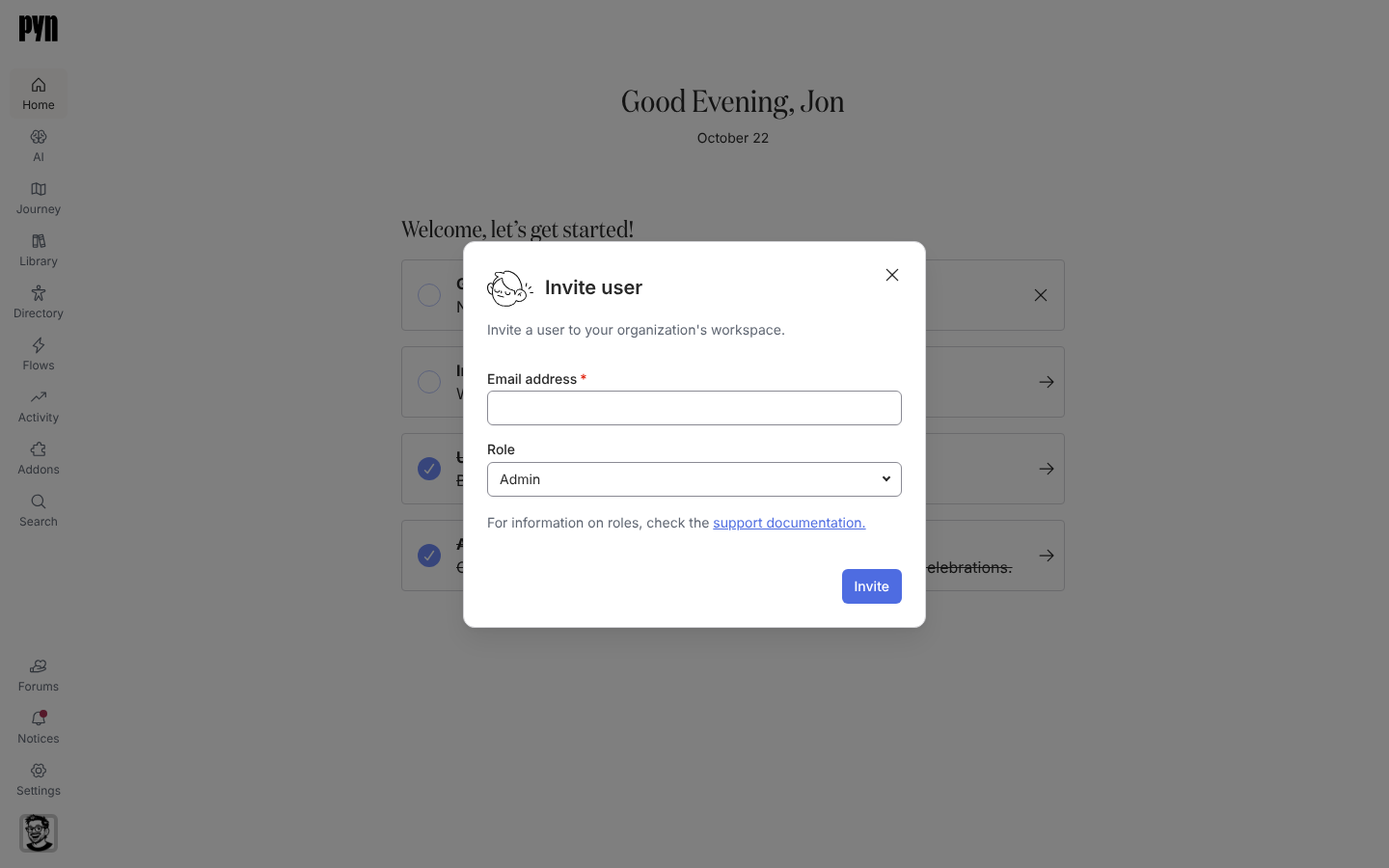
Invite team members opens the Invite user dialog without leaving Home. -
Select the people-data card. Integrate with BambooHR or Integrate with Workday opens that integration’s panel in Settings (a HiBob or Rippling workspace has no card: open Settings, Installed and select the integration); Upload Employee File opens the Employee File panel, where Download Sample File shows the columns and the upload button takes your spreadsheet. The card ticks once a first run of employees has succeeded.
-
Select Connect to Slack to open the Slack integration panel in Settings and install the Pyn app in your Slack workspace. The card ticks once a messaging integration is active. If your workspace was created with Email or Microsoft Teams as the platform there is no Slack card; connect a sender or Teams from Settings instead.
-
Select Activate your first flow. It opens Flows, where you pick an automation and select Use This. The card ticks once any automation is in Automated, Verification or Manual Only mode.
-
When you no longer want the Getting Started Guide card, select the X at its right edge. It is the only card you dismiss by hand.
What you should see
Section titled “What you should see”Every card except the guide shows a filled check and struck-through text. Home then shows the greeting, the date and the ticked list; the live view of what Pyn is sending moves to Activity.
Troubleshooting
Section titled “Troubleshooting”- The HRIS card does not tick after you connect. The tick waits for the first successful sync of employees, not for the connection itself. Open Directory to see whether employees have arrived; a sync can take a few minutes.
- You are not an admin and the cards open an empty page. Settings is hidden from Power Users and Users. Ask an Owner or Admin to complete the checklist, or to change your role.
Related
Section titled “Related”- Home for what Home shows and which cards a workspace gets.
- Set up your workspace in 30 minutes for the same steps with every screen described.
- Invite your team for roles and what the invitee receives.
- Integrations for each HRIS and messaging integration in detail.