

Employee Groups
An automation’s audience is built from groups: include these, exclude those. Pyn gives every workspace a set to start with, one group per department, location and so on, and lets you add your own. Membership is evaluated by Pyn as employee data changes, so a group you made last year still means what it said.
The five kinds
Section titled “The five kinds”| Kind | Members | You create it by |
|---|---|---|
| Demographic | Everyone with one value of a property: Department is Engineering. | Creating a demographic; Pyn makes a group per value. |
| Lifecycle | Everyone near a date: a birthday in the next week, the first 90 days after start. | Seeded; Birthday and Onboarding exist from the start. |
| Filter | Everyone matching an audience: lifecycle stages plus included and excluded groups. | Create > Filter. |
| Relationship | Everyone who has, or lacks, a manager, buddy, mentor or HRBP, or who is one. | Create > Relationship. |
| Static | The people you add. | Create > Static. |
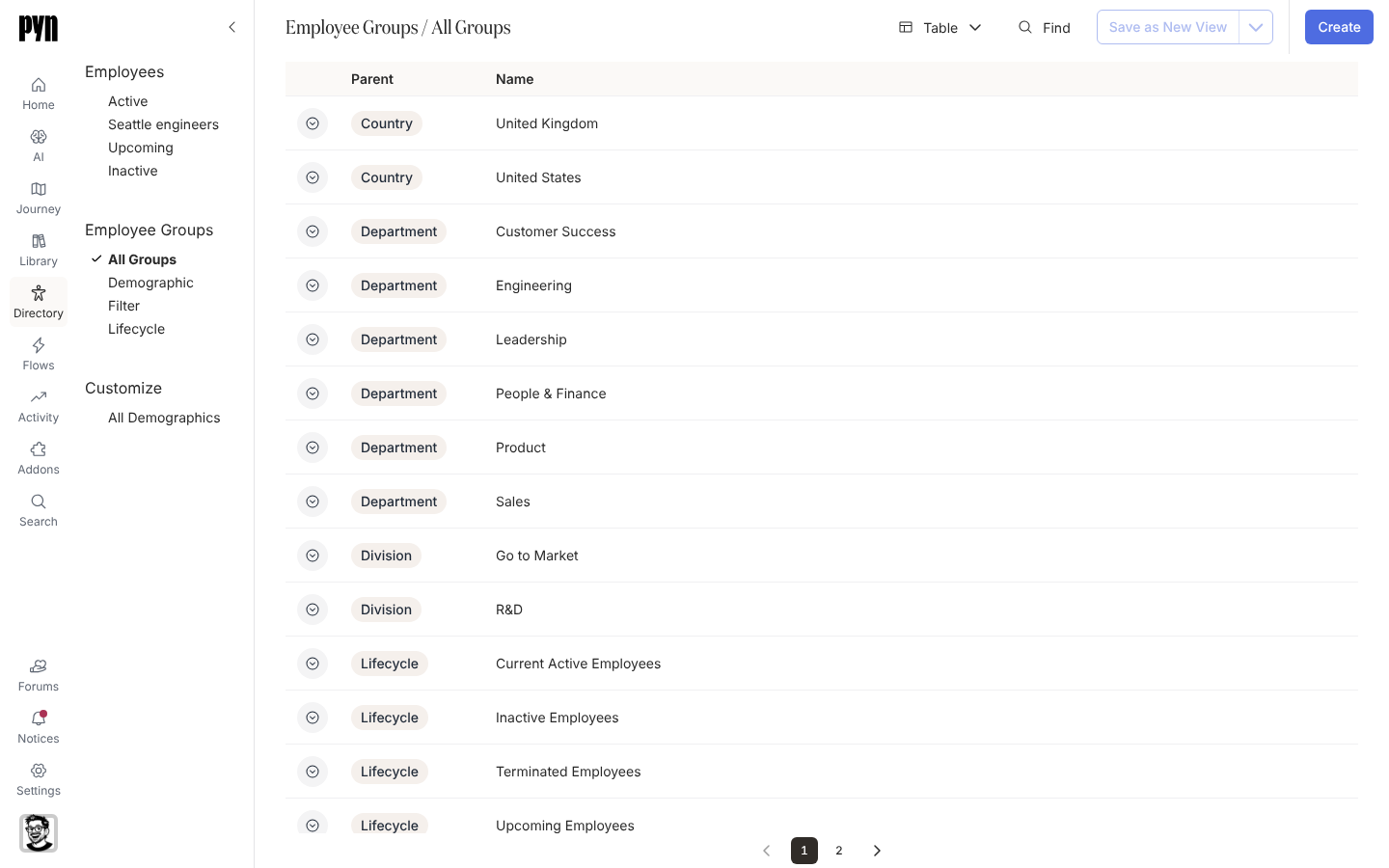
The table shows a type icon, the Parent demographic (for demographic groups) and the Name. The views Demographic, Lifecycle and Filter show one kind each; relationship and static groups are in All Groups. Select a group to open its panel with Group Employees: and, for a filter group, a Configure tab showing its audience.
What you can do here
Section titled “What you can do here”- Create a filter group for a saved audience.
- Create a static group from names, pasted emails or a file.
- Create a relationship group such as everyone without a buddy.
- Create a demographic to get a group per value of a property.
- Group types lists the seeded groups and how each kind is evaluated.
- How audiences match explains how included groups combine: any of those with the same parent, all of those with different parents.
Where it is in the app
Section titled “Where it is in the app”Open Directory in the left navigation and select All Groups under Employee Groups. Create at the top right opens Create Employee Group. A group opens in a panel on the right; Search in the navigation finds groups by name too.
Related
Section titled “Related”- Group types for the detail on each kind.
- Demographics for the properties behind demographic groups.
- Automations for using a group as an audience.