

Create a conditional sender
Your onboarding flow sends one welcome email, but you want it to come from the People partner for the recipient’s region. A conditional sender does that with ordered rules and a fallback, and you pick it on the step like any other sender.
Before you start
Section titled “Before you start”- You are an admin or owner.
- The real senders exist and are Active under Senders, all for the same medium.
- The employee groups you want to route by exist.
-
In Pyn, open Settings in the left navigation, then Conditional Senders under General.
-
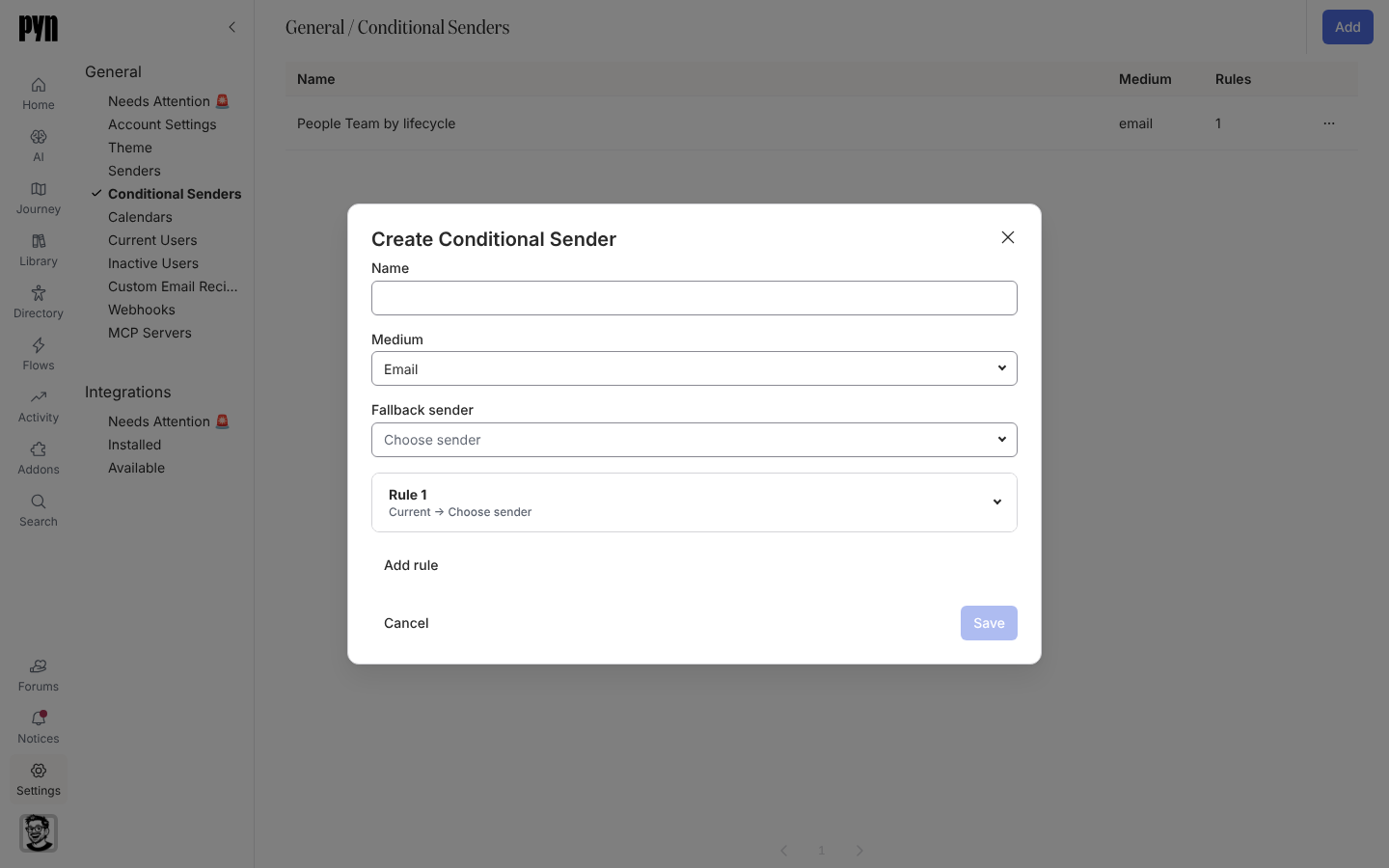
Select Add. The Create Conditional Sender dialog opens.
-
Enter a Name and choose the Medium: Email, Slack or Teams. The medium cannot be changed once the conditional sender exists.
-
Choose the Fallback sender. It is used when no rule matches and is required.
-
Open Rule 1. Set its audience (lifecycle stages, included and excluded groups) and choose Send from. The Audience Preview underneath shows who the rule covers.
-
Select Add rule for each further case. Use Move rule up, Move rule down and Remove rule to order them; the first matching rule wins.
-
Select Save. The button stays disabled until the name, fallback and every rule’s sender and lifecycle are set.
What you should see
Section titled “What you should see”The new row lists the name, medium and rule count. Open a step in Automations, choose the same medium and the conditional sender appears in the From list. Enrol a test employee and check Activity to confirm the delivery shows the sender the rule chose. If saving fails the dialog shows “Could not save conditional sender” or the server’s reason; check that every rule’s sender is still active.
Related
Section titled “Related”- Conditional Senders for how matching works.
- Senders to add the senders rules point to.
- Automations to use the conditional sender on a step.