

Read and archive notices
The badge on Notices says something needs you. Each row is one problem or one file; read it, fix what it points at, and archive it so the badge goes back to zero.
-
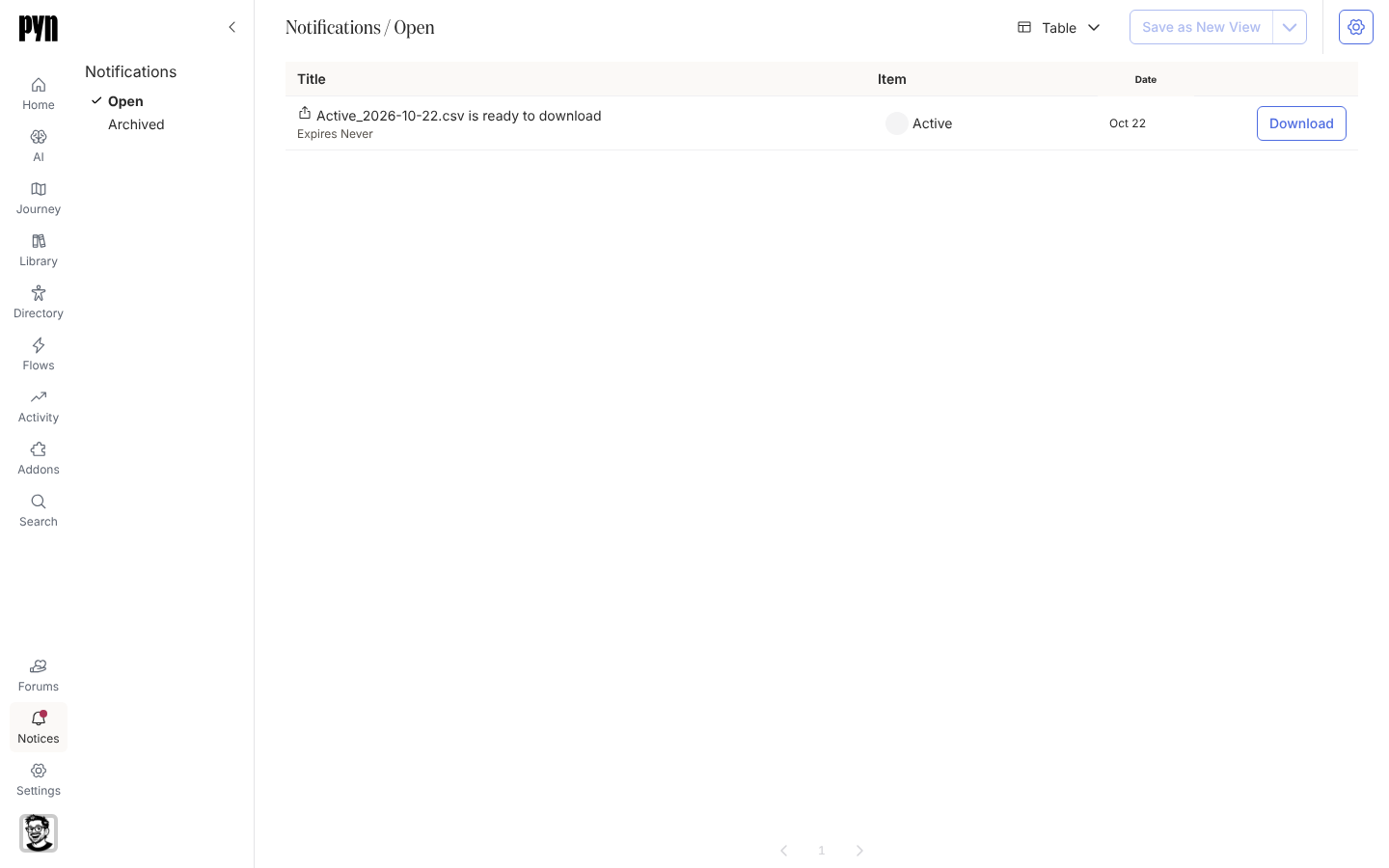
In Pyn, open Notices in the left navigation. It opens on Open, newest first.
-
Read the row. Title names the notice, for example Re-authentication required or Delivery bounced, with its message underneath; Item is the sender, integration or view it concerns; Date is when it last happened.
-
Select the row to open the notice’s panel. Details shows the full message, its Type (Temporary or Permanent) and Level (Warning or Error), when it was Last triggered at, and the items under Subject, for example each bounced delivery.
-
Fix the cause where it lives: open the sender or integration from Item and reconnect it in Settings, or correct the address in Directory. Notice types says what resolves each kind.
-
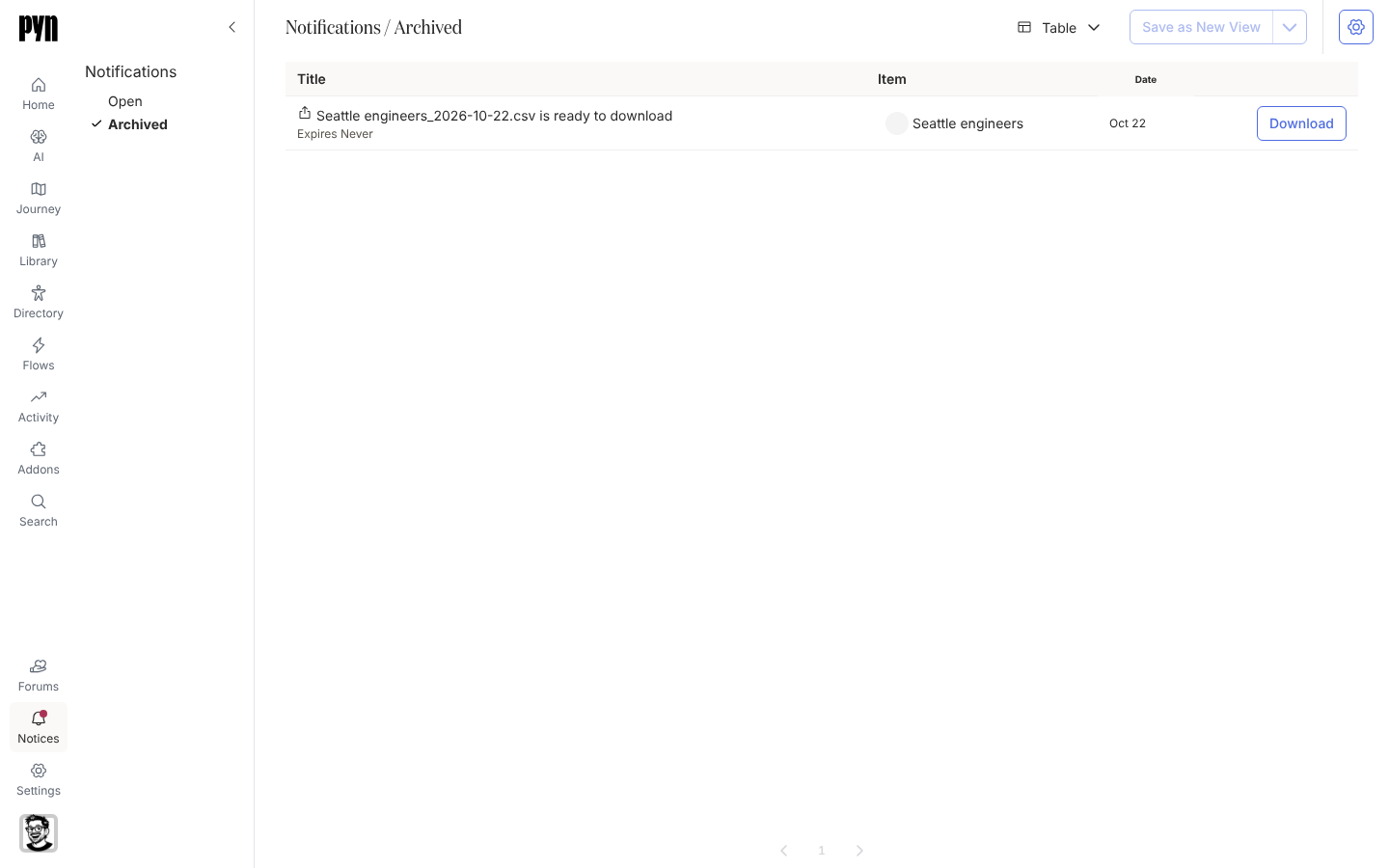
Back on the row, select Archive. The notice moves to Archived; the dropdown beside the button offers Close, which does the same.
What you should see
Section titled “What you should see”The row is gone from Open and listed under Archived, and the badge count drops. If the same problem happens again, Pyn raises the notice again as a new row. The email, if the setting is on, links to the same notice.
Related
Section titled “Related”- Notice types for what each notice means and who gets it.
- Resend bounced deliveries from a notice for the Resend action.
- Choose which notices are emailed to get them in your inbox too.