

Email is installed in every workspace. It sends through Pyn’s email service from notifications@pynhq.com or from a verified sender address, tracks deliveries and bounces, and lets you send from your own domain once you have added DNS records. There is nothing to connect; the work is adding senders and, if you want it, a domain.
Before you start
Section titled “Before you start”- To add a sender you need access to that inbox. See Add an email sender.
- To add a custom domain you need someone who can edit your domain’s DNS, and the feature enabled for your workspace.
- Ask your IT team to allow mail from
notifications@pynhq.comso verification emails and messages are not filtered. Google Workspace and Microsoft 365 both have an allow-list setting for this.
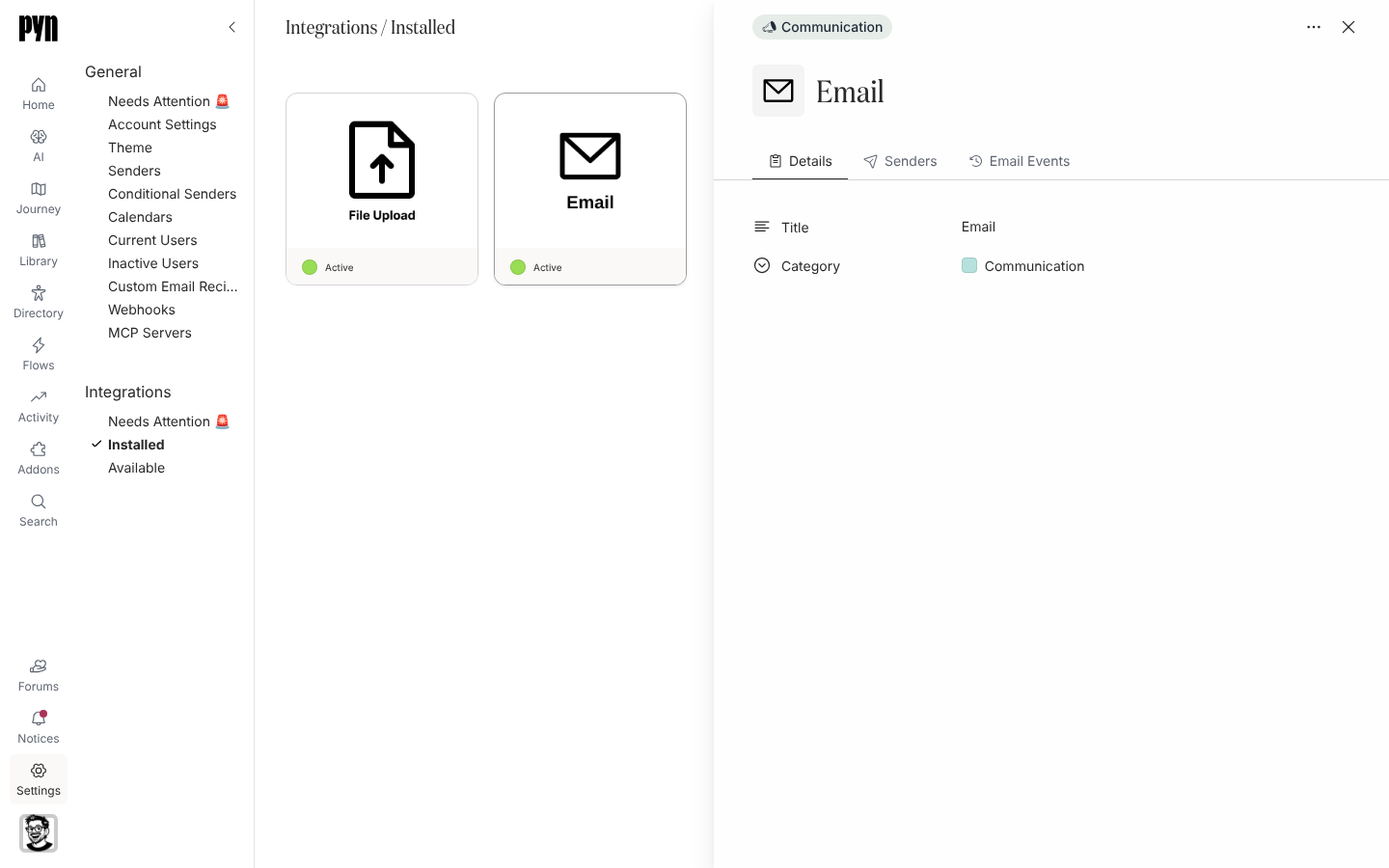
The Email panel
Section titled “The Email panel”Select the Email tile under Installed. Its tabs are Details, Senders (every verified email sender), Custom Domains when the feature is on, and Email Events (delivery events Pyn received from the email service, such as delivered and bounced). The … menu holds Activate, Deactivate and Add Custom Domain.
What it does
Section titled “What it does”- Verified senders: a name and address that becomes active after a 24-hour verification link is opened. See Sender types and states.
- Custom domains: a subdomain such as
mail.example.com, authenticated with three DNS records, so email is signed by your domain. See Set up a custom domain. - Bounces: a bounced delivery marks the message in Messages, raises a notice with a Resend action, and can email you if Send email when a delivery bounces is on in Set notification emails.
- Recipients: email goes to employee addresses from your HRIS (work, or personal for pre-boarding) and to verified custom email recipients.
Test it
Section titled “Test it”Open a sender under Settings > General > Senders, open its … menu and select Send Test. “Test Message Sent” confirms it; the email arrives in your inbox from that sender.
Reconnect or disconnect
Section titled “Reconnect or disconnect”There is nothing to reconnect. Deactivate on the Email tile stops every verified email sender; Activate restores them. Archive a single sender from the Senders view instead.
Troubleshooting
Section titled “Troubleshooting”| What you see | What it means |
|---|---|
| Verification email never arrives | Spam or a shared-inbox rule. Allow notifications@pynhq.com, then use Send Verification Email again. |
| “Verification link has expired or already been used” | Links last 24 hours and work once. Send a new one. |
| Delivery shows Bounced | The address rejected the message. Correct the employee’s email in your HRIS and use Resend on the notice. |
| Sender shows Error | The email service rejected sends from this address. Check the custom domain is verified, then send a test. |
Related
Section titled “Related”- Add an email sender for the verification steps.
- Set up a custom domain to send from your domain.
- Custom Email Recipients for addresses outside the directory.
- Messages to see delivery and bounce status.