

Read journey metrics
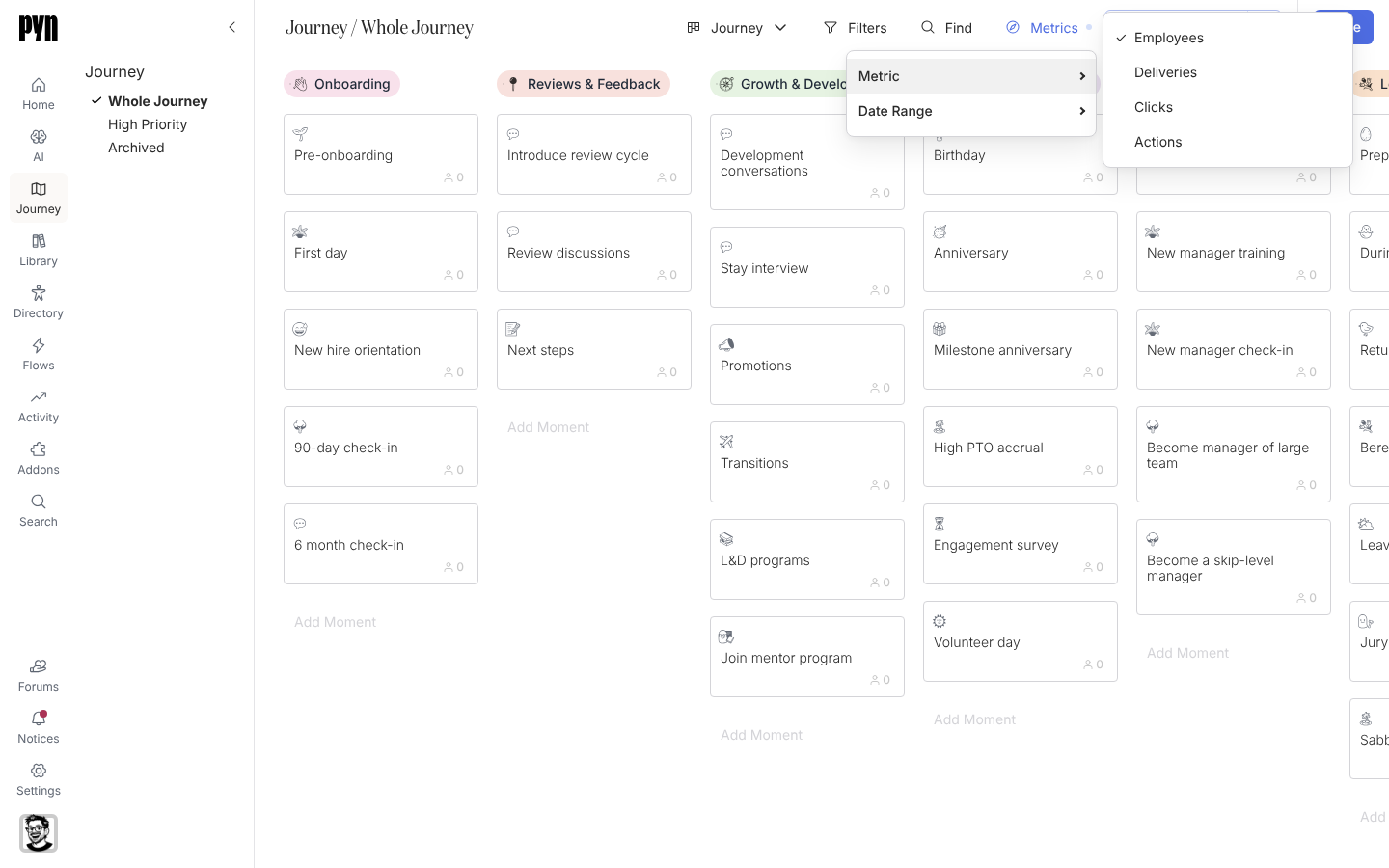
Every card on the board carries a badge with a number. On Whole Journey it is the employees who were in that moment in the last 30 days. Switch the metric to see which moments drive deliveries, clicks and actions, and over which period.
Before you start
Section titled “Before you start”- Flows are attached to moments and have run. A moment with no flows shows zero deliveries, clicks and actions.
-
In Pyn, open Journey in the left navigation.
-
At the top of the board select Metrics.
-
Hover Metric and choose one: Employees (people who were in the moment), Deliveries (messages delivered for its flows), Clicks (links clicked in them) or Actions (actions completed from them).
-
Hover Date Range and choose last 30 days, last 90 days, last 6 months or last 12 months.
-
Read the badge on each card. Hover it for the metric’s name.
-
To keep this metric and range, select Save as New View and name the view; see Save a view.
What you should see
Section titled “What you should see”The badge on every card changes to the metric you chose, and the Metrics button is highlighted. Compare columns to see where attention is going: high deliveries with low actions on a moment suggests its messages need a clearer ask or a better time.
Related
Section titled “Related”- Save a view to keep a metric and date range as a named report.
- Activity for the enrollments and messages behind the numbers.
- Filter the map to measure a subset of moments.