

Your first employee upload and groups
Goal: a Directory that matches your organisation well enough to run a flow against: every current employee with a work email, a start date, a time zone and a manager; upcoming joiners in place before their first day; and two groups ready to use as an audience.
Time: about 25 minutes, most of it in the spreadsheet.
You will end up with:
- every employee in Directory > Employees, split into Active, Upcoming and Inactive by Pyn;
- a profile per person showing their manager and the groups they are in;
- a Static group of named people (for example your onboarding buddies) and a Filter group of everyone who is about to join;
- the first automation pointed at one of them.
Before you start
Section titled “Before you start”- You are a workspace admin.
- You do not have an HRIS connected. If you do, Pyn fills Directory from it and you can skip to chapter 4; Integrations covers each connector.
- Have the list of employees to hand with, at minimum, each person’s work email, full name, start date and their manager’s email.
1. Build the spreadsheet
Section titled “1. Build the spreadsheet”Pyn reads a .csv, .xls or .xlsx file with a header row. Column names are the property keys in Employee properties.
-
Open Settings at the foot of the left navigation, select Integrations, then Available, and select the File Upload tile. Pyn creates the integration and opens its panel, headed Employee File.
-
In the panel’s banner, select Download Sample File. The file
pyn-employee-file-upload-sample.csvhas every column Pyn accepts, with example rows. -
Fill one row per employee.
employeeIdis your own stable id for the person (a payroll number is ideal),primaryEmailis their work address,displayNametheir full name. Setstatustoactive,leaveorinactive; leave it blank and the person reads as inactive. -
Put dates in
startDate,terminationDateandtenureDateasyyyy-MM-dd. Put the manager’semployeeIdinmanagerId, and likewisebuddyId,hrbpIdandmentorId. -
Give everyone a time zone, either
timeZoneas an IANA name such asAustralia/Sydney, orcountrypluspostalCodefor the US, Canada and Australia, orcountryalone for a country with one zone. -
Add the columns you want to group by:
department,location,division,team,businessUnit,jobTitle.
Delete the sample rows before you upload.
2. Upload it
Section titled “2. Upload it”-
Back in the Employee File panel, select Upload and choose your file.
-
Read the result. Success! Uploaded N records means every row passed. Otherwise the banner lists each problem as Row #n: with the column and the value it received; fix those rows and upload again. The whole file is rejected until every row passes.
-
Open Directory in the left navigation. The upload is applied in the background and the first profiles appear within a minute or two.
3. Check what Pyn built
Section titled “3. Check what Pyn built”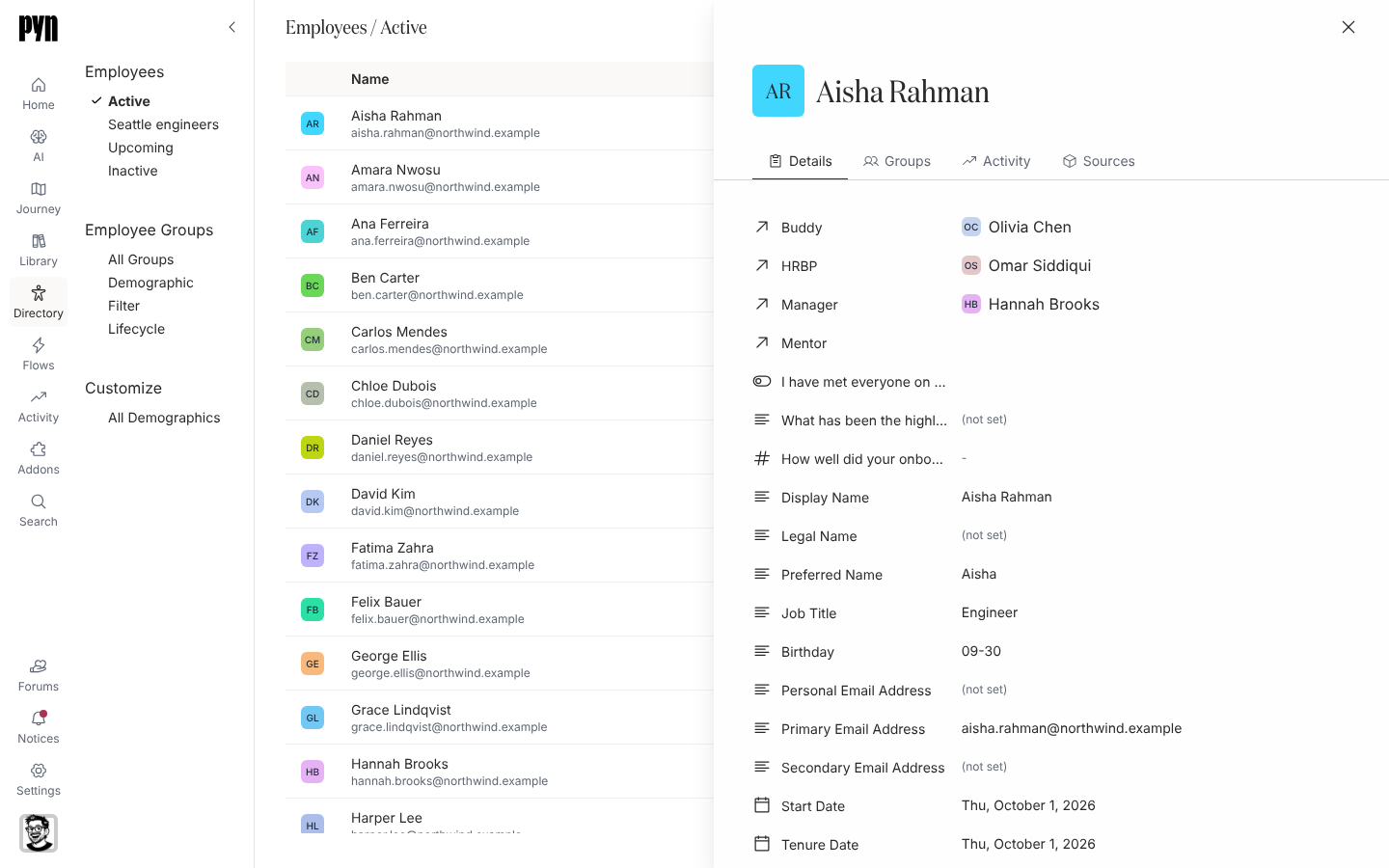
-
On Active, count the rows against your file. Someone missing is on Upcoming (a future start date) or Inactive (a past termination date, or no
activestatus). -
Read the Country and Time Zone columns. A blank time zone means Pyn could not work one out from the row; add a
timeZoneorpostalCodefor that person and upload again. -
Select a row to open the profile. On Details, check Manager and, if you supplied them, Buddy, HRBP and Mentor. A missing manager means the
managerIddid not match another row’semployeeId. -
Open the Groups tab. The person is already in the demographic groups for their department, location, division and employment type, and in the lifecycle group for their stage.
4. Add someone who is not in the file yet
Section titled “4. Add someone who is not in the file yet”A signed offer arrives after the upload. Rather than edit the spreadsheet, add them from the Upcoming view.
-
Select Upcoming under Employees, then Add employee.
-
Fill Full name, Start date, Country and Time zone (it defaults to the workspace’s zone). Add Work email if they have one, otherwise Personal email, and search for their Manager.
-
Select Add employee. The dialog confirms has been added as an upcoming joiner; select Done.
5. Create a static group
Section titled “5. Create a static group”A static group is a list you manage by hand: the people you have picked to be onboarding buddies, for example.
-
Select All Groups under Employee Groups on the left, then Create, then Static.
-
Type a Group Name, for example “Onboarding buddies”.
-
Add members by searching, or select Paste a list of employee email addresses, paste them and select Process Emails. Addresses that match nobody are listed so you can fix them.
-
Select Next, read the list, then Confirm. On Your static group has been created. select Done to open the group.
6. Create a filter group
Section titled “6. Create a filter group”A filter group is a saved audience that Pyn keeps up to date: everyone about to join, say, or every current engineer outside the leadership team.
-
Select All Groups again, then Create, then Filter.
-
Type a Group Name, for example “Upcoming joiners”.
-
Under Lifecycle, remove Current with its x and choose Joiner. Leave Included and Excluded empty.
-
Select Preview, read the list, then Confirm. On Your filter group has been created. select Done.
The group’s panel shows This filter group is still being evaluated until Pyn has checked every employee, then lists its members. Every later upload re-evaluates it.
7. Point a flow at it
Section titled “7. Point a flow at it”-
Open Flows in the left navigation and open an automation, or create one.
-
In its audience, add “Upcoming joiners” under Included. Automations explains the trigger and the audience in full.
Related
Section titled “Related”- Upload employees from a spreadsheet for the monthly update, and Export employees to start that update from what Pyn has.
- Create a relationship group for everyone without a buddy, and Create a demographic to group by a property such as Job Class.
- Employee properties for every column, and how stage and time zone are worked out.
- Fix a missing manager, time zone or email when a profile is not what you expected.