

Choose recipients and Cc
Every step in an automation runs for one employee, the principal, but the person who receives it is often someone around them. The To field names that person relative to the principal, so one step reaches the right manager or buddy for every enrollment.
Before you start
Section titled “Before you start”- To email a shared inbox or someone outside Pyn, add them first under Settings, Custom Email Recipients and verify the address. See Settings, General.
- Buddy and HRBP come from your HRIS or from a form; a step addressed to a relationship nobody has set is skipped for that employee.
-
In Pyn, open the automation from Flows, Automations, and select the step to open it on Configure.
-
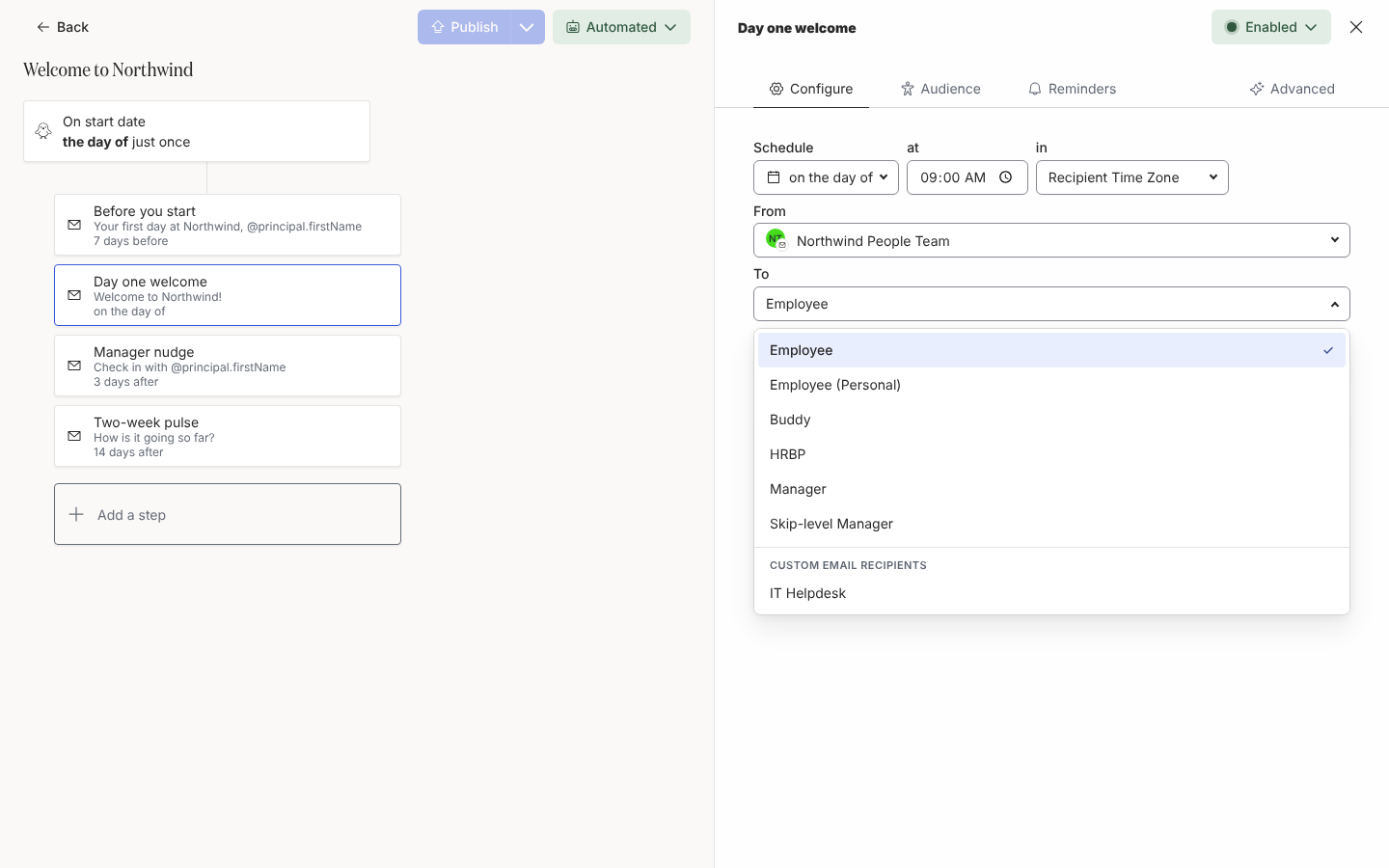
Under To, choose the recipient:
- Employee: the principal, at their work email or Slack account.
- Employee (Personal): the principal at the personal email address from your HRIS. Email steps only; use it before the start date.
- Buddy, HRBP, Manager, Skip-level Manager: the person in that relationship to the principal.
- Under Custom Email Recipients, a verified address such as
people@yourcompany.com. Email steps only.
-
On an email step, add up to three Cc recipients from the same list. A new Cc row appears after you fill the last one; select (Clear) in a row to remove it.
-
On a Post to Channel step, To is the channel, chosen from the channels the sender is a member of. On an Add to Channel step, To is the person added and Channel is the channel.
-
Select Preview and pick an employee under Preview for principal to confirm who the step resolves to for them. The preview header shows the resolved recipient.
Groups and lists of people
Section titled “Groups and lists of people”A campaign step has a To multi-select instead of a single recipient: pick employee groups, individual employees and the relative recipients together, and every member receives it. See Create a campaign. In an automation, narrow who gets a step with its audience rather than by listing people.
What you should see
Section titled “What you should see”The step card shows the recipient, for example Manager. Under Enrollments, each enrollment’s step lists the resolved person by name, or reads Unknown recipient when the relationship is empty for that employee. A custom email recipient removed from Settings disappears from every step that used it.
Related
Section titled “Related”- Settings, General for Custom Email Recipients.
- Set a step audience to send a step to only some enrolled employees.
- Tokens for
principalversusrecipienttokens. - Create a campaign for steps sent to groups.