Skip to content
PynPyn

Shipping news

New features, improvements and fixes in Pyn, one post a week. Each post tells the story of the week’s biggest changes, then lists every fix and improvement.

See which links get clicked on the Dashboard
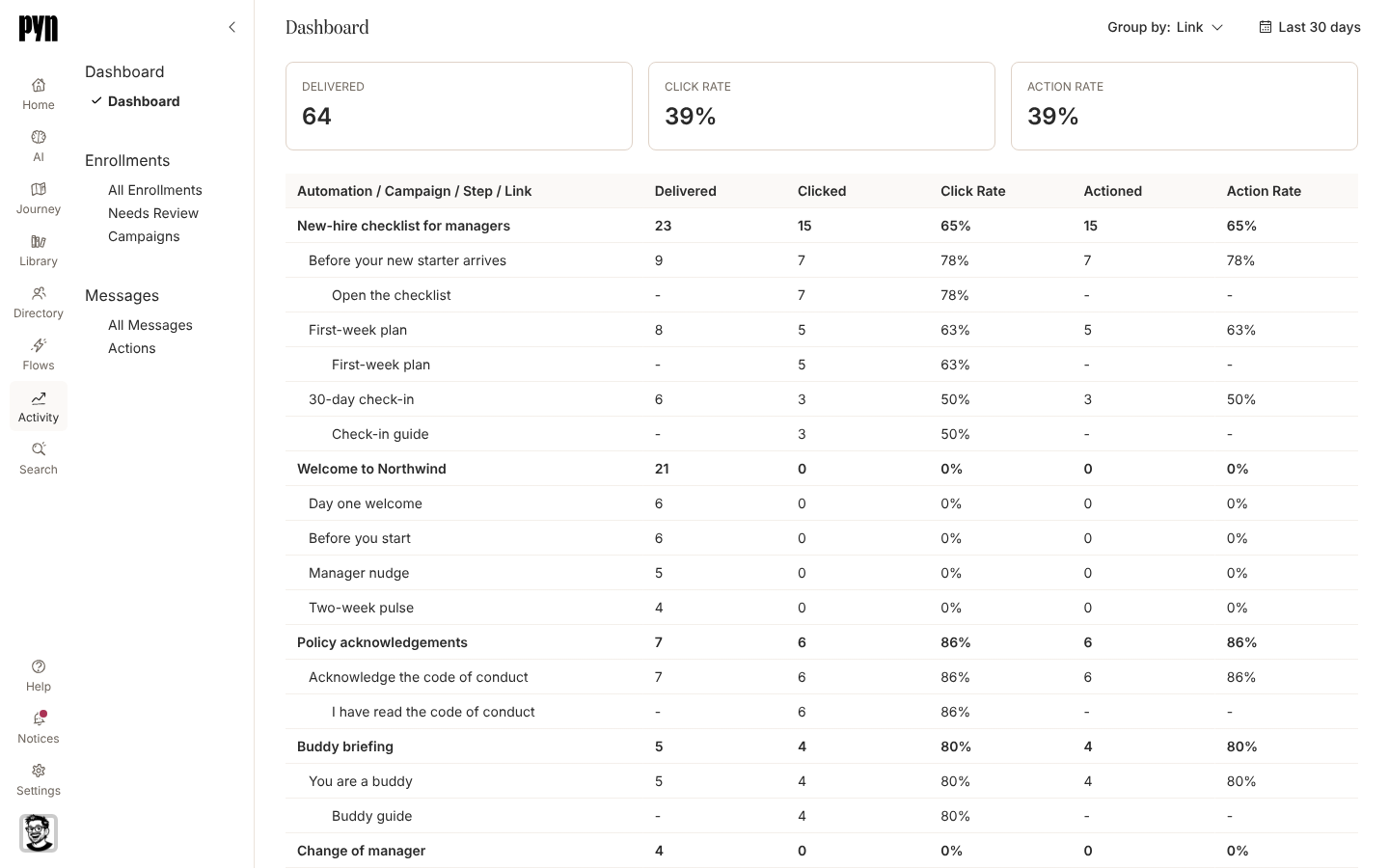
The Activity Dashboard grouped by Link: under each automation its steps, and under a step the button that was clicked, with Clicked and Click Rate filled in and a dash under Delivered, Actioned and Action Rate.
Group by: Link lists each clicked link under its step, with the deliveries it was clicked in and its click rate.

Where the Dashboard is enabled for your workspace, Group by: Link on Activity, Dashboard lists the links in each step, most clicked first, with the number of deliveries each link was clicked in and its click rate against the step’s deliveries. A link is named by its button label, by its text and URL, or by the URL alone; a form or poll button without a label reads Open Form or Take Poll, and links in a step’s reminders and escalations are counted under that step. Read the Dashboard

Where themes are enabled for your workspace, a composed email now goes out in your theme, whichever email sender it is sent from: your font, your link and button colours and, when Show Logo in Emails is on, your logo. Settings, Theme also takes a footer image, shown at the bottom of each composed email when Show Footer in Emails is on, and Logo as Banner shows the logo at its own size, up to the full width of the email. A Raw HTML email is sent as written. Theme your emails

A verified email sender can carry a Signature: formatted text with links that Pyn adds to the end of every composed email sent from it, test sends included. Write it under Edit in the sender’s menu, and leave it off a single email by unticking Include the sender’s signature (verified email senders) on the step’s Advanced tab. Add an email sender

Admins can create a lifecycle group in Directory: choose Birthday or any date on the employee record, including the custom date fields your HRIS adds, and set Days Before and Days After to say how long each person is in the group. Edit on the group’s menu changes the days or the title later. Use the group in an audience, or point a Group Change trigger at it to enrol each person as they enter the window. Create a lifecycle group

Employee Groups has a Relationship view, so groups such as everyone with a manager or everyone without a buddy are in one place beside Demographic, Lifecycle, Filter and Static. Employee Groups

Audience Preview on an automation’s audience and on a step’s audience now has Find by name or email. Type part of a name or work email and the list narrows as you type, with the heading counting the matches, for example Audience Preview (3 of 24 match). Set the audience for an automation

An automation’s enrollments beside its steps

Section titled “An automation’s enrollments beside its steps”

In the automation editor, Activity on the right-hand rail lists the automation’s enrollments, newest first, each with the employee, the enrollment’s title and its status. Select one to open that enrollment. Automations

In an email step’s Preview, an embedded form or poll is now a button with its label, as it is in the email itself. Select it to see the form’s fields, then Back to return to the email; Submit there records nothing. Preview and send a test

Change a date trigger from its Configure tab

Section titled “Change a date trigger from its Configure tab”

On a date trigger, the first line of the Configure tab, “This flow runs based on the employee’s Start Date”, ends in a Change trigger link that opens Select Trigger, so you can switch an automation to another trigger without opening the drawer’s menu. Configure a date trigger

For employees synced from HiBob, Pyn reads Bob’s original start date as Original Start Date in HiBob, and Tenure Date counts from it when Bob has one, so anniversary messages and the tenure token reflect the whole time someone has been with you. HiBob field mapping

An error when something does not go through

Section titled “An error when something does not go through”

When Pyn cannot start a Google Workspace or Microsoft 365 connection, refresh a sender’s details or a calendar’s events, send a test from a Google or Microsoft 365 sender, add a step from the Campaigns calendar, or connect Workday, Okta or single sign-on, it now says so in a dialog or toast instead of nothing happening. Google Workspace

When you sign in with a magic link, Pyn now tells you when the address you typed is not an email, sends one link for each press of Send rather than several while the first is on its way, and says so if the link could not be sent. Sign in with a magic link

In the automation editor, a long step title now ends in an ellipsis on one line instead of pushing the message preview out of place, and in a step’s activity the Cc badge sits beside the recipient’s name. Choose recipients and Cc

Easier to use with a keyboard or screen reader

Section titled “Easier to use with a keyboard or screen reader”

Much of this week’s work is accessibility. Screen readers now announce status dots, the purpose of each table, pagination controls, menu choices and options that are still loading; the Refresh action on an error page, a step’s Rename, the Remove button on a form field and the month headings on the year calendar can all be reached with the keyboard; and loading and sign-in animations stop for people who prefer reduced motion. The full list is under Fixes and improvements below.

  • Turn off link and media previews on a draft Slack message in a campaign: its Advanced tab has Deactivate link unfurling and Deactivate media unfurling. Deactivate link and media unfurling
  • A campaign message that is sending or complete shows a View deliveries link beside its status, which opens the step page with each recipient’s delivery. Campaign states
  • When an Invite to Calendar Event step has no events to pick, the Event field says why: the calendar is still syncing, it needs reconnecting, or it has no upcoming events. Invite to a calendar event
  • Workday refreshes fill Division and Employment Type when the report includes them. Workday
Fixes and improvements 93
  • Admins can save an Email Format choice in Account Settings, although it does not yet change the format of new or existing steps.
  • The calendar-event picker now explains whether events are syncing, the calendar needs reconnecting or no upcoming events are available.
  • Sending and completed campaign messages now offer a View deliveries link beside their status.
  • Workday refreshes now fill Division and Employment Type when those fields are included in the report.
  • Help Centre guides now cover email branding and signatures, lifecycle groups, audience searches and recent editor changes.
  • Dashboard guides now show example deliveries, clicks and link results instead of empty charts.
  • Dutch, German, Spanish, Japanese and Simplified Chinese Help Centre guides now reflect recent changes and use clearer, more consistent wording.
  • When connecting an AI assistant, the server-name hint now states the 63-character limit.
  • Help Centre guides now explain updated connection errors, magic-link sign-in feedback and the form-response export limit.
  • Dutch, German, Spanish, Japanese and Simplified Chinese Help Centre guides now reflect recent changes and use clearer wording.
  • You can change a date-based automation trigger directly from its Configure tab.
  • HiBob employees now show their original start date, and tenure uses it when available.
  • The Library upload dialog now clearly explains that you can add several files at once.
  • Labels for adding a moment and previewing a theme are easier to read.
  • Help links within text are now underlined to make them easier to spot.
  • More loading and sign-in animations now respect your reduced-motion preference.
  • Help Centre guides now reflect campaign search, automation controls, link reporting and connection troubleshooting.
  • More Help Centre guides are available and up to date in Dutch, German, Spanish, Japanese and Simplified Chinese, with corrections to translated wording.
  • Help stays visible at the bottom left of full-screen editors when a side panel is open.
  • You can now click the edit label on a conditional section when another conditional section sits directly below it.
  • Search now finds items when the search text includes punctuation, such as dates or email addresses.
  • A failed Slack channel invitation now correctly identifies a missing recipient instead of reporting a missing channel.
  • New Classic migrations now preserve pre-onboarding email routing, enabled steps, active senders and supported workspace time zones.
  • The View content button now fits beside the selected Library content in the Read More dialog.
  • People signed in through single sign-on can now create a workspace without the attempt failing and leaving an incomplete workspace behind.
  • A tab left open across an update now reloads once when it needs an outdated page stylesheet instead of showing an error page.
  • Back from a message’s Activity page now returns to the page it was opened from instead of going one page too far.
  • Library content tiles now keep their size while their cover and moment information load.
  • You can rename a webhook from its Details panel and see the updated title without reloading.
  • ADP Connect and Reconnect now check credentials before saving them, so a failed check does not replace a working connection.
  • Adding or reconnecting a Slack sender now returns to Senders with that sender open.
  • Workday employee time zones now map correctly when the reported offset differs or the location is named Kyiv.
  • New Classic migrations now preserve automation Cc recipients that name a specific employee.
  • Microsoft 365 sender entries now show their avatar instead of an empty space.
  • The Senders table now identifies Microsoft 365 senders that need reconnecting.
  • Email previews and sent or scheduled campaign messages no longer appear as greyed-out fields.
  • Japanese and Simplified Chinese Help Centre pages now display bold text correctly instead of stray asterisks or the wrong emphasis.
  • Editing a campaign message no longer loses the cursor when your changes save.
  • Magic-link sign-in now flags invalid email addresses, prevents duplicate requests while sending and reports failed requests.
  • Northern Territory employees now receive the correct time zone when an imported postcode is missing its leading zero.
  • Long automation step titles now stay on one line so they do not push the message preview out of place.
  • The Cc badge now stays beside the recipient’s name in message activity.
  • Employee date descriptions now correctly distinguish termination dates from start dates and spell seniority correctly.
  • Email connections created or reactivated through Settings now show the Communication category.
  • Email connection icons now retain their default label when no title is supplied.
  • Japanese and Simplified Chinese Help Centre pages now display bold text correctly instead of showing stray asterisks or emphasizing the wrong words.
  • Removing a form or poll field now works more reliably with keyboard and screen-reader navigation.
  • Test-message confirmations now spell “Successfully” correctly.
  • Failed Google and Microsoft 365 test emails now show an error instead of a success message.
  • More sender and integration menu choices now have accessible names and support typing to find an option.
  • A missing Google connection no longer causes Pyn to sign you out unnecessarily.
  • Failed attempts to reconnect or add Google and Microsoft senders or calendars now show an error.
  • Failed attempts to deactivate or archive a Rippling connection now show an error.
  • Refreshing Google sender details now shows an error when the request fails.
  • Refreshing Google or Microsoft calendar events now shows an error when the request fails.
  • A failed attempt to add a step from the calendar now shows an error.
  • Failed Workday and single sign-on connection requests now show an error when the service cannot be reached.
  • Failed attempts to create an email or employee-file connection now show an error.
  • Add to Channel headings and test confirmations now describe the action consistently.
  • Failed Okta connection and credential-update requests now show an error.
  • Form and poll exports now stop at the stated limit of 1,000 responses instead of including an extra response.
  • Connect to Slack now opens the installed Slack integration so you can reconnect it when needed.
  • You can now reach and activate the Refresh action on error pages using the keyboard.
  • In Classic, more employee and scheduling selectors now have correctly associated labels for screen readers.
  • You can now focus and scroll a message’s reading area using the keyboard, including in Safari and Firefox.
  • Clicking anywhere in a date field now opens its calendar where the browser supports it.
  • ADP refreshes now allow more time to establish a connection before timing out.
  • Back from an automation editor now returns to the page and journey moment you opened it from.
  • Single sign-on now explains when the email address you entered is invalid.
  • HiBob service-user connection checks now stop with an error when a request takes too long.
  • Workspaces newly migrated from Classic now recognize their existing Slack connection.
  • ADP connection failures caused by a temporary outage now report that outage instead of an unknown error.
  • Screen readers can now identify warnings attached to automation roles.
  • More status and tab explanations now work with screen readers and keyboard navigation.
  • Screen readers can navigate the main content and navigation areas on account and sign-in pages more easily.
  • Home and detail panels now use a clearer heading order for screen-reader navigation.
  • Screen readers can now distinguish pagination controls for notices and enrollments.
  • Screen readers now identify the campaign scheduling menu.
  • Help links for Rippling and custom Slack bots now open the correct guides.
  • Screen readers now announce status dots instead of skipping their labels.
  • Missing sender and recipient names now display a dash instead of a blank space.
  • Screen readers now identify the categories in the emoji picker.
  • Loading choices now announce that they are loading to screen readers.
  • Deliveries without message text now show a dash in the message list.
  • The rename action for a step now appears when reached with the keyboard.
  • Screen readers now identify tables by their purpose instead of a generic label.
  • Sign-in and test-message confirmations now use corrected wording.
  • You can now open a month from its heading using the keyboard.
  • Workday connection checks now report an error when the response cannot be read.
  • Screen readers now skip the decorative image shown while an upload is being scanned.
  • Screen readers now identify the field for entering a color code.
  • Custom email-domain setup now clearly distinguishes valid and invalid settings with the intended colors and borders.
  • A failed image export in Firefox no longer leaves exporting stuck or prevents another attempt.

Release notes: 9 November 2026, 10 November 2026 and 13 November 2026.
Get started with Pyn from Home

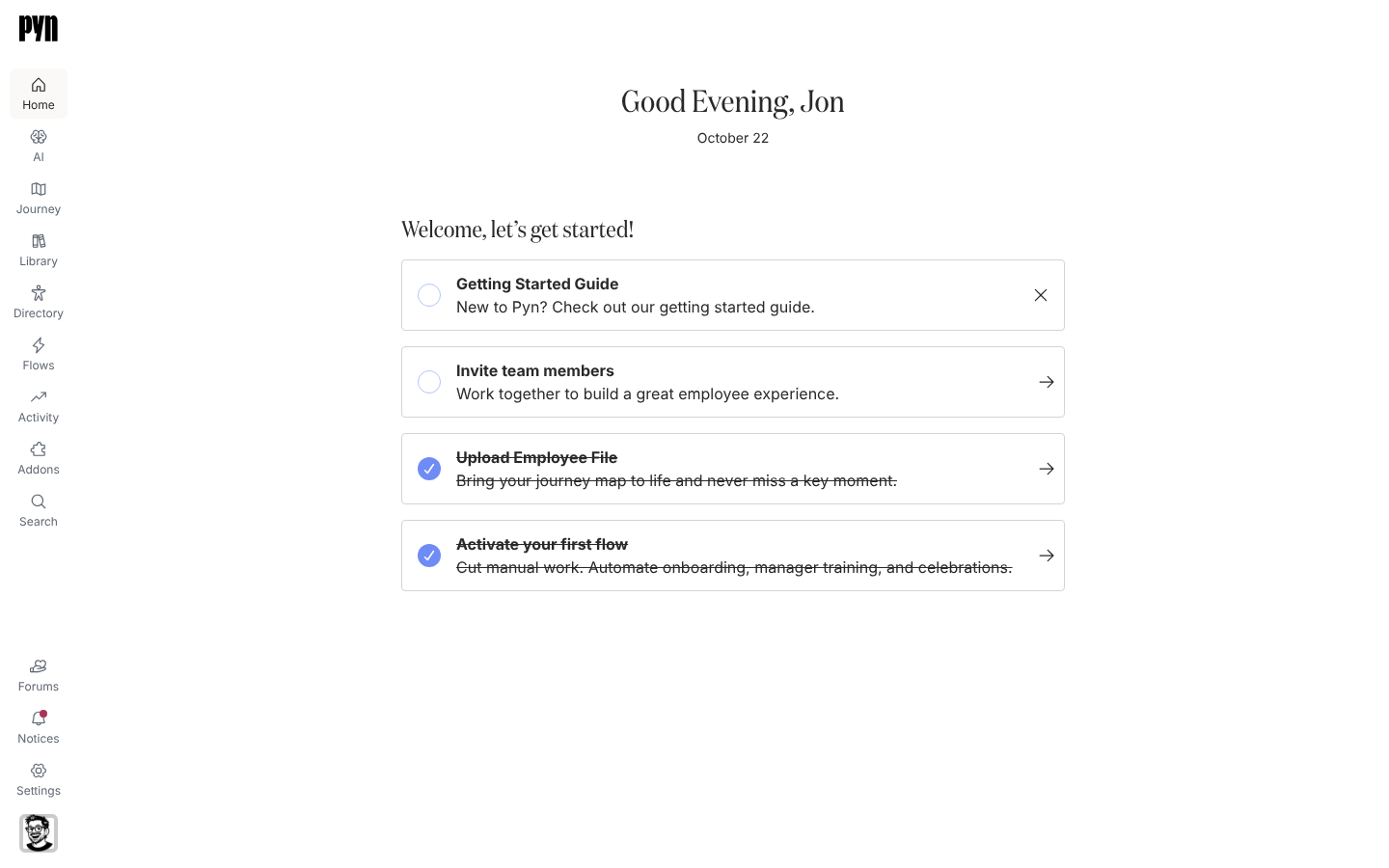
The Home page with a greeting, the date and the Get started with Pyn section: a progress bar and a row of numbered step cards, each with a status and a button.
Home greets you by name and shows the getting-started steps with their progress.

Home now shows admins Get started with Pyn: a progress bar and a row of step cards for the things a working workspace needs, from people data and a channel to a live flow, a campaign, a library page, a form and a look at Activity. Each card’s button opens the place in the app where you do that step, and Pyn works out from the workspace itself which steps are done, so you can do them in any order. Select the X on a card to mark a step Not for me, or Hide getting started from the heading’s menu to take the section off Home for everyone. Complete the getting-started checklist

A campaign step can now go to any kind of employee group: demographic, lifecycle, filter, static or relationship. Pick as many as you need under To; each is listed with how many employees it holds and its kind, and everyone in them receives the step. Create a campaign

An automation step can do the same through Specific employee or group…: choose one person, such as your payroll lead, or one group, and every enrollment sends to them. The groups are listed before you type, each with its member count. Choose recipients and Cc

Filters on Activity, All Messages now has Employee and Source: narrow the list to one person’s messages, or to the automations and campaigns you tick, alongside Status. Sort starts on Newest first and offers Oldest first, Recently delivered, Recently created and a sort that puts scheduled, completed or draft messages first. A campaign message names its campaign under Delivery. Messages

Open any employee group and select the export button beside Group Employees: to download its members as a CSV named after the group. Every kind of group exports, including the demographic and lifecycle groups Pyn seeds. Export a group’s employees

Switch a campaign message between email and Slack

Section titled “Switch a campaign message between email and Slack”

A draft campaign message can change channel without being rebuilt: open its menu and select Switch to Slack or Switch to Email. The message and subject stay, you choose a sender for the new channel, and recipients the new channel cannot reach are dropped. The option is offered while the step reads Draft or Manual. Create a campaign

Each step in the calendar sidebar now carries a glyph before its date that says whether it is a draft, scheduled, sending or delivered, and a campaign’s panel shows Created by under Moment, including campaigns started from a template or duplicated. Campaign states

Above the campaigns listed for the month or year in view, Search campaigns and steps finds a campaign by part of its title, or by part of a step’s title (the subject, or the first line of a message with none); a campaign matched through a step lists only the matching steps and opens so you can see them. Create a campaign

Employee Groups has a Static view, so the groups you built by hand are in one place beside Demographic, Lifecycle and Filter, and Search in the navigation finds them by name. Employee Groups

Start a campaign from a template on the calendar

Section titled “Start a campaign from a template on the calendar”

On the Campaigns calendar, the arrow beside Create new offers Create from template, so admins can pick a ready-made campaign from the catalogue without leaving the calendar. Create a campaign

Lay out an email left, centered or full width

Section titled “Lay out an email left, centered or full width”

An email step’s Advanced tab now has an Email format choice. Centered, the default, keeps the message in a column up to 600 pixels wide in the middle of the mail client; Left pins that column to the left edge; Full width lets the message span the whole window. It applies to a composed message, including the test you send yourself, and the choice disappears once Email body is Raw HTML. Add an email step

Campaign email steps have the same Advanced tab and, where Raw HTML email is enabled for your workspace, the Email body switch from a composed message to Raw HTML. Create a campaign

  • Upload several media files to the Library at once; a file that fails does not stop the ones after it. Upload media
  • Where your workspace has an Equipment Pickup Office field, turn it into a demographic with a group per office. Create a demographic
  • Admins see a Schema size on an MCP server’s Advanced tab: the kilobytes and approximate tokens its tool list takes up in a connected AI assistant, with a note once the list passes 256 KB. Add an MCP server
Fixes and improvements 94
  • Campaign message lists now show whether each message is a draft, scheduled, sending or delivered.
  • Search results now use larger text, pictures and rows to make them easier to read.
  • The retired Addons area no longer appears in navigation.
  • Automation, campaign and journey pages no longer show the old setup banners and prompts.
  • The Library upload dialog now clearly explains that you can add several files at once.
  • Home’s setup heading now keeps a matching fallback font if its usual font cannot load.
  • Help Centre guides now reflect the setup checklist, campaign controls, employee exports and employee-file behavior, with corrections to earlier guidance.
  • More Help Centre guides are available and up to date in Dutch, German, Spanish, Japanese and Simplified Chinese, with corrections to translated wording.
  • Connected AI assistants now receive clearer instructions about the information required to filter, sort and schedule work in Pyn.
  • You can find product updates under Shipping news in the Help Centre, with a new sailing-ship illustration.
  • Help Centre pages no longer show migration notes linking to old articles.
  • Help Centre guides now explain Slack mentions, email layouts, integration choices and more failure messages.
  • Dutch, German, Spanish, Japanese and Simplified Chinese Help Centre guides now reflect more recent changes and include wording corrections.
  • Recipient pickers now show group member counts and clearer icons for each kind of recipient.
  • Delivery schedules now display in their resolved time zone, with older deliveries using your browser’s time zone.
  • Navigation now uses hand-drawn illustrations, and employee lists show larger profile pictures.
  • Disabled automation steps now use a striped background instead of crossing out their titles.
  • Built-in Directory views now keep a consistent layout and no longer offer Export in their view menus.
  • Campaign lists and journey boards now show properly sized loading placeholders, including in Safari.
  • More Help Centre guides are translated into Dutch, German, Spanish, Japanese and Simplified Chinese, with further wording corrections.
  • Help Centre guides now reflect updated recipient choices, campaigns, uploads, schedules and failure messages.
  • Greenhouse connection guidance now clearly asks for current connection credentials instead of retired API keys.
  • Long selected values now fit inside their fields instead of overflowing them.
  • A failed attempt to close, archive or acknowledge a notice now shows an error.
  • Failed ADP, Ashby, Greenhouse and HiBob connection requests now show an error instead of silently returning to the form.
  • Connect to Slack now opens the installed Slack integration so you can reconnect it when needed.
  • Campaign messages now show a link to their campaign in All Messages and delivery activity.
  • All Messages now loads its default date order more efficiently and places undated messages last.
  • Failed edits now show an error, including an explanation when you lack permission to save the change.
  • Rehired employees no longer inherit a previous employment’s termination date when Pyn determines their current stage.
  • Views with large filter selections no longer depend on fitting those selections into a web address.
  • Slack test messages now come from the sender chosen on the message.
  • ADP employees now receive their tenure date from their primary work assignment.
  • Employee File now takes priority over Classic employee data, treats blank status as active and marks employees removed by subsequent uploads as inactive.
  • In Classic, searching for text containing brackets, plus signs or other special characters no longer crashes the results.
  • In Classic, more employee, scheduling and automation selectors now have correctly associated labels for screen readers.
  • In Classic, filter choices now retain focus when the surrounding page updates.
  • In Classic, screen readers now identify more editor, calendar, pagination, color, navigation and dialog controls.
  • In Classic, screen readers now identify message, title and signature editing fields.
  • In Classic, screen readers now identify the remove button on a selected value and say which value it removes.
  • In Classic, screen readers now identify embedded videos and forms and skip the decorative Teams preview picture.
  • Screen readers now skip decorative loading headings and checkboxes and hear a loading message in table placeholders.
  • Screen-reader navigation through Slack message previews no longer treats each code block as a separate page section.
  • The AI connection screen now presents its tool lists in a clearer heading order for screen readers.
  • You can now reach and activate the Refresh action on error pages using the keyboard.
  • You can now focus and scroll a message’s reading area using the keyboard, including in Safari and Firefox.
  • Clicking anywhere in a date field now opens its calendar where the browser supports it.
  • ADP refreshes now allow more time to establish a connection before timing out.
  • Back from an automation editor now returns to the page and journey moment you opened it from.
  • Single sign-on now explains when the email address you entered is invalid.
  • Reconnecting integrations now preserves their custom fields and role assignments.
  • Failed BambooHR, Google Workspace and Microsoft 365 connections now explain whether permission was denied, the attempt expired or another problem occurred.
  • Creating an automation, form or poll, or adding a template, now shows an error when it fails.
  • Failed view exports, data exports and workspace creation now show an error instead of silently stopping.
  • In Classic, employees in Cyprus can again receive a default time zone when their location does not identify a specific city or region.
  • Early Access and Waitlist integrations now appear in Available, and archiving BambooHR or Rippling updates the integration lists without a reload.
  • A failed user-role assignment now shows an error.
  • Current Users and Inactive Users now sort email addresses alphabetically regardless of capitalization.
  • A failed user invitation now shows an error and lets you retry with the address and role you entered.
  • The sign-in error message now uses the correct spelling of “occurred”.
  • Screen readers now identify the fields for pasting email lists and renaming automation steps.
  • Viewing selected library content while editing a Read More widget no longer also saves the widget.
  • Journey totals and their changes now use the same number formatting for your browser’s language.
  • Screen readers can now read Pyn account emails with the correct language and skip decorative images.
  • In Classic, screen readers no longer announce the layout of notification emails as data tables.
  • Screen readers now identify more picture, group-type and action columns in tables.
  • Screen readers now identify editable message links and widgets as buttons.
  • In Classic, copying a calendar feed link now confirms it was copied only after the copy succeeds.
  • You can now open more employee, group, moment, form and workflow rows and automation cards using the keyboard.
  • Typing a letter now selects matching options in more scheduling, editing, invitation and settings menus, with clearer names for screen readers.
  • Screen readers now identify the button that opens the Publish menu.
  • Sign-in now clearly explains when single sign-on is not set up for an email domain.
  • Choosing a workspace after signing in now works on the first click.
  • Stopping an enrollment now cancels all never-sent messages, including those belonging to overdue steps.
  • Verifying several enrollments at once now schedules their deliveries promptly instead of waiting for a later refresh.
  • Moving a message or campaign on the calendar now updates the schedules of its unsent deliveries.
  • Filtering All Messages by Status now returns matching messages instead of an empty list.
  • Edits that leave an automation unchanged no longer enable Publish or claim there are new changes to publish.
  • Email delivery failures now distinguish a missing personal email address from a missing work address.
  • Message editor dialogs now give fields the available width and proper spacing.
  • You can remove a chosen AI connection operation by pressing anywhere on its row, including with the keyboard.
  • Help opened from a static employee group now shows the relevant group guide.
  • Failed attempts to resend bounced deliveries now show an error and leave the dialog available to retry.
  • Failed attempts to add an email sender, custom recipient or domain now show an error while preserving the entered values.
  • Creating a form webhook or creating or replacing its secret now reports failures instead of silently doing nothing.
  • Notice settings and employee source disconnection now report when a change fails to save.
  • More Workday time zones now resolve correctly, including Canadian locations and daylight-saving offsets.
  • Classic calendar subscriptions no longer fail when the saved feed is already up to date.
  • Invited users now appear in Current Users as soon as their invitation is sent.
  • New custom email recipients and senders now appear in their lists immediately.
  • Adding an existing email recipient or sender again now preserves its verification and time zone.
  • Clearing Company Name now falls back to the workspace name instead of restoring the old value.
  • Bounced-delivery resend dialogs now open correctly, and notices update immediately after resending, acknowledging, archiving or closing them.
  • Pausing or scheduling a message now updates its controls and refreshes its delivery status without a page reload.

Release notes: 2 November 2026, 3 November 2026 and 6 November 2026.

Choose a dark theme

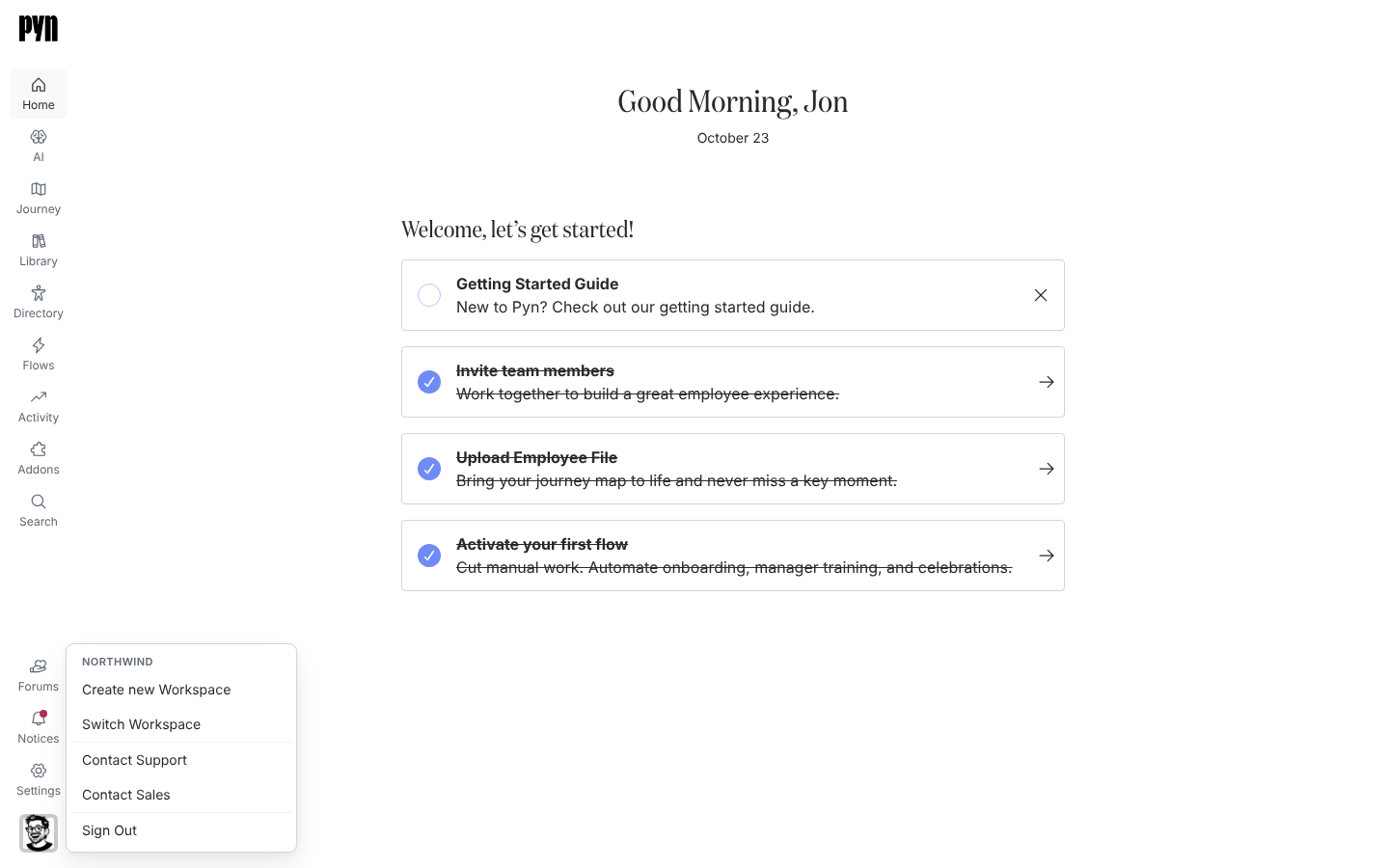
The profile menu open above the avatar in the bottom-left corner, headed Northwind, listing Create new Workspace, Switch Workspace, Contact Support, Contact Sales, What's New and Sign Out, with the Theme row below them: sun, moon and monitor buttons for Light, Dark and System.
The profile menu: the workspace name, workspace, support and sign-out options, then the Theme icons.

Pyn now has a dark theme. Open the profile menu in the corner and choose Light or Dark under Theme; the choice is kept by that browser, so your laptop and your phone can each have their own. Navigation, editors, panels, avatars and form controls all follow it, and the page no longer flashes white while it loads. Profile

Update active enrollments to the latest version

Section titled “Update active enrollments to the latest version”

After you publish a change to an automation, Pyn offers to move the enrollments still running on the previous version across to it. Pick the enrollments to update; steps that are already sending or sent stay as they are, and Update Active Enrollments on the mode menu makes the same offer later. Publish an automation

Admins can create a named list of audience rules that decides who a step goes to, with a fallback recipient for anyone no rule matches. Choose it under Conditional Recipients in a step’s To or Cc. Choose recipients and Cc

Admins can add an MCP server under AI, Agents, MCP Servers, from scratch or from a preset such as People Directory or Onboarding Coordinator, and choose the operations it offers and the role it needs. Before an assistant connects, the person reviews the tools it will get, grouped into what it can read and what it can change, and every tool runs with that person’s own permissions. Add an MCP server

Stop an enrollment when someone leaves the audience

Section titled “Stop an enrollment when someone leaves the audience”

Give an automation exit conditions: audiences the employee must keep matching. When they move team, country or lifecycle stage, the enrollment closes and nothing further sends. Set exit conditions

A Journey moment can have a trigger and an audience of its own, so employees count as being in it, and its Employees metric reflects them, without an automation or an enrollment. Add a trigger to a moment

  • Send yourself a test email while signed in, even without an employee record. Preview and send a test
  • Rename a verified email sender; recipients see the new name on its emails. Add an email sender
  • Where AI context is enabled for your workspace, admins can add background information to employees, groups, enrollments and the workspace for AI agents to use.
  • Pyn Help, this site, brings searchable guides, tutorials, screenshots and videos together, with Shipping news each week.
  • Search the emoji picker by name; it now offers more than 1,500 emoji in fifteen categories.
  • Pyn Help adds twelve use-case guides, from onboarding to celebrations. By use case
  • Schedule an automation step Immediately or a chosen time after its trigger, instead of an offset from the reference date. Schedule a step
  • Send a step to a Specific employee or group…: the same person for every enrollment, such as your payroll lead. Choose recipients and Cc
  • Cc people on a Slack step: each Cc gets a message of their own, without the main recipient’s actions, reminders or escalations. Cc on a Slack step
  • Where the HiBob webhook is enabled for your workspace, start an automation from an employee event Bob reports, with an optional filter on which events qualify. Choose a trigger
  • Where Raw HTML email is enabled for your workspace, insert a Raw HTML Block of your own markup between the usual content blocks of an email. Format a message
  • Select Help in the left navigation, or press ?, to open a searchable Help sheet with the guide for the page or item you are viewing. Get help inside Pyn
  • What’s New in the profile menu opens Shipping news. Profile
  • Admins can give AI agents skills, named sets of instructions for one job, and enable or disable them under AI, Agents, Skills. Add a skill
  • Read Pyn Help in Dutch, German, Spanish, Japanese or Simplified Chinese from the language selector in the header; it opens in your browser’s language on your first visit and remembers your choice.
  • A Buddy or Mentor field in a form opened from an email is a name search: the respondent types two or more letters and picks from the matches, for fourteen days after the message was created. Form field types
Fixes and improvements 122
  • Journey boards and item panels now show loading placeholders that match their layout instead of appearing blank or shifting as content arrives.
  • A moment’s trigger and audience are now managed on its Rule tab, with redundant entries removed from Details.
  • The Classic campaigns calendar now loads less data to display the same campaign information.
  • The Help Centre’s product updates are now called Shipping news.
  • More Help Centre guides are available in Dutch, German, Spanish, Japanese and Simplified Chinese, with corrections to translated wording.
  • Help Centre guides now reflect the latest form, delivery and journey changes, with AI connection guides grouped under AI.
  • The Help Centre now opens in a supported browser language on your first visit and remembers your language choice.
  • Pyn now follows your device’s light or dark appearance by default, with compact controls to choose Light, Dark or System.
  • Before connecting an AI assistant, you can review clearly named tools grouped by whether they read or change data.
  • Connected AI assistants can look up field descriptions and available custom fields when given permission to do so.
  • AI connection settings now link directly to setup instructions beside an easier-to-copy address.
  • Light-mode controls now use more consistent warm colors, and automation trigger panels have clearer spacing.
  • Message previews now start with the chosen named recipient, and sender and recipient details line up more clearly.
  • Pyn Help now includes updated setup guides, screenshots and examples for AI connections, HiBob fields, message content and automation controls.
  • You can choose from more than 1,500 emoji organized into fifteen categories.
  • Email steps keep the Cc field tucked away until you need it, while always showing saved Cc recipients.
  • Pyn Help now uses consistent illustrations and an updated example journey to make its pages easier to browse.
  • Shared Help Centre links now include a preview image.
  • Help Centre instructions and screenshots now better match current permissions, settings, schedules and message behavior.
  • Pyn Help now includes the week of 26 October changelog and guidance on connecting AI clients where enabled.
  • Dark mode now keeps navigation, editors, panels, avatars, icons and form controls readable, without a white flash on reload.
  • On phones, navigation, view lists and page content now open one level at a time with buttons to return to the previous level.
  • Audience pickers now search all employee groups, including those beyond the previous list limit.
  • New Emoji 18.0 characters now display in Pyn’s monochrome emoji font.
  • Buttons, cards and toggles now give clearer visual feedback when pressed.
  • Raw HTML email fields now explain how to make text conditional and include an example.
  • Campaign milestone colors now accept short three-digit color codes.
  • Invited users now appear in Current Users as soon as their invitation is sent.
  • New custom email recipients and senders now appear in their lists immediately.
  • Adding an existing email recipient or sender again now preserves its verification and time zone.
  • Clearing Company Name now correctly falls back to the workspace name instead of restoring the old value.
  • You can open the resend dialog from a bounced-delivery notice again.
  • Notices now update immediately after acknowledgment, archiving, closing or resending bounced deliveries.
  • Pausing or scheduling a message now updates its controls immediately and refreshes its delivery status without a page reload.
  • How to connect an AI client now opens the correct setup guide inside Help.
  • Item panels now slide into view once instead of repeating the animation when their content finishes loading.
  • Step audience pickers now stay open and keep your search while you select multiple stages or groups.
  • Retyping a step’s send time no longer blanks the saved time or causes later automation edits to be lost.
  • Employees removed in Classic now appear as terminated in Pyn instead of remaining upcoming joiners.
  • Typing after updating a conditional message section now continues inside that section instead of jumping to the start of the message.
  • Choosing a named recipient now shows their name immediately instead of temporarily labeling them unknown.
  • Removing the step you are editing now closes its drawer instead of leaving an empty panel open.
  • Delivery failures now retain more specific reasons for sender, recipient and provider problems instead of showing a blank or generic reason.
  • Poll answers submitted from email now appear in Activity and exports even when a submission was not prepared before the response arrived.
  • Form submission notices now identify invalid or missing fields by the names used in the submitted data.
  • The form builder now stops adding fields at the ten-field limit instead of letting an extra field disappear when saved.
  • New campaign steps created from templates now retain their milestone date so overdue steps can finish correctly.
  • Failed add-on upgrade and demo requests now show an error instead of silently doing nothing.
  • Campaign and automation controls now report failed enrollment, step creation, moment assignment, publishing and duplication.
  • Journey controls now report when creating a moment or changing its stakeholders fails to save.
  • You can now reach Add Moment on the Journey board with the keyboard and activate it with Enter or Space.
  • Screen readers now identify more time fields, pickers and campaign selections while skipping decorative card images.
  • In Classic, previewing sent automated messages no longer triggers an error, and action previews again resolve manager recipients correctly.
  • Filter-based employee groups can now be archived without an error.
  • A campaign step’s mode menu now closes after you choose Automated or Manual.
  • Form exports now include submitted answers instead of replacing them with “undefined”.
  • New form submissions received through a webhook now appear with the submitter’s name in Activity and exports.
  • Manual enrollment now defaults to today’s date in your local time zone.
  • Manual enrollment now warns when employees were skipped, including those enrolled in the same flow within the last five minutes.
  • Audience previews now return to the first page when you change the audience instead of showing an empty list.
  • Daily recurring automations no longer miss an enrollment because processing happened slightly earlier than the previous day.
  • Campaign templates now use upcoming milestone and message dates instead of dates that have already passed.
  • You can change whose picture appears in an Avatar widget using either the mouse or keyboard.
  • You can now upload media and open a media item’s file using the keyboard.
  • Screen readers now identify more date fields, selection controls and editor buttons while skipping decorative illustrations.
  • Sign-in buttons now match dark mode without bright white backgrounds.
  • Poll links now report failed votes instead of incorrectly saying the response was recorded.
  • Form and poll editors now report failed saves and publishes and only confirm field removal after it succeeds.
  • Account settings now report failed company-name or time-zone saves and restore the saved company name.
  • Email verification and test sends now report failures instead of claiming an email was sent.
  • Integration, calendar and custom email domain controls now explain when connection, activation, archiving or verification actions fail.
  • A failed resend now shows an error and lets you try again.
  • Flow controls now report failures when scheduling, unpausing, duplicating, updating, verifying, stopping or archiving messages and enrollments.
  • View and record controls now report failed renames, duplicates, archives and restores.
  • AI connection controls now report failed attempts to enable or disable a connection.
  • Sample data setup now reports failed installs and reloads instead of silently stopping.
  • In Classic, more Lever employees receive the correct time zone when their location names an office instead of a country.
  • Failed form submissions now show an error message with clear spacing beneath the questions.
  • Adding employees to a static group now accepts email addresses in any letter case and separated by spaces or semicolons.
  • Removing an employee from a new static group’s selection no longer opens their profile over the form.
  • A demographic with a blank title now uses the employee property’s name instead of creating unnamed groups.
  • Restoring an archived demographic now restores its groups too.
  • Archiving an automation now makes it inactive, and restoring it leaves it inactive until you deliberately switch it on.
  • Assigning an automation to a moment now updates its moment label immediately.
  • Content steps added from the template catalogue now show their content title instead of “Untitled”.
  • Switching workspaces no longer briefly shows choices from the previous workspace in recipient lists and other lists that load more results as you browse.
  • Navigation now retries loading when your internet connection returns instead of requiring a page reload.
  • Add-on cards now show their full descriptions and status footers.
  • Notices now show aligned dates and clearer sender names and email addresses.
  • Fields in dialogs now use the available width and leave space between consecutive fields.
  • Unexpected BambooHR report data now produces a clear history message without disabling the integration.
  • Employee spreadsheet uploads now accept Excel date cells and numeric postal codes.
  • Dark mode now keeps more text, avatars, icons and selection controls readable.
  • In Classic, messages with failed deliveries no longer stay in Sending forever once all deliveries have finished or failed.
  • In Classic, one slow Slack workspace no longer prevents other workspaces from syncing their channels and users.
  • In Classic, more Lever locations now receive the correct time zone when their country field contains a state or region.
  • Download buttons in Notices now save the export instead of opening a page-not-found screen.
  • Media uploads now report unsupported files and failed transfers, and new uploads appear in the Library without a reload.
  • Library content titles now save in full, and unpublished edits remain marked as drafts after a reload.
  • You can discard content edits immediately after publishing in the same session.
  • Restoring a previous content version now returns you to an editable draft with the restored title and body.
  • Library and Activity filters now preserve selected options when you search within the list or press Escape.
  • A single click now places the cursor in subject and message editors.
  • Cancelling a conditional-section edit no longer leaves unwanted conditions or restores cancelled changes when you reopen it.
  • Inserting message widgets into lists no longer removes existing list text.
  • Typing in messages with many personalization placeholders is more responsive, and text entered in placeholder searches is preserved when you leave the search.
  • Bulleted lists, numbered lists and blockquotes now retain their structure while you edit them.
  • Employees now pick up their Slack avatar and other available Slack details as soon as their account is linked.
  • Workday birthdays now preserve February 29, and invalid dates no longer interrupt employee mapping.
  • Employee profiles now prefer current source records over dropped records from the same system.
  • ADP syncing no longer skips workers when a page contains fewer records than requested or workers move across overlapping page boundaries.
  • Rejected email senders now show a re-authentication notice, notify their owner and recover when SendGrid is reconnected.
  • Microsoft 365 connection and delivery notices now appear in Notices.
  • A Google or Microsoft calendar that stops syncing now raises a notice explaining how to reconnect it.
  • The Google calendar picker now loads additional pages of writable calendars instead of stopping at the first page.
  • Okta and OIDC integration panels now display their identity lists.
  • Invited users who have not signed in now appear by email in moment Owner and Stakeholder pickers and can be found by search.
  • User labels now show a name or email address when available instead of an internal identifier.
  • Journey archive and restore drop targets now stay visible when you scroll the board, and restored moments appear without a reload.
  • Clearing an unfinished moment title now cancels the draft instead of creating a blank moment.
  • Recommended Automations now lists the birthday and anniversary templates in new free-plan workspaces.
  • Titles and labels no longer overlap the Back or Close button in full-page dialogs on narrower screens.

Release notes: 26 October 2026, 27 October 2026, 29 October 2026 and 30 October 2026.

Duplicate a step within its flow

A step can now be copied within its flow. The copy keeps the step’s content, recipients, schedule, reminders and escalations, ready to adjust for the next message in the sequence.

Admins connect Okta through a single dialog, and can replace its credentials and copy the redirect address from the integration panel. The panel also has the sign-in link for an Okta dashboard tile, so employees can open Pyn straight from Okta. Connect Okta

You can preview a message for an upcoming joiner as well as a current employee. When a step goes to the employee’s manager, buddy or HR business partner, the preview uses that person’s details and hides the conditional sections that do not apply to them. Preview and send a test

  • Start an automation when an employee is connected to Slack.
  • Set a company name in Settings for messages; without one, Pyn uses the workspace name.
  • Pick HR business partner names and email addresses from the personalisation picker in email and Slack editors.
  • Refresh a Google Workspace sender’s name and email address from its menu, without reconnecting.
Fixes and improvements 18
  • You can configure a flow’s trigger directly from its No Trigger tab.
  • Before archiving an email, Google Workspace or Slack sender, you now see a warning listing the active automation steps that use it.
  • You can preview a message for an upcoming joiner as well as a current employee.
  • The preview employee selector now reads “Preview for principal” to distinguish the employee the step is about from its recipient.
  • Change of Manager automations now enroll the employee whose manager changed.
  • Change of Location automations now run when an employee’s country changes, and their trigger panel opens correctly.
  • Relationship-based automation triggers now respect their configured filters.
  • Archived campaign messages now disappear from the calendar and its sidebar list.
  • Multi-select fields now open when you click their empty space, while selected items remain removable.
  • Conditional-section fields now use consistent widths and readable placeholder text.
  • Step previews now load the saved message without being incorrectly blocked, and campaign HTML previews find the correct step.
  • When a step targets an employee’s manager, buddy or HR business partner, previews now use that person’s details when the relationship can be resolved.
  • Personalized previews now hide conditional sections that do not match the selected employee and resolved recipient.
  • Conditional-section dialogs stay open while you edit them, and updating or removing a section targets the section you opened.
  • Typing after a personalization placeholder or link in a conditional section no longer jumps to the start of the paragraph.
  • Link buttons in the editor now expand to fit longer labels, shortening them only when the available space is too narrow.
  • Discarding unpublished flow changes no longer makes an automated or manual flow appear inactive.
  • Messages to custom email recipients now fill in name and email personalization from that recipient’s details.

Release notes: 23 October 2026.

Escalations, and HR business partners from HiBob

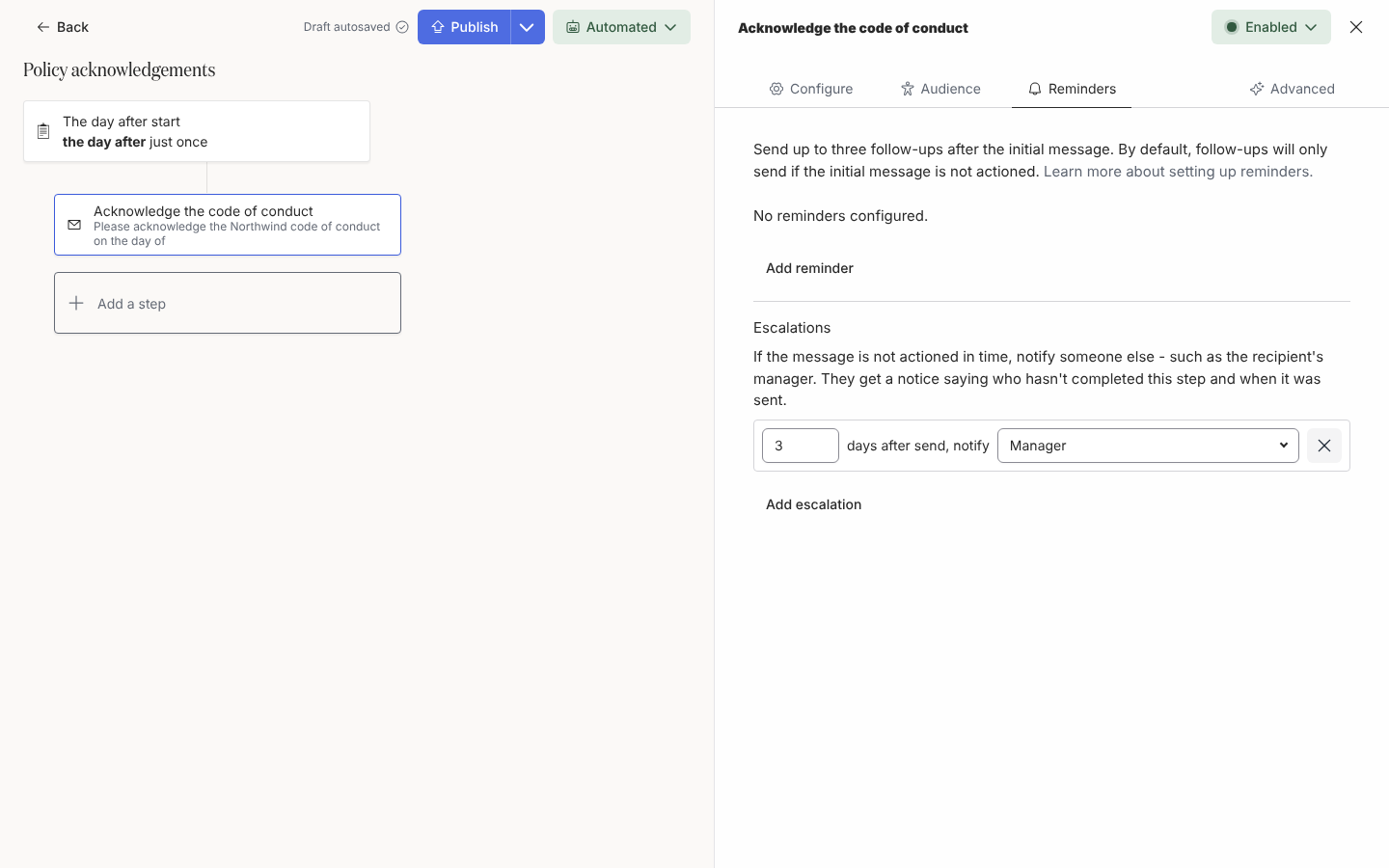
The Escalations section with one row reading 3 days after send, notify Manager.
An escalation notifies someone other than the recipient when the step is still not actioned.

When someone has not completed an action, Pyn can now tell someone else. On an email or Slack step, under Reminders, add up to three escalations. After the number of days you choose, Pyn sends a short notice to someone such as the recipient’s manager, saying what is outstanding and since when. Add escalations

HiBob now brings in each employee’s HR business partner. They show on the employee profile, messages can include their name, preferred name or email address, and they can receive workflow messages and actions. HiBob also brings in buddies, probation end dates and the custom fields you configure. HiBob

  • Filter the Actions view by completion status, and export it to CSV with your current filters and sort order.
  • Build employee groups from type of contract or work office.
  • Preview a saved HTML email with the personalisation for a chosen recipient.
Fixes and improvements 16
  • Employee group panels and Google Workspace and Microsoft 365 integration panels now have consistent spacing around their contents.
  • You can read the full text of shortened audience and selection labels by hovering over them.
  • Options in selection lists have more space around their highlighted text.
  • The Slack recipient dropdown now opens and shows “No results” when the sender has no available channels.
  • Long webhook URLs and secrets now fit within the sidebar while still copying in full, and the Done button stays visible.
  • Date fields in Firefox now show a single calendar icon.
  • Calendar navigation arrows now fit neatly inside their buttons.
  • Download buttons in Notices now fit within their rows.
  • Download expiry values in Notices now use the same text size as the label beside them.
  • Escalation notices now correctly label HR business partner recipients.
  • HTML email templates now fill in supported personalization such as a manager’s preferred name instead of showing the placeholder.
  • ADP worker types can now reflect the primary work assignment once the updated mapping is enabled and employees sync again.
  • Integration refresh dates now show the recorded refresh and successful refresh times instead of appearing unset.
  • Selection menus now follow the correct width limits.
  • The audience editor now correctly prompts you to select lifecycle stages in the lifecycle field.
  • Date fields now show a calendar icon in browsers that support it.

Release notes: 12 October 2026 and 16 October 2026.

See who has acted in the Actions view

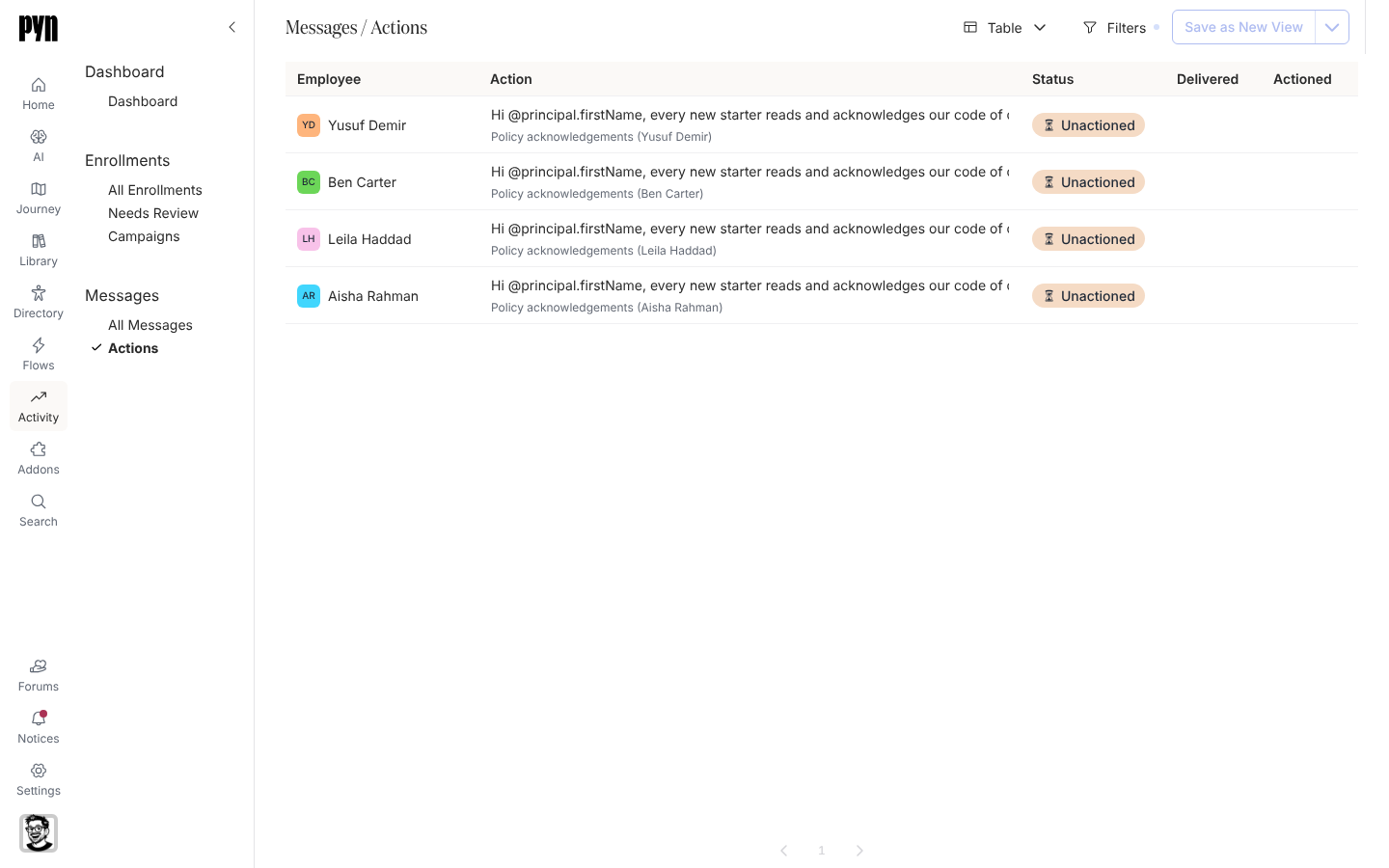
The Actions view in Activity with Employee, Action, Status, Delivered and Actioned columns.
The Actions view, one row per delivery that asked for something.

The new Actions view in Activity lists every message that asked an employee to do something: who was asked, what they were asked to do, and whether they clicked or completed it. Open it to see which acknowledgements, forms and tasks are still outstanding. Track actions

Automation, campaign and content templates now wait in the catalogue until you add them, so your workspace holds only the ones you use. Add one from its list, or straight from a journey moment. Add a campaign template

  • BambooHR change notifications appear in the integration’s History, for workspaces with them turned on.
Fixes and improvements 8
  • HTML emails can now be published with unrecognized placeholders, which appear unchanged in the rendered email.
  • Integration refresh dates now display the recorded refresh and successful refresh times instead of appearing unset.
  • Campaign calendar dates remain readable when hovering over days without a filled background.
  • Editing a form or poll title now enables publishing the change.
  • Changes to automation and content titles now save reliably.
  • Scheduling a step in a paused enrollment now moves the enrollment to pending.
  • If exporting a journey as an image fails, the board returns to its normal layout and displays an error.
  • A failed journey image export now shows an error and restores the board so you can keep working without reloading.

Release notes: 6 October 2026 and 9 October 2026.

Outlook email and calendars, and Ashby

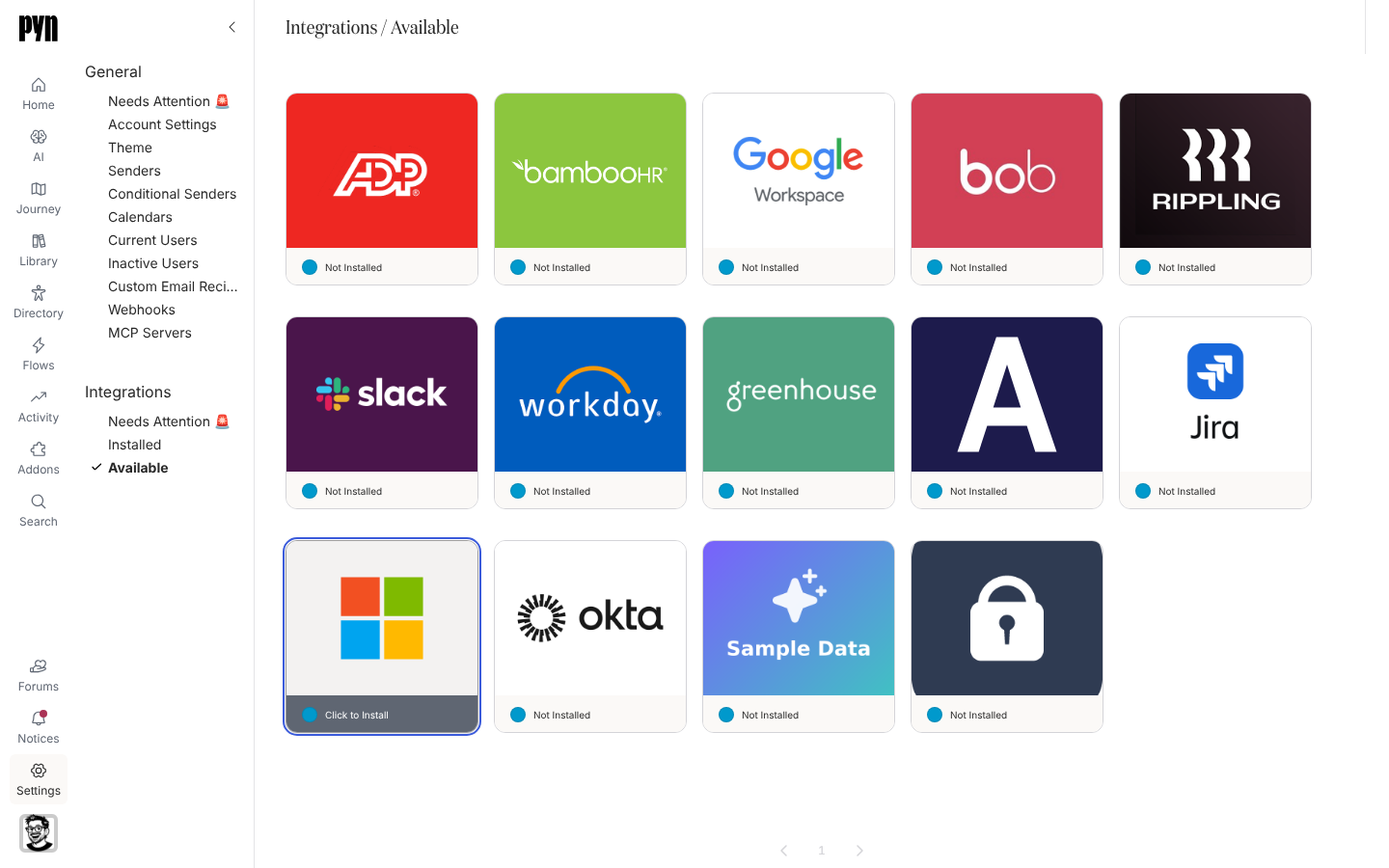
The Available gallery with the Microsoft 365 tile highlighted.
The Microsoft 365 tile under Available; selecting it starts the Microsoft sign-in.

Pyn now works with Microsoft 365. Connect a work or school account as a sender and workflow emails go out through Outlook. Connect an Outlook calendar and calendar steps invite employees to recurring events, as they do with Google Workspace. Both need Microsoft 365 enabled for your workspace. Microsoft 365

Connect Ashby and hired candidates come into Pyn before their start date, with their job details and hiring manager, so pre-boarding starts before day one. Ashby

  • An auth link, valid for three days, lets someone without a Pyn login connect a Slack or Google Workspace sender.
  • Anniversary automations can repeat every year after the first.
  • The Flows list shows enrollment counts for the date range you choose.
  • Deleting a form field shows an Undo message for eight seconds.
  • Needs Attention in Settings gathers the senders, calendars and users that need fixing, and senders show when they need reconnecting.
Fixes and improvements 69
  • BambooHR connection details now focus on your subdomain, primary source setting and latest refresh results.
  • Sandbox workspaces now show a yellow navigation warning so you can distinguish them from your live workspace.
  • Delivery verification now shows a date for each message, using its latest delivery date when available or its earliest scheduled date otherwise.
  • You can see each enrollment’s reference date when choosing which enrollments to update to a newly published automation version.
  • You can search for audience groups beyond the first 500 groups and still see the names of groups already selected.
  • Employee lists now show profile pictures and give country and time zone names more room.
  • Needs Attention now appears first in each settings navigation group.
  • Automation and campaign steps can recover from an interrupted scheduling update instead of leaving future deliveries unscheduled.
  • Pyn loads less data when you first open it and makes fewer background requests when you return to a tab.
  • General settings now bring senders, calendars, users and other shared settings together with one Needs Attention view.
  • Google Workspace and Slack senders now show when they need to be reconnected.
  • You can choose how to sort the Flows table for your current session.
  • You can now reach Add Step in the campaign calendar sidebar using the keyboard.
  • Employee lists now show profile pictures and give time zone names more room.
  • Deliver on previous delivery day now moves messages back to an allowed delivery day instead of stopping on a day you have chosen to skip.
  • Campaign step, enrollment and milestone dates no longer appear a day early in time zones west of UTC.
  • Today on the campaign calendar now returns to the current month when you are viewing January.
  • You can now resend emails sent through SendGrid to a custom email address.
  • A failed attempt to archive a flow now shows an error and releases the Change Mode dialog so you can use or close it.
  • Relationship group membership now updates reliably when employee records refresh.
  • A failed notification email no longer stops notifications for subsequent recipients.
  • A failed sign-in email no longer interrupts the sign-in service for other users.
  • Connecting Slack now shows an error when the connection fails instead of appearing to do nothing.
  • Testing a Slack sender connection now reports the actual outcome instead of always saying Sent.
  • Emergency contact, dependant and qualification forms now show an error when saving fails.
  • Expense claims and attendance requests now show an error when submission fails.
  • Punching in or out and cancelling leave now show an error when the action fails.
  • Email theme settings now restore the saved theme and show an error when changes cannot be saved.
  • Withdrawing attendance or training requests, waiving benefits and cancelling expense claims now show an error when the action fails.
  • Updating goal progress, submitting or acknowledging a performance review and completing tasks now show an error when the action fails.
  • Timesheets now show errors when saving hours, submitting, cancelling, starting a period or adding a line fails.
  • Workspace logo settings now show an error when a new logo cannot be saved.
  • Integration card logos now sit centrally instead of appearing cropped or too low.
  • Reconnecting a Google Workspace or Outlook calendar now preserves the calendar you selected.
  • Invitations to an event series removed from a Google Workspace or Outlook calendar now report Event Not Found instead of attempting to send.
  • You can now use the page controls to browse Outlook calendar events.
  • Scheduled date fields now open a date picker when configuring a workflow step or duplicating a campaign enrollment.
  • Link editing fields now stack vertically instead of sitting side by side.
  • Date and property automation settings now show the one-day minimum wait between repeat enrollments and hide shorter options.
  • Archived journey categories now disappear from the board immediately without a refresh.
  • Custom scheduling options now open beside the Custom choice instead of floating over the message editor.
  • Filter group settings now give the included and excluded group fields the full form width.
  • Recurring automation settings and message step options now have space between their fields and labels.
  • Date and property automations now wait at least one day before enrolling the same employee again, and their settings show that minimum.
  • HiBob can now match managers using company employee numbers when its usual manager ID is missing and the required fields are available.
  • You can now export enrollments and Flows views to CSV without an access-denied error.
  • Microsoft Teams membership alone no longer keeps an employee marked as currently employed.
  • Workday reports with a mix of worker IDs and employee IDs no longer drop employees who have only an employee ID.
  • Rippling and ADP connections now flag credential problems that previously appeared as temporary sync failures.
  • Notification action buttons no longer stretch across the panel header.
  • The free automation banner now keeps its message and outlined action button together on one row.
  • Scheduling menus now line up with their fields and keep custom timing options beside the Custom choice.
  • Small groups of profile pictures overlap less, making initials easier to read.
  • The Automations table header now extends across the full row.
  • Email and Google Workspace senders now show their avatars in Notices and use email-based initials when no display name is set.
  • Emoji icons now remain readable against strongly coloured backgrounds.
  • Sender badges in panel titles no longer cover the sender’s initials.
  • Save as New View now adds an asterisk to the copy’s name so you can distinguish it from the original.
  • Saving or duplicating a view now opens the new view immediately without reloading the page.
  • New journey categories and changes to a moment’s owner now appear without a refresh.
  • Version History now shows a newly published content version straight away.
  • Creating a Filter or Static employee group no longer leaves the page stuck behind an invisible overlay.
  • Theme settings no longer get stuck repeatedly loading.
  • Available integrations no longer include integrations you have already installed.
  • Connecting a Google Workspace sender or calendar from blue.pyn.ai now returns you to the same site to finish signing in.
  • Stopped enrollments no longer create reminders when an in-progress message finishes sending.
  • Duplicating a stopped campaign no longer prevents reminders in the new enrollment.
  • Email delivery updates from SendGrid can now reach Pyn.
  • Date offset menus now line up with the scheduling field that opens them.

Release notes: 28 September 2026, 29 September 2026, 30 September 2026, 2 October 2026, 3 October 2026 and 4 October 2026.

Single sign-on and conditional senders

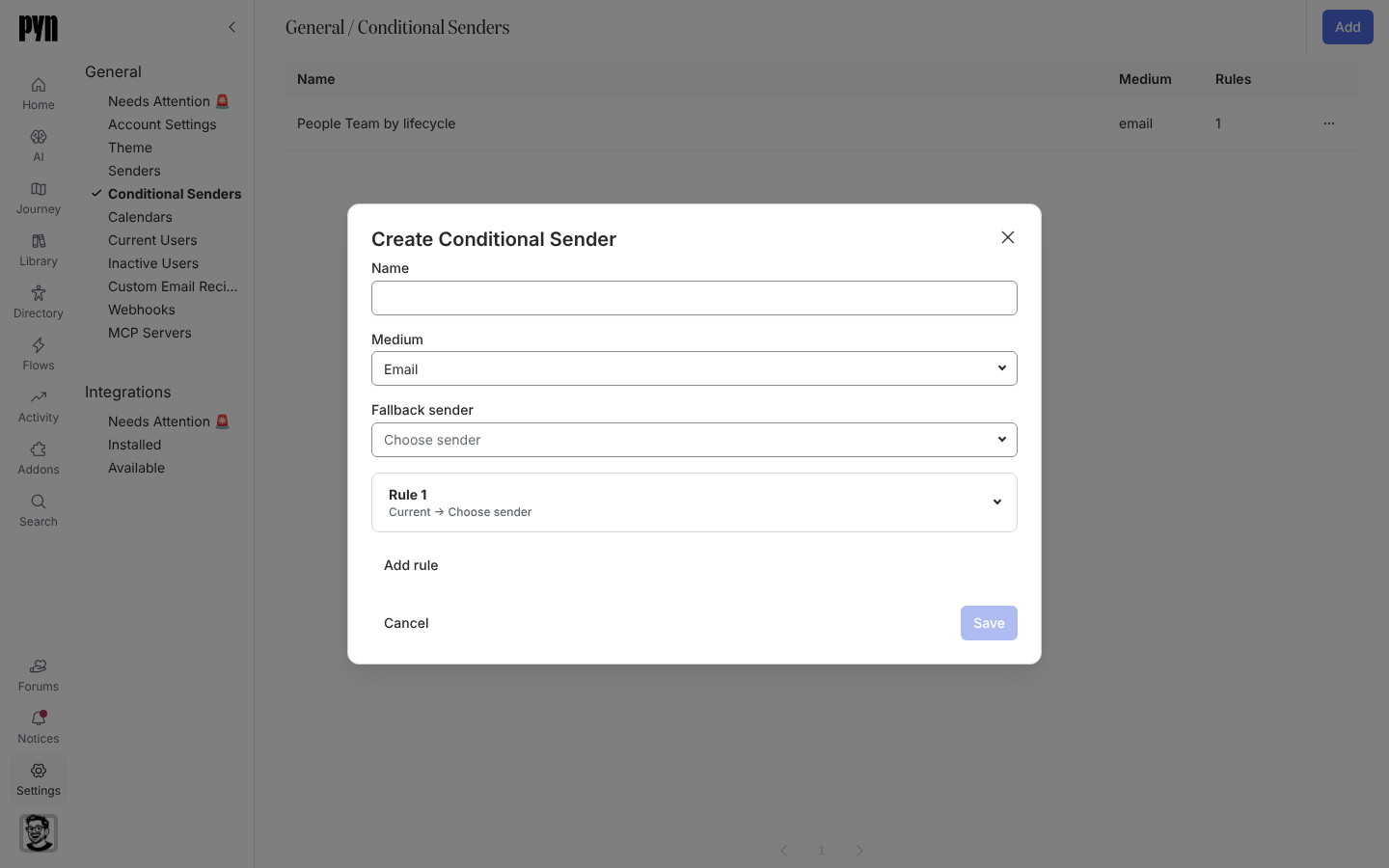
The Create Conditional Sender dialog with Name, Medium, Fallback sender and a first rule.
Create Conditional Sender: a name, a medium, a fallback and ordered rules.

People can now sign in to Pyn with their work email through your company’s single sign-on. On the sign-in page they choose Continue with SSO, enter their work email, and Pyn hands them to your identity provider. Sign in with SSO

A step no longer has to come from one fixed sender. A conditional sender checks ordered audience rules to pick who each message comes from, with a fallback sender for everyone the rules miss: people in Sales can hear from the head of Sales, and everyone else from the People team. Create one in Settings, then choose it as the sender on any step. Create a conditional sender

  • Duplicate a campaign step for a new date, and choose whether the copy keeps its recipients.
  • Put an enrollment’s Reference Date into flow emails and Slack messages.
  • Automation steps warn you when their audience is empty, or when a message scheduled before the start date leaves out upcoming joiners.
Fixes and improvements 39
  • You can now find items by typing part of a word in search, including Find on journey maps and Flows.
  • You can now access actions directly from rows in the Custom Email Recipients and Calendars tables.
  • Connected calendars now show the same active-status indicator as senders.
  • Every field in the Details panel now has an icon to help you identify its type.
  • You can archive and restore senders from the All senders table, with confirmation before archiving.
  • Employee search now shows personal email addresses when work addresses are missing and keeps each person’s employment stage visible alongside their name.
  • Enrollment lists now show the employee and enrollment status so you can distinguish entries at a glance.
  • Enrollment step lists now show personalized message text when a step has a single available message delivery.
  • You can change a campaign’s emoji and background colour together from its details panel.
  • HiBob can now provide more employment details, including original start date, tenure and manager status, when those fields are available.
  • The sign-in page now downloads less data before you sign in.
  • The current page number is now clearly highlighted when you browse lists.
  • Audience groups and automation triggers based on fields with multiple selections now match the chosen option instead of every employee with a value.
  • Enrollment steps now show whether messages were sent, bounced or skipped rather than appearing complete when no recipient was found.
  • Audience settings now have consistent spacing between included and excluded employees and the audience preview.
  • Manual enrollment now aligns option descriptions consistently and shows clear action buttons after enrollment.
  • The actions menu button in side-panel headers now matches the close button’s size.
  • Journey cards and categories now keep their updated order when you leave the page and return.
  • Reporting updates for your workspace no longer stall when another workspace encounters an error.
  • Scheduled activity in your workspace now continues when another workspace encounters an error.
  • The expanded message editor now stays at a readable width on wide screens.
  • Clicking the placeholder in a new campaign email now places the cursor where you can start typing.
  • Fields in campaign creation and other forms now have consistent spacing.
  • Date and scheduling dropdowns no longer turn grey when you move the pointer over them.
  • Automation steps now appear in schedule order rather than the order they were added.
  • Google Calendar invitations now use the next available occurrence from Google and respect the event’s time zone.
  • One invalid custom field no longer hides all the other custom fields on an employee profile.
  • The content editor’s Back button now returns you to the page you opened it from.
  • You can now reschedule campaign milestones and unsent messages by dropping them anywhere in a day on the month calendar.
  • The campaign year calendar now fits shorter laptop screens without cutting off the final months when there is enough room.
  • The campaign list now follows the month or year shown in the calendar.
  • Date-based flows now use the adjusted reference date when scheduling messages around an anniversary or other shifted date.
  • Reconnecting Workday with valid credentials now clears the error state and resumes syncing.
  • Duplicate and Archive actions now appear consistently in campaign menus.
  • Rapidly rearranging journey cards no longer causes their order to change unexpectedly after you drop them.
  • Journey cards now recover correctly from failed moves and stay hidden while archiving is in progress.
  • Editing details in the side panel no longer loses focus or resets your typed text during unrelated updates.
  • Employee syncing from Classic no longer fails when a custom choice field contains a true-or-false option.
  • ADP workers without a work or personal email address no longer create new employee profiles until an email becomes available.

Release notes: 25 September 2026 and 26 September 2026.