

Slack
The Slack integration connects a Slack workspace to Pyn. Once installed, steps can send a direct message, post to a channel or invite someone to a channel, employees can answer polls and forms without leaving Slack, and Slack members are matched to employees by email. Messages come from the Pyn Bot, from a custom bot with your own name and icon, or from a colleague who has added themselves as a Slack sender.
Before you start
Section titled “Before you start”- You are an admin or owner in Pyn.
- You can authorise apps in the Slack workspace, or your Slack admin approves the request Slack shows you.
- Have that Slack workspace signed in in your browser. Slack shows the workspace in the top right of its authorisation page.
- Bot scopes Pyn asks for:
app_mentions:read,channels:read,channels:write.invites,chat:write,groups:read,groups:write.invites,im:history,im:read,im:write,team:read,users:readandusers:read.email. The bot cannot read channel messages or join channels on its own; it posts only where it has been invited.
Connect
Section titled “Connect”-
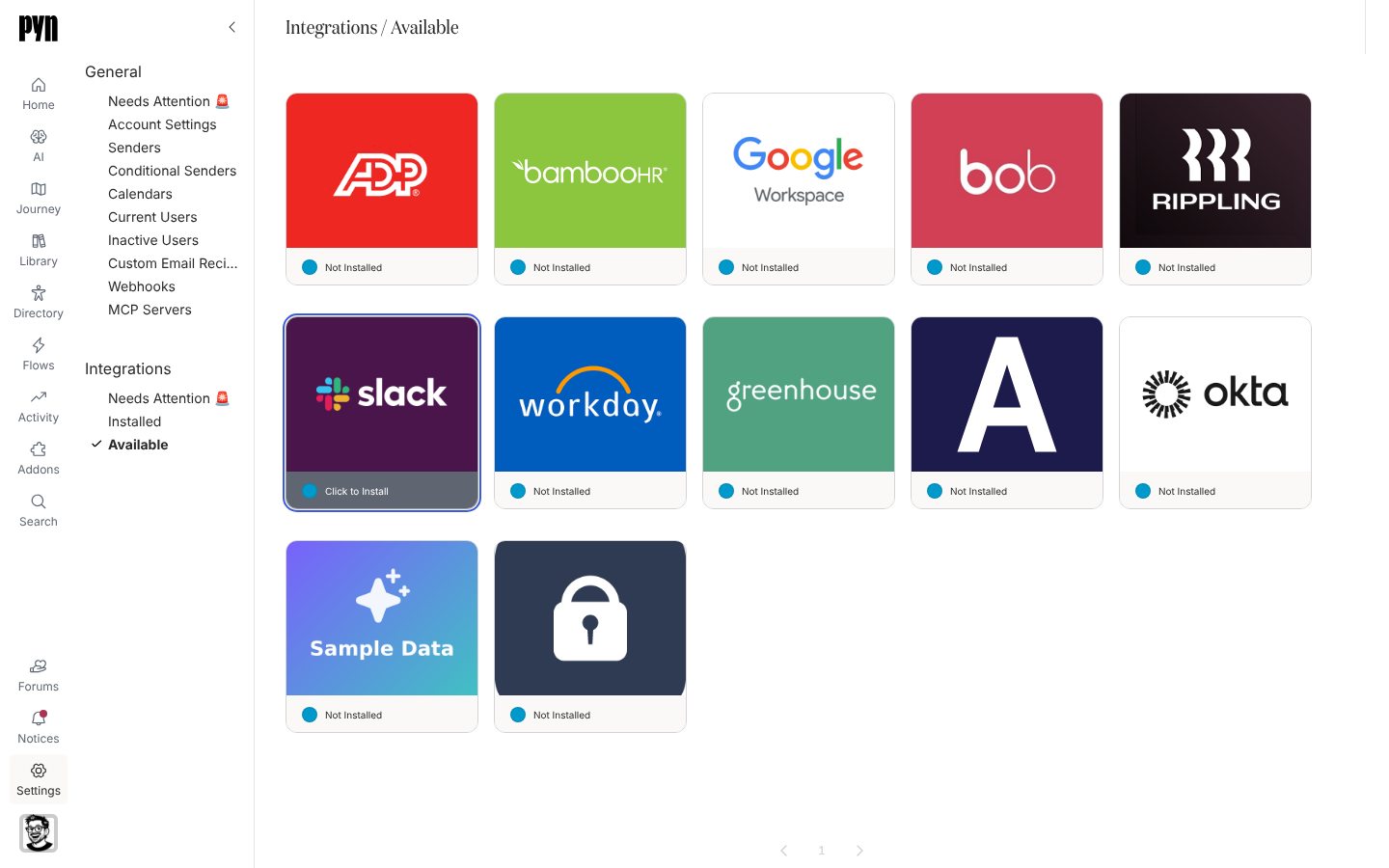
In Pyn, open Settings in the left navigation, then Available under Integrations.
-
Select the Slack tile. Slack opens.
-
Check the workspace shown in the top right is the one you want, review the permissions and select Allow.
-
Slack returns you to Pyn. The Slack tile shows Active under Installed.
-
Open the tile. Details shows the Team Id, Requires Reauthentication (false) and the refresh times. Optionally invite the Pyn Bot to the channels you plan to post to, from Slack.
If a workspace has a Slack tile marked Ready to Connect, open it and select Connect Now: “Connecting to Slack allows you to send timely, automated messages to your employees.” Pyn can hold one integration per Slack workspace; Connect another workspace in the … menu adds a second.
What syncs
Section titled “What syncs”- Members: every Slack user’s name, handle, email, avatar and time zone, refreshed every five minutes while the integration is active. A member is matched to an employee by their Slack id or by email; see Sync cadence and matching.
- Channels: the Channels tab lists Public Channels, and under Private Channels the ones the Pyn Bot is a member of, each as
#name - n members. A channel appears in a step’s To list once it is here. - Senders: the Pyn Bot is created with the integration; custom bots and personal senders are added later.
- Deliveries: each message, post and channel invite is a delivery in Activity.
Test it
Section titled “Test it”Open the Slack tile, open the … menu and select Test Connection. “Test successfully sent. Check your Slack account for the test message.” means the Pyn Bot sent you a direct message. “Slack appears to be configured, but we could not find you as a Slack Member to send the test message.” means your Pyn email matches no member in that workspace. “There is a misconfiguration preventing the test. Please contact support.” means the integration itself failed.
Reconnect or disconnect
Section titled “Reconnect or disconnect”- When Slack revokes the token the panel shows “This integration is not operational as it requires re-authentication. This can happen if credentials are revoked.” with Reconnect, which returns to the same Slack workspace. The tile also appears under Needs Attention 🚨 and a notice carries the same button.
- Deactivate stops every Slack sender and delivery; Activate resumes. Archiving the integration also stops its senders.
Troubleshooting
Section titled “Troubleshooting”| What you see | What it means |
|---|---|
| “We could not start the Slack connection. Please contact support.” | Pyn could not build the Slack authorisation link. Try again, then contact support. |
| Slack shows an admin approval screen | Your workspace requires admin approval for apps. Submit the request, have a Slack admin approve it, then connect again. |
| A channel is missing from a step’s To list | The bot is not in a private channel, or the channel was created since the last refresh. Invite the bot and wait a few minutes; the step shows “No results” when the sender has no channels. |
| A channel post fails | The sender is not a member of the channel. Invite the bot or custom bot, or join the channel yourself. |
| Someone is not matched | Their Slack email differs from the work email in your HRIS. Correct one of them, or use Disconnect on the employee’s record to clear a wrong match. |
| You connected the wrong workspace | Archive the integration from its … menu and install again, choosing the right workspace in Slack. |
Related
Section titled “Related”- Add a custom bot to send from your own bot name and icon.
- Add a Slack sender to send as yourself.
- Create an auth link for a sender without a Pyn login.
- Sync cadence and matching for how members become employees.