

Attach a flow or content to a moment
A moment is only a plan until something is sent for it. The moment panel shows which automations, campaign templates and library content point at it, and offers ready-made templates for that moment that you can add in one step.
Before you start
Section titled “Before you start”- You are a workspace admin. Everyone can see what is attached; adding from the catalogue needs the Admin role.
-
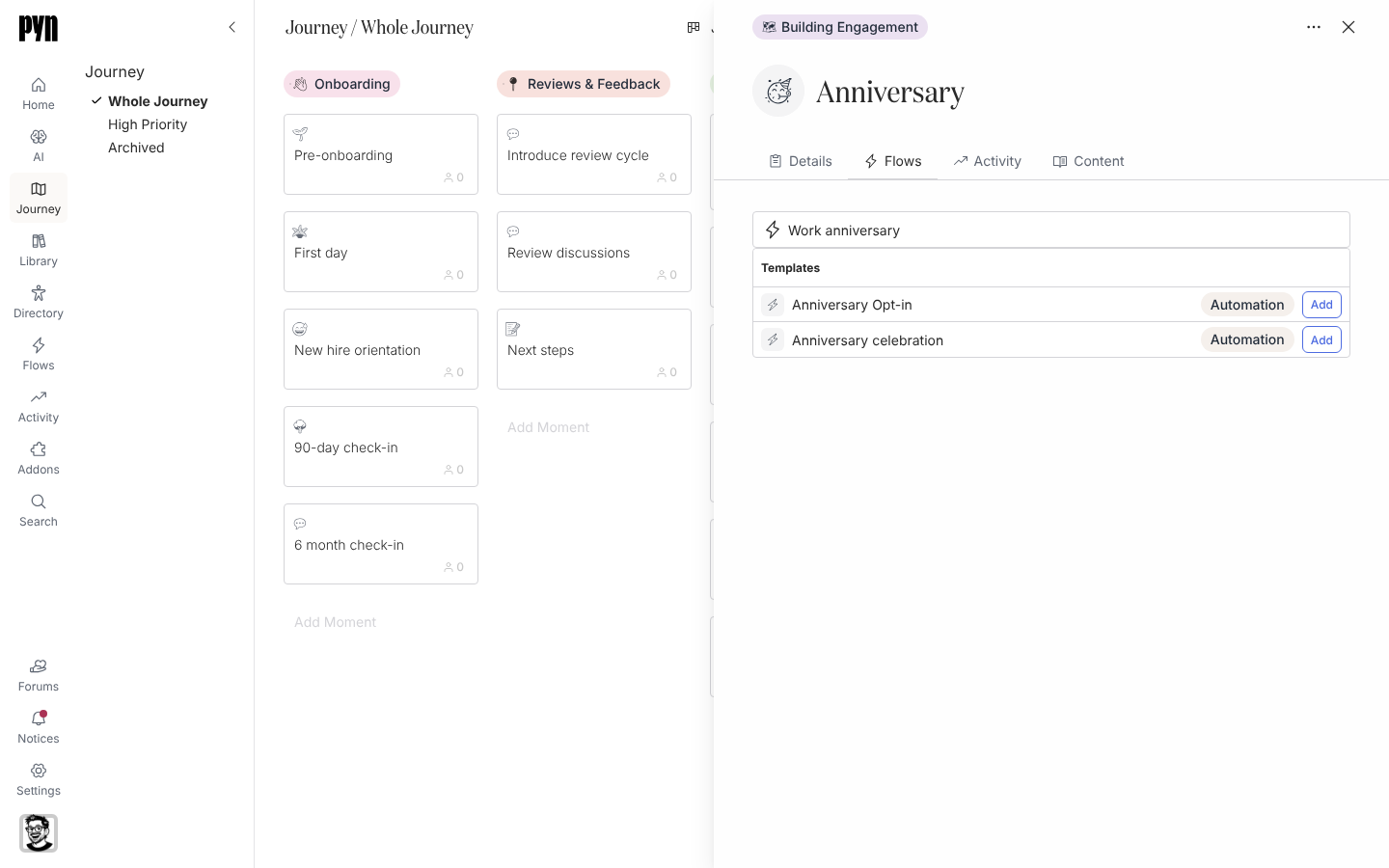
In Pyn, open Journey in the left navigation and select the moment’s card, for example Anniversary.
-
In the panel select the Flows tab. Existing automations, campaign templates and campaigns for this moment are listed first.
-
Under Templates, find the catalogue flow you want and select Add. The flow is created for this moment and appears in the list above.
-
Select the new entry to open the flow and finish it in Flows: check its trigger, audience and steps, then publish it and set its mode.
-
For content, select the Content tab. Library content attached to the moment is listed; select Add on a catalogue item to add it, then select it to open the editor.
What you should see
Section titled “What you should see”The flow or content you added is listed on the tab and no longer offered under Templates. In Flows, the automation shows this moment, and the Library groups the content under it. The Activity tab fills with enrollments once the flow runs.
Related
Section titled “Related”- Automations to finish, publish and switch on the flow you added.
- Content to edit and publish the content you added.
- Build your journey map for working through the whole map this way.