

Roles and permissions
Every user in a workspace has exactly one role. The roles nest: Owner includes everything Admin can do, Admin includes Power User, and Power User includes User. The role decides which navigation items appear and which actions Pyn accepts.
The four roles
Section titled “The four roles”| Role | Who it is for | In one line |
|---|---|---|
| Owner | The person who created the workspace and anyone they trust with it | Everything, including making and changing other Owners |
| Admin | People Ops leads, HR systems owners | Everything except managing Owners |
| Power User | HR partners and programme owners who build flows | Build, publish and run flows; no directory, settings or add-ons |
| User | Reviewers and stakeholders who need to read | Read journey, library and activity; act on enrollments |
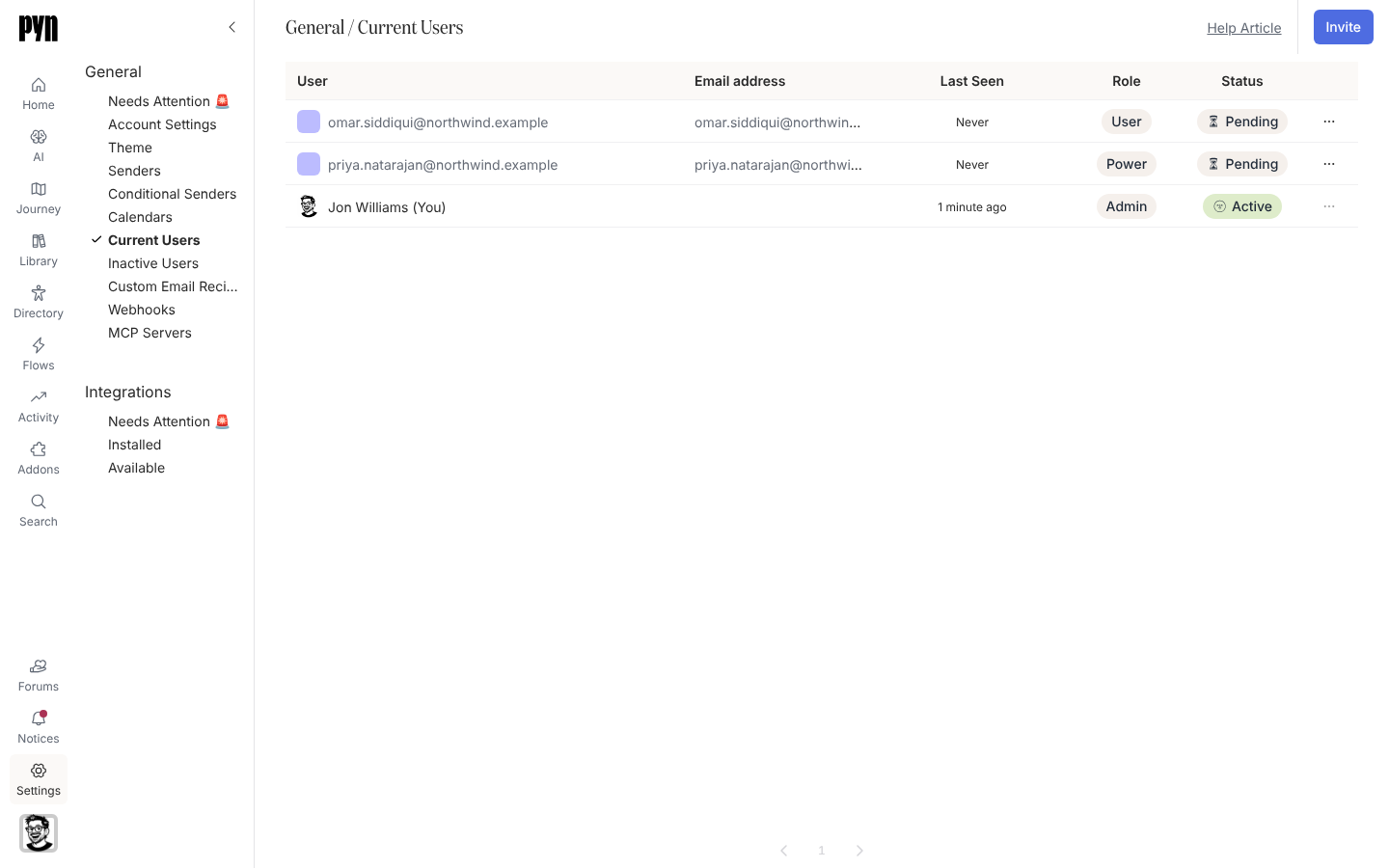
The role names appear slightly differently on different screens: the Invite user dialog offers Admin, Power User and Limited User; the Role column in Current Users shows Owner, Admin, Power or User; the row menu says Assign Power User Role. Limited User, Power and User are the same two roles under different labels.
What each role sees in the navigation
Section titled “What each role sees in the navigation”| Navigation item | Owner | Admin | Power User | User |
|---|---|---|---|---|
| Home, AI, Journey, Library, Activity, Search, Notices | Yes | Yes | Yes | Yes |
| Flows | Yes | Yes | Yes | No |
| Directory | Yes | Yes | No | No |
| Addons | Yes | Yes | No | No |
| Settings | Yes | Yes | No | No |
What each role can do
Section titled “What each role can do”The table lists the actions Pyn’s server checks by role. Anything not listed, such as reading, is open to every role.
| Action | Minimum role |
|---|---|
| Create, duplicate, archive, restore or publish an automation; change its mode | Admin |
| Edit an automation’s steps, trigger and audience; send a test message; preview | User |
| Manually enrol employees; verify (unpause) enrollments; republish enrollments to a new version | User |
| Stop an enrollment | Admin |
| Pause or reschedule an individual step in an enrollment | Admin |
| Resend a bounced delivery | User |
| Enrol a campaign template; duplicate a campaign or step | User |
| Export an actions, enrollments or flows table as CSV; export a saved view | User |
| Create or edit a conditional sender | Admin |
| Invite a user; resend an invitation; archive a user | Admin |
| Change a user’s role to User, Power User or Admin | Admin |
| Change a user’s role to Owner, or change an Owner’s role at all | Owner |
| Change workspace company name, time zone, logo, theme or priorities | Admin |
| Complete a Home checklist card | User |
Navigation hides Flows from Users, so in practice a User edits flows only through links they are given; the server still accepts the edit.
Changing roles
Section titled “Changing roles”- Open Settings, Current Users, then the menu at the right end of a row. The options are Assign User Role, Assign Power User Role, Assign Admin Role and, for Owners, Assign Owner Role; the role the person already has is left out.
- An Admin sees no role options on an Owner’s row. Only an Owner can promote someone to Owner or change an Owner.
- Nobody can change their own role; the menu on your own row is disabled.
- Assigning a role removes the previous one, so a user always has one role.
Roles from single sign-on
Section titled “Roles from single sign-on”When a workspace signs in through Okta or an OpenID Connect provider, the admin can map provider groups to each Pyn role. On every sign-in Pyn gives the person the highest role of any group they are in. Pyn never creates a user from SSO alone; the address must be invited, or the mapping must cover it. See SSO.
Users you may see but did not invite
Section titled “Users you may see but did not invite”A user whose email ends in @pynhq.com or @pyn.ai carries a Support chip in Current Users. That is Pyn’s own staff, present for support; their row behaves like any other.
Related
Section titled “Related”- Invite your team for choosing a role when you invite.
- Navigate Pyn for what each item in the first table opens.
- SSO for group-to-role mapping.
- Profile for where your own role and status appear.