

Ask your AI assistant about your workspace
Someone on the People team asks their AI assistant who starts next week, which flows a new starter is in and where a message got to, and the answer comes from your workspace, as them, with nothing they could not open in Pyn themselves. An MCP server is the bundle of operations the assistant may call; a preset builds one in a few clicks. For: admins and owners. Time: about 15 minutes, plus a few minutes for each person who connects.
What you’ll need
Section titled “What you’ll need”- An admin or owner account. Only those roles see AI in the left navigation, where MCP Servers sits under Agents; see MCP Servers.
- An AI client that adds a remote MCP server and signs in with OAuth: Claude, Claude Desktop, Claude Code or ChatGPT; see Connect an AI client.
- A decision on who may connect: the server’s Minimum role is Owner, Admin, Power User or User; see Users for what each role can do.
- A decision on what to offer: a Read only preset (People Directory, Workspace Explorer) for questions, or a Read and write one (Onboarding Coordinator, Flow Operator) when the assistant should act as well; see Add an MCP server.
Build it
Section titled “Build it”-
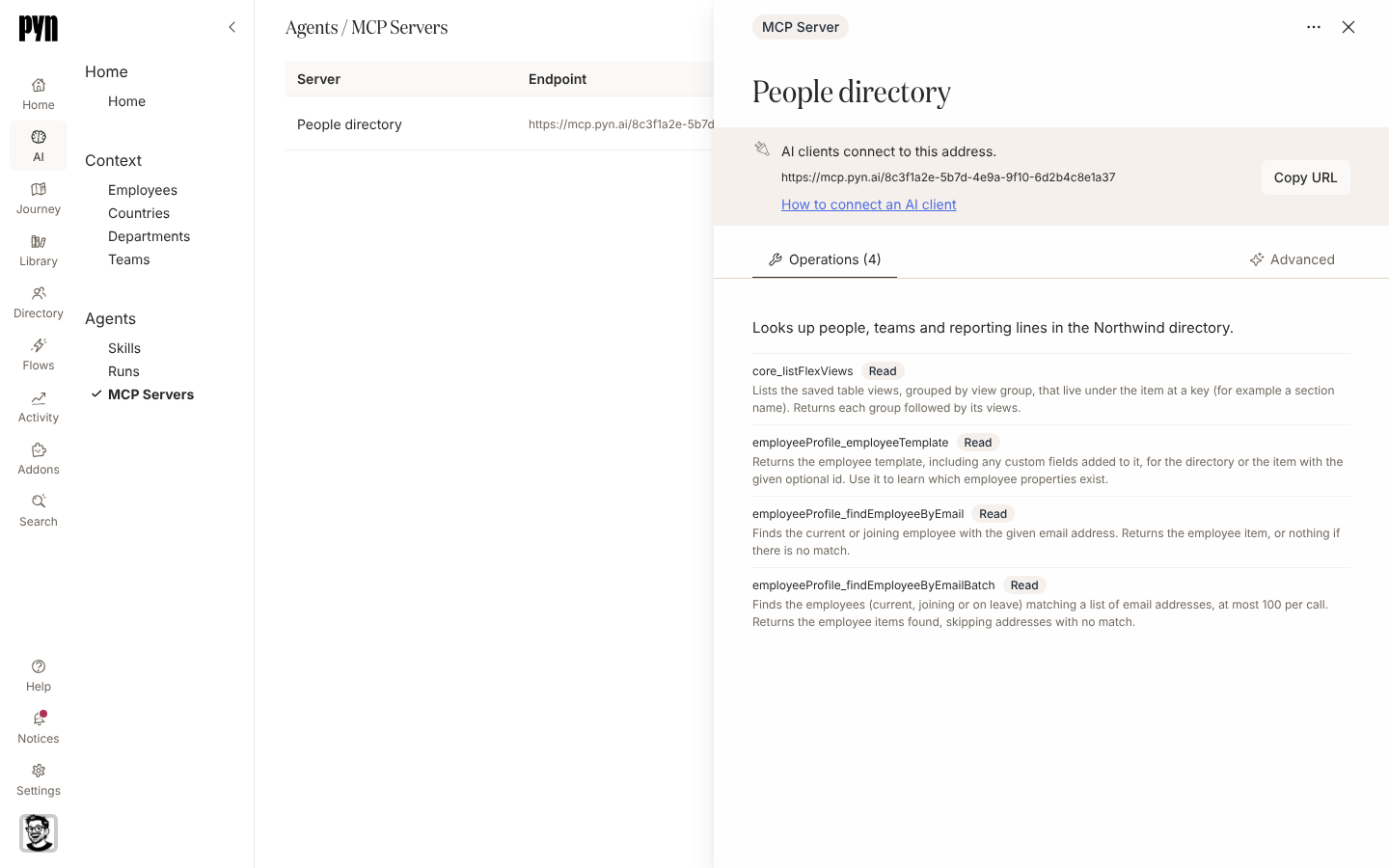
In Pyn, open AI in the left navigation, then MCP Servers under Agents, open the arrow beside Add and select Add from Preset; see Add an MCP server.
-
Choose People Directory for who is who and who reports to whom, or Onboarding Coordinator to find new starters, enrol them in onboarding flows and follow each one through; see Add an MCP server.
-
Keep or change the Name, Title and Description the preset filled in, set the Minimum role to the lowest role that should connect, and select Next; see Add an MCP server.
-
Under Operations, remove any operation you would rather not offer by selecting its row, then select Add; see Add an MCP server.
-
Select Copy URL on the server’s panel and send the address to the people who will use it; see Connect an AI client.
-
Each person adds the address to their AI client as a remote MCP server, signs in to Pyn when the client sends them there, reads the tools listed on the Connect screen and selects Allow; see Connect an AI client.
-
Each person asks the assistant “who am I in Pyn?” and checks that the answer names them, the workspace and the server; see Connect an AI client.
Variations
Section titled “Variations”For questions only, start from People Directory or Workspace Explorer: every operation on them carries a Read chip, so the assistant can search, read and summarise but change nothing, and a Minimum role of User lets anyone with a Pyn account connect.
For an assistant that acts, Onboarding Coordinator adds enrolling a person, pausing or rescheduling a step, resending a delivery and stopping an enrollment, and Flow Operator does the same across every running flow. Each of those carries a Write chip, and a client that confirms changes asks the person before it calls one. Keep the Minimum role at Admin or Power User so only people who do that work in the app can do it from a chat.
On a business plan, adding a custom connector is often an admin’s job in the AI client, so hand the address to whoever manages your AI tools; Connect an AI client describes that under “A task for your IT team”.
Watch out for
Section titled “Watch out for”- Offering an operation never grants access. Each tool runs as the person who connected, an operation their role does not reach is neither listed nor callable, and someone whose role reaches none of them reads “Your role does not allow any of the tools this server offers.”; see MCP Servers.
- Someone below the Minimum role sees Connection Failed when they sign in, so check a person’s role in Users before you send them the address.
- The server’s Name cannot change once it is created; Archive a server to free its name. See Add an MCP server.
- Disable refuses every new connection and ends the ones already made, and connecting the same client again replaces its earlier connection; see MCP Servers.
- The other views under AI (Home, Context and Runs) are the Pyn AI preview, populated from a sample organisation where Pyn has switched it on. MCP Servers and Skills work on your real workspace; see AI.
Check it worked
Section titled “Check it worked”The server row under AI, Agents, MCP Servers shows Active, and the client’s tool list shows Who am I and one tool for each operation the person’s role reaches, titled in words where the client shows titles (Get item). An answer to “who starts next week?” names people you can find in the Directory. With Onboarding Coordinator, an enrollment made from the chat appears under Enrollments like one made in the app, and the messages it sends under Messages.
Related
Section titled “Related”- MCP Servers for how the minimum role and each person’s own role decide what a client can do.
- Add an MCP server for the two steps, the presets and the Connect screen’s messages.
- Connect an AI client for where Claude, Claude Code and ChatGPT take the address.
- AI for the Pyn AI preview and who sees the area.
- Users to check a person’s role before they connect.