

Set up your workspace in 30 minutes
Goal: a workspace that knows your employees, can send messages, looks like your company and has one automation running. Time: about 30 minutes, plus whatever your HRIS or Slack admin needs to approve. You end up with: every card on Home ticked, employees in Directory, a sender in Settings, a themed email, at least one teammate invited and a flow in Automated or Verification mode.
You are an Owner or Admin. If you have not created the workspace yet, do Create a workspace first; it takes a minute and seeds the checklist this tutorial follows.
Chapter 1: Bring in your employees
Section titled “Chapter 1: Bring in your employees”Everything in Pyn keys off employee records: start dates, managers, time zones, emails. Pyn reads them from your HRIS or from a spreadsheet you upload.
-
In Pyn, open Settings in the left navigation. It opens on Integrations, Installed.
-
If your workspace was created with a supported HRIS, its tile is already under Installed with an inactive status. Select it and follow the connect dialog for your system; Integrations has a page per HRIS with the credentials each needs.
-
Otherwise select Available in the left rail and select your HRIS tile. Hovering a tile shows Click to Install.
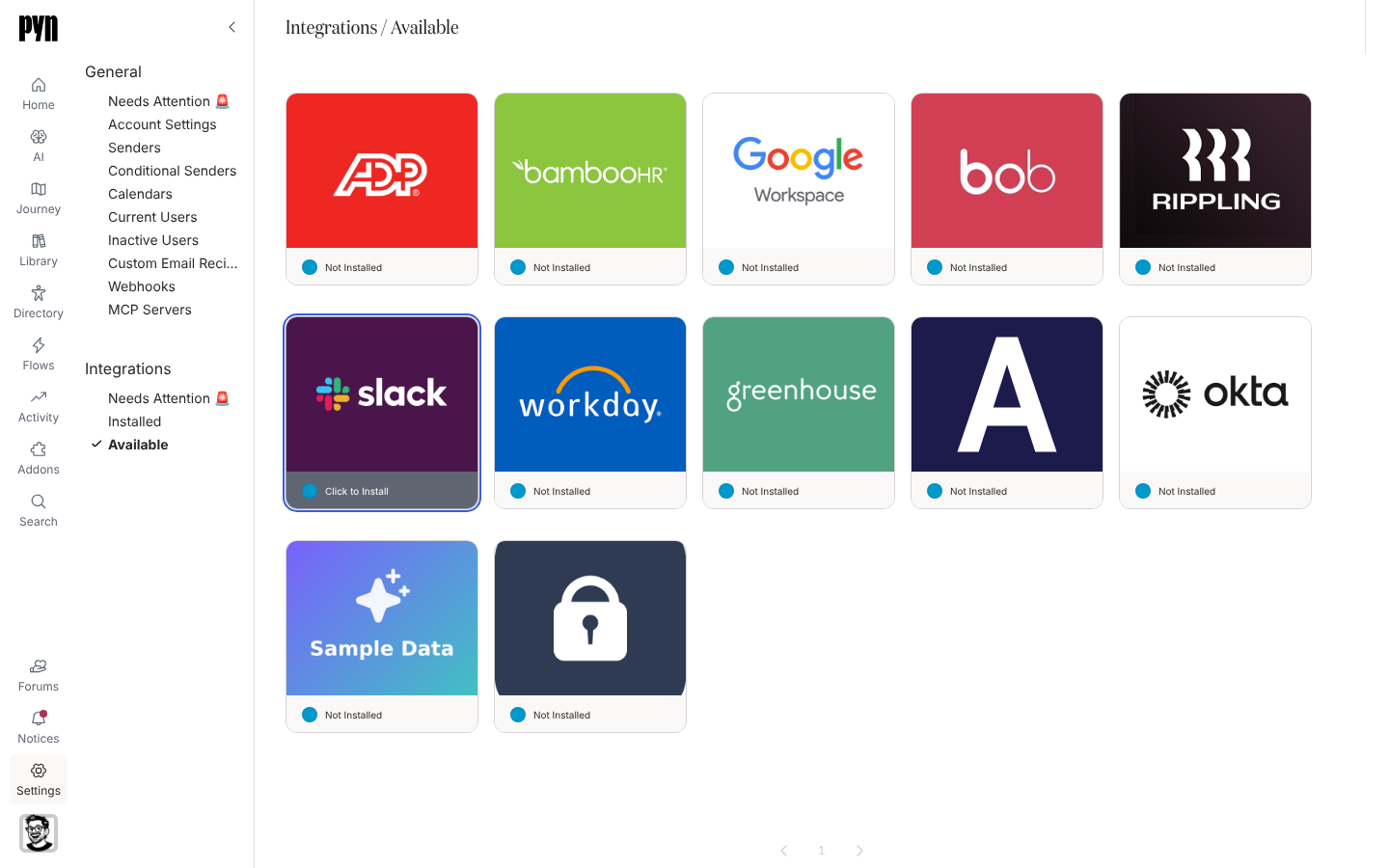
Settings, Integrations, Available lists every system you can connect; hovering a tile shows Click to Install. -
If you have no HRIS to connect, select the File Upload tile under Installed; its panel is headed Employee File. In the panel’s banner select Download Sample File, fill the columns, then select Upload and choose the file. On success the banner reads Success! Uploaded N records. and points you to Directory.
-
Open Directory in the left navigation and confirm your employees are listed under Employees, Active. Processing after an upload or first sync takes a minute or two.
Chapter 2: Connect a channel to send through
Section titled “Chapter 2: Connect a channel to send through”Pyn sends as a sender: a Slack or Teams user or bot, a Google Workspace or Microsoft 365 mailbox, or a verified email address.
-
Back in Settings, Integrations, Available, select Slack (or Microsoft Teams) and approve the Pyn app in your messaging workspace when it opens. If the connection cannot start, Pyn says so and asks you to contact support.
-
For email, select General, then Senders in the left rail. Select Add new email sender, enter a Sender Name such as
HR Teamand an Email Address, then Send Verification Email. -
Open the verification email and select Verify Email. The page reads Email Verified; back in Senders the sender’s status becomes active.
-
Alternatively select Add Google Email Sender or Add Microsoft 365 Email Sender to send from a real mailbox you own.
Chapter 3: Make emails look like your company
Section titled “Chapter 3: Make emails look like your company”-
In Settings, under General, select Account Settings. Check Company Name (used by the
company.nametoken) and Time Zone (used for employees without one of their own), and upload a Logo. -
Select Theme. Turn on Show Logo in Emails, then set CTA Color, CTA Text Color, Link Color, Font Family and Font Size. The Preview on the right updates as you change them.
Chapter 4: Invite your team
Section titled “Chapter 4: Invite your team”-
In Settings, under General, select Current Users, then Invite in the top-right corner.
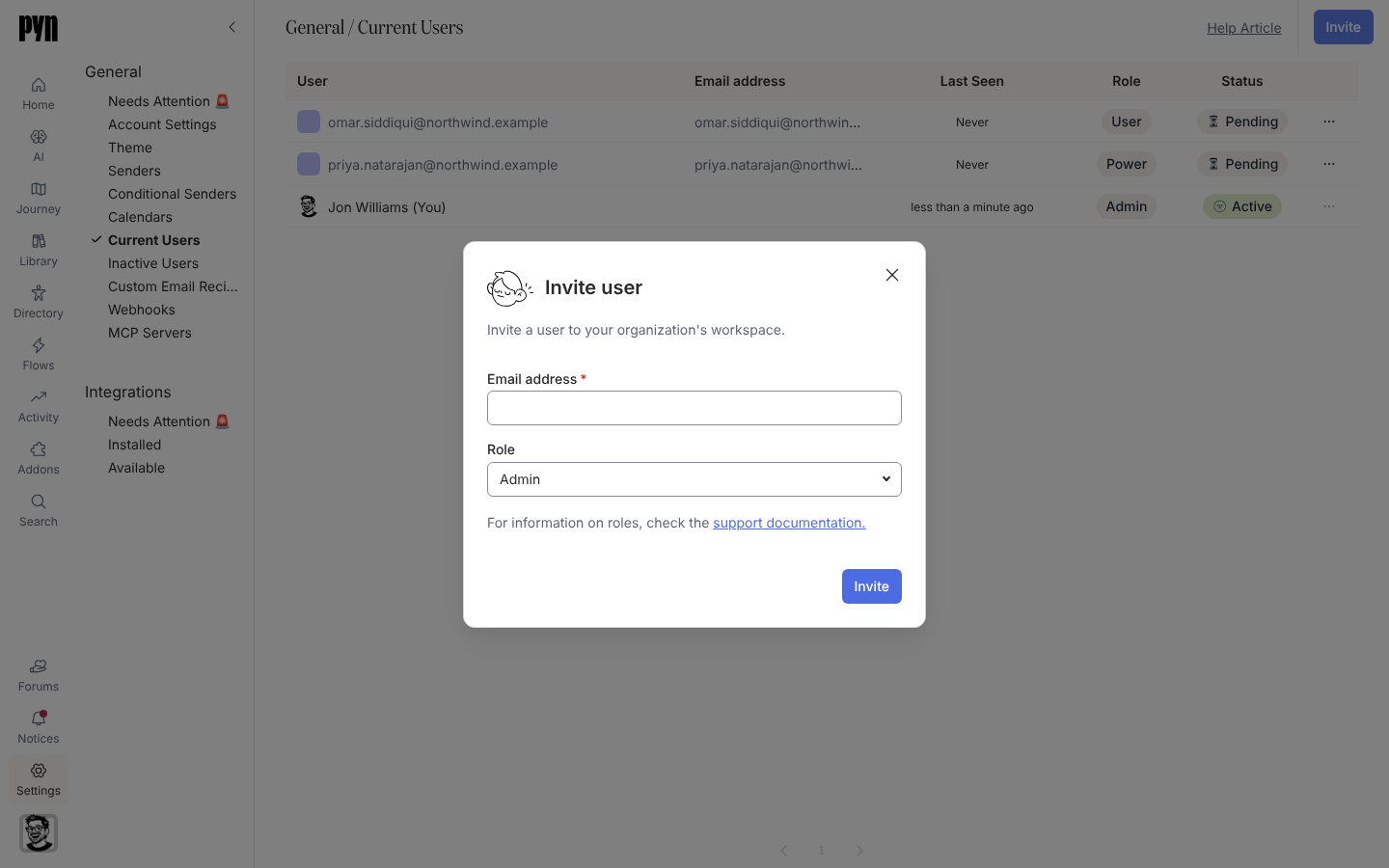
The Invite user dialog from Settings, Current Users. -
Enter the Email address, choose a Role (Admin, Power User or Limited User) and select Invite. The dialog confirms Success! and the person appears with status Pending until they first sign in.
Invite your team explains the roles; Roles and permissions has the full matrix.
Chapter 5: Turn on your first flow
Section titled “Chapter 5: Turn on your first flow”-
Open Flows in the left navigation. The Automations view lists the automations in your workspace, grouped by journey moment.
-
Select an automation to open it. For a first flow, a date-based one such as a work anniversary or a welcome message is simplest.
-
Select each step card in turn and check its sender, its recipient and its schedule in the drawer. Pick the sender you connected in Chapter 2.
-
Select Use This in the top-right corner. In Select how you would like this flow to operate: choose Verification to review each enrollment before anything sends, or Automated to let it run.
-
Open Activity in the left navigation. Enrollments appear under Enrollments as the trigger fires; in Verification mode they wait under Needs Review until you unpause them.
What you should see
Section titled “What you should see”On Home, every checklist card is ticked. Directory lists your people, Settings, Senders shows an active sender, and Flows shows one automation with a mode other than inactive. Workspaces on the free plan show a banner on Flows once that first automation is on; see Plans and what each unlocks.
Next steps
Section titled “Next steps”- Build a real onboarding flow step by step: Launch first-day onboarding end to end.
- Tell your company what to expect: Communicate the rollout.
- Learn the table controls you will use everywhere: Views, filters, search and export.
Related
Section titled “Related”- Create a workspace for the step before this tutorial.
- Complete the getting-started checklist for how each Home card ticks.
- Integrations for each HRIS and messaging integration in detail.
- Settings for senders, theme, users and account settings.