

Add an email step
Email reaches people before they have Slack, reaches managers who live in their inbox, and leaves a record. A Send Email to Employee step sends one email per recipient from a mailbox you have connected, with the employee’s details filled in.
Before you start
Section titled “Before you start”- A sender exists under Settings, Senders: a Google Workspace or Microsoft 365 mailbox, or a verified email address on your domain. See Email.
- You are a Power User, Admin or Owner.
-
In Pyn, open Flows in the left navigation, select Automations, then the automation.
-
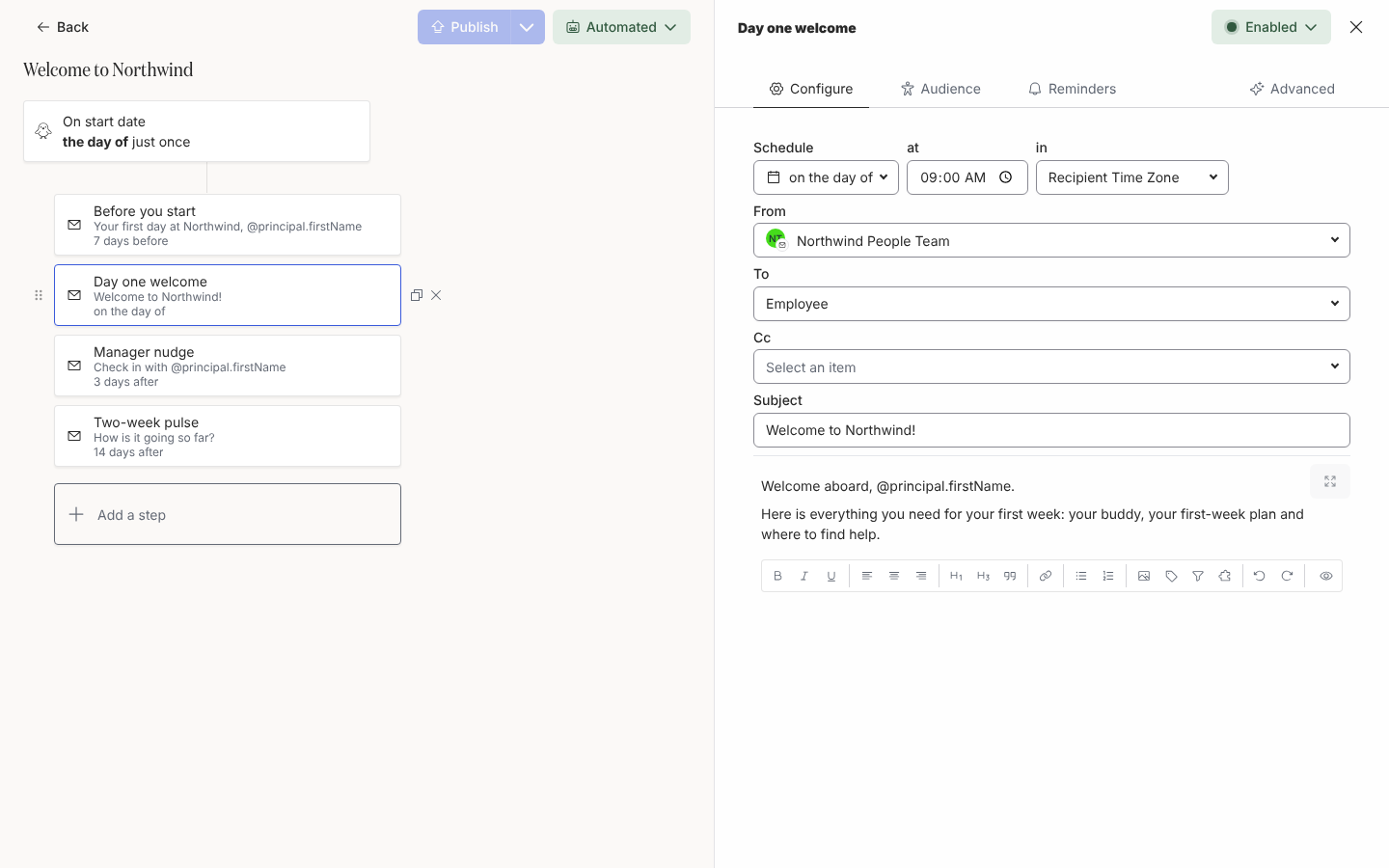
Select Add a step, then Send Email to Employee under Communication. The step opens in the drawer.
-
Name the step with the pencil next to its title, for example
Before you start. -
Under Schedule, choose the day relative to the reference date, the time and the time zone. For an email that must be read before the first day, choose a weekday morning in the Recipient Time Zone.
-
Under From, choose the mailbox or a conditional sender. See Choose a sender.
-
Under To, choose the recipient. Employee (Personal) sends to the personal address from your HRIS, which is the one to use before someone’s work mailbox exists. Add up to three Cc recipients, including custom email recipients such as a team inbox.
-
Type the Subject. It takes the name and date tokens, so
Welcome, @principal.preferredNamereads naturally. -
Write the body. Headings, lists, images, buttons and tokens are all in the toolbar; see Format a message.
-
Select Preview to read it as a particular employee, then Send a test to yourself. Select Publish on the automation when you are done.
What you should see
Section titled “What you should see”The test arrives in your inbox from the sender you chose, with your own name in place of the tokens and the theme applied. In the step list the card shows the title and schedule. After you publish, each enrollment shows the email under Messages as Scheduled, then Delivered, and Clicked once a link is opened.
Related
Section titled “Related”- Choose recipients and Cc for personal addresses, custom email recipients and Cc.
- Choose a sender for mailboxes, verified senders and conditional senders.
- Format a message for the editor, tokens and raw HTML.
- Email to connect a mailbox or verify your domain.