

Run a quick poll
You want to know how the first week went, or how an announcement landed, without asking anyone to fill in a form. A poll is one question with a row of buttons; the click is the answer.
Before you start
Section titled “Before you start”- You are a Power User, Admin or Owner.
- The step that will carry the poll exists in an automation or campaign.
-
In Pyn, open Flows in the left navigation, then select Polls.
-
Select Add Poll in the top-right corner. A poll titled New Poll opens; select the title (Enter a Poll Title) and name it, for example
First week pulse. -
Select Add Field, then Likert Scale. Set Label to the question,
How was your first week?, and Description to a nudge such asOne click; nobody but the People team sees your answer.Select Save. -
Select Preview to see the five buttons, then Publish.
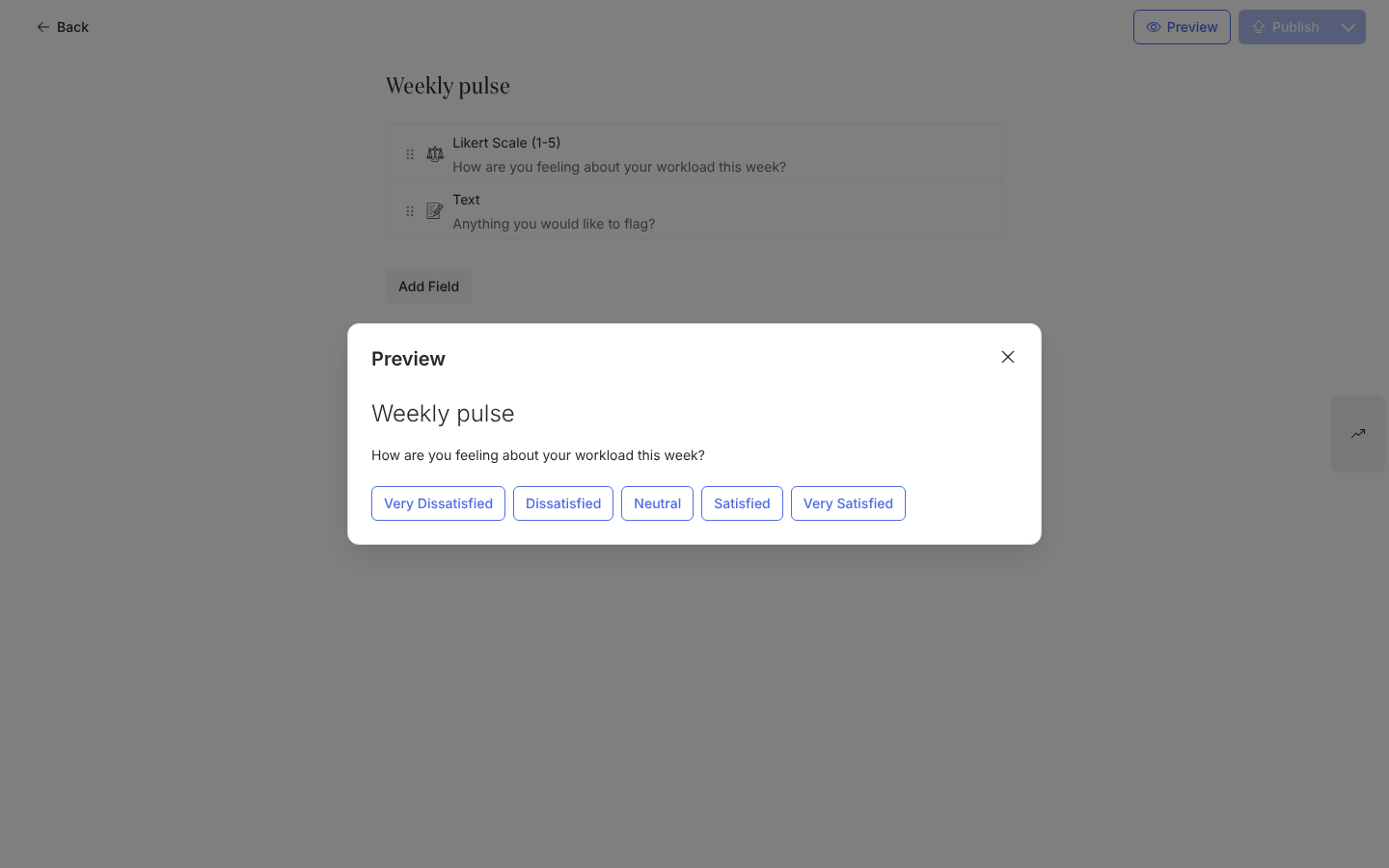
Preview shows a poll question as the row of buttons respondents click. -
Open the automation from Automations, select the step that goes out at the end of week one, place the cursor under your message, and select Insert widget, Embed Form. Under Form, choose the poll from the list, keep Track Action ticked, and Save.
-
Select Preview, then Send a test to yourself, and click an answer in the test. Select Publish on the automation.
What you should see
Section titled “What you should see”In Slack the buttons sit under the message and the clicked one highlights; in email the message carries a button to a page with the same row of buttons. Each click appears in the poll’s Activity drawer (select Activity on the rail in the poll editor) against the person’s name, and Export to CSV gives one row per answer with the score as a number. Under Actions, the step reads Actioned for everyone who clicked and Unactioned for everyone who did not. Your own test click is excluded from the list and the export.
Related
Section titled “Related”- Polls for how polls differ from forms.
- Embed a form in a message for the widget in detail.
- Review and export submissions for the Activity drawer and export.