

Tutorial: birthdays and anniversaries
Goal: nobody’s work anniversary or birthday passes unnoticed, and managers never find out on the day. Time: about 45 minutes. You will end up with three automations: Work anniversary (every year), Milestone anniversary (every 5 years) and Birthday (from the template catalogue), each with a manager heads-up a week ahead and a message to the person on the day.
Before you start
Section titled “Before you start”- Start Date is synced for everyone. For birthdays, your HRIS must provide Birthday; open a few profiles in Directory to confirm. Birthdays are stored as month and day only.
- Slack is connected, so the celebration can be a direct message and the milestone a channel post. Email works too; swap Send Direct Message for Send Email to Employee throughout.
- Decide the privacy stance on birthdays. The catalogue’s Birthday opt-in template asks people first; this tutorial excludes anyone in a static group named No birthday messages.
Chapter 1: the yearly work anniversary
Section titled “Chapter 1: the yearly work anniversary”-
In Pyn, open Flows in the left navigation, then Automations, and select Create New.
-
Under Dates and Schedules, select Upcoming Anniversary (“The upcoming anniversary of a start date.”). Title the automation
Work anniversary. -
On the trigger’s Configure tab, set This flow starts to 1 week before and leave the recurrence at every year. The flow now starts seven days before each anniversary, and the anniversary itself is the reference date, so “on the day of” means the anniversary.
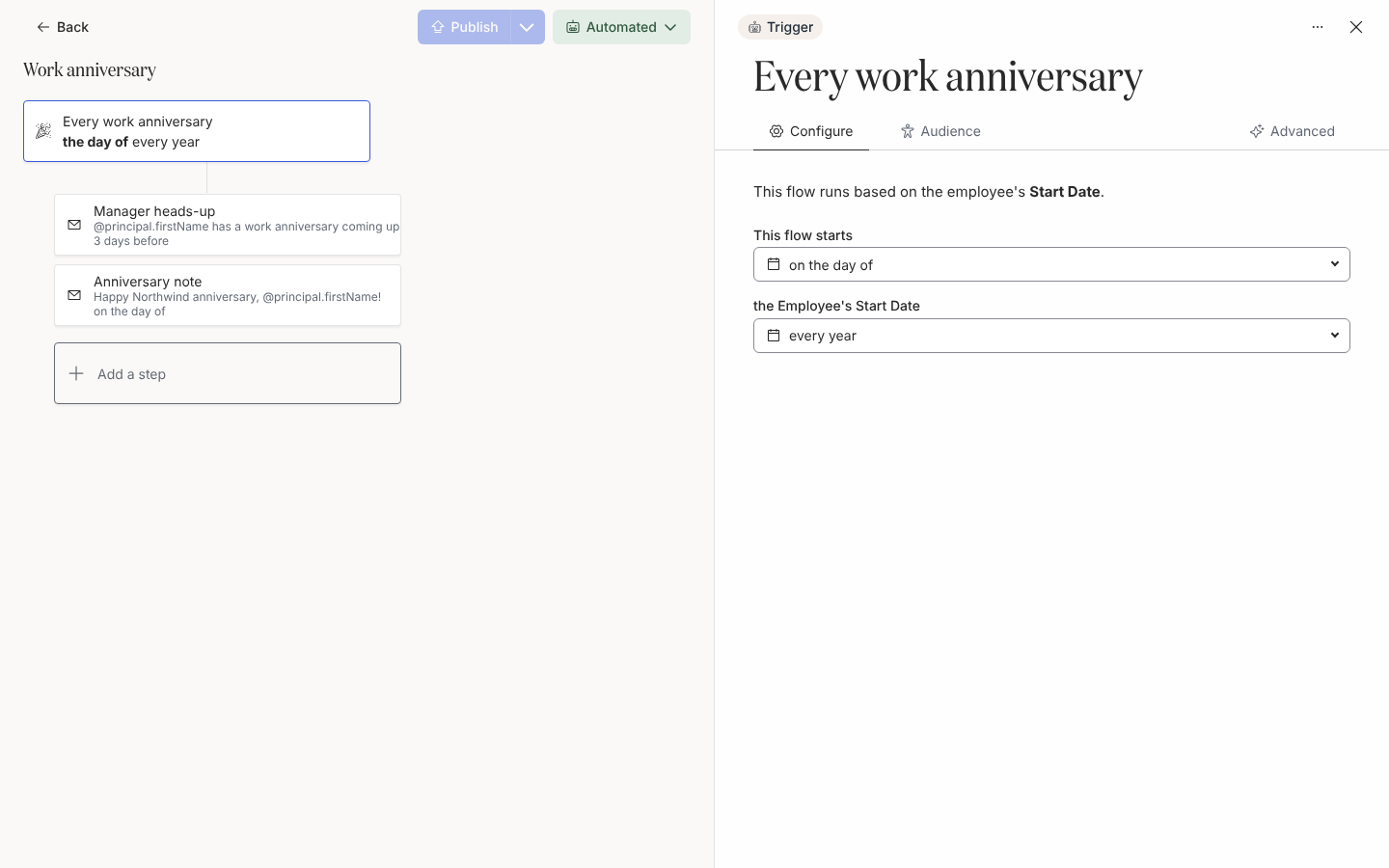
On Configure, This flow starts is the offset and the field under it is the recurrence. -
Open Audience and set Lifecycle to Current. Someone on leave is still included if you add On leave; most teams do.
-
Select Add a step, then Send Direct Message. Set To to Manager, schedule it 1 week before at 09:00 in the Recipient Timezone, and title it
Anniversary heads-up:Heads-up: @principal.preferredName’s work anniversary is on @date.reference. That is @principal.tenure with us.
A short, specific thank-you from you lands better than anything we can automate. Two ideas: mention one thing they did this year that mattered, and share it where the team can see.
-
Add a second Send Direct Message step. Set To to Employee, schedule it on the day of at 09:00 in the Recipient Timezone, and title it
Happy anniversary:Happy work anniversary, @principal.preferredName! Today marks @principal.tenure at @company.name. Thank you for everything you have brought to the team this year.
-
Select Publish, then the mode button, Change Mode, Automated.
Chapter 2: milestone anniversaries
Section titled “Chapter 2: milestone anniversaries”Big years deserve more than a direct message. A second automation keeps the milestone logic separate so the yearly flow stays simple.
-
Select Create New, then Upcoming Milestone Anniversary (“A significant anniversary (e.g. 5 or 10 years)”). Title it
Milestone anniversary. -
On Configure, set This flow starts to 2 weeks before and leave the recurrence at every 5 years. Years 5, 10, 15 and so on fire; the yearly flow also fires on those days, so decide whether to keep both or add Milestone anniversary recipients to an excluded group for the yearly one.
-
Add a Send Direct Message step to Manager, 2 weeks before at 09:00, titled
Milestone coming up. Ask them to arrange a gift or a moment with the team and to tell the People team if they need budget. -
Add a Post to Channel step to your team or company channel, on the day of at 10:00, titled
Celebrate a milestone:Today @principal.preferredName celebrates @principal.tenure at @company.name. Please join us in saying congratulations and thank you!
-
Select Publish, then Change Mode, Verification. Milestones are rare, so review the first one in Needs Review before moving to Automated.
Chapter 3: birthdays from the template catalogue
Section titled “Chapter 3: birthdays from the template catalogue”The trigger picker has no Birthday row, because birthdays have no year to count from. The Birthday celebration template carries the birthday trigger ready-made: it starts 1 week before and repeats every year.
-
On Automations, select the arrow beside Create New, then Add from Template.
-
Find Birthday celebration and select it. Pyn copies it into your workspace under the Birthday moment and opens it, inactive, with two Slack steps: one to the manager a week before and one to the employee on the day.
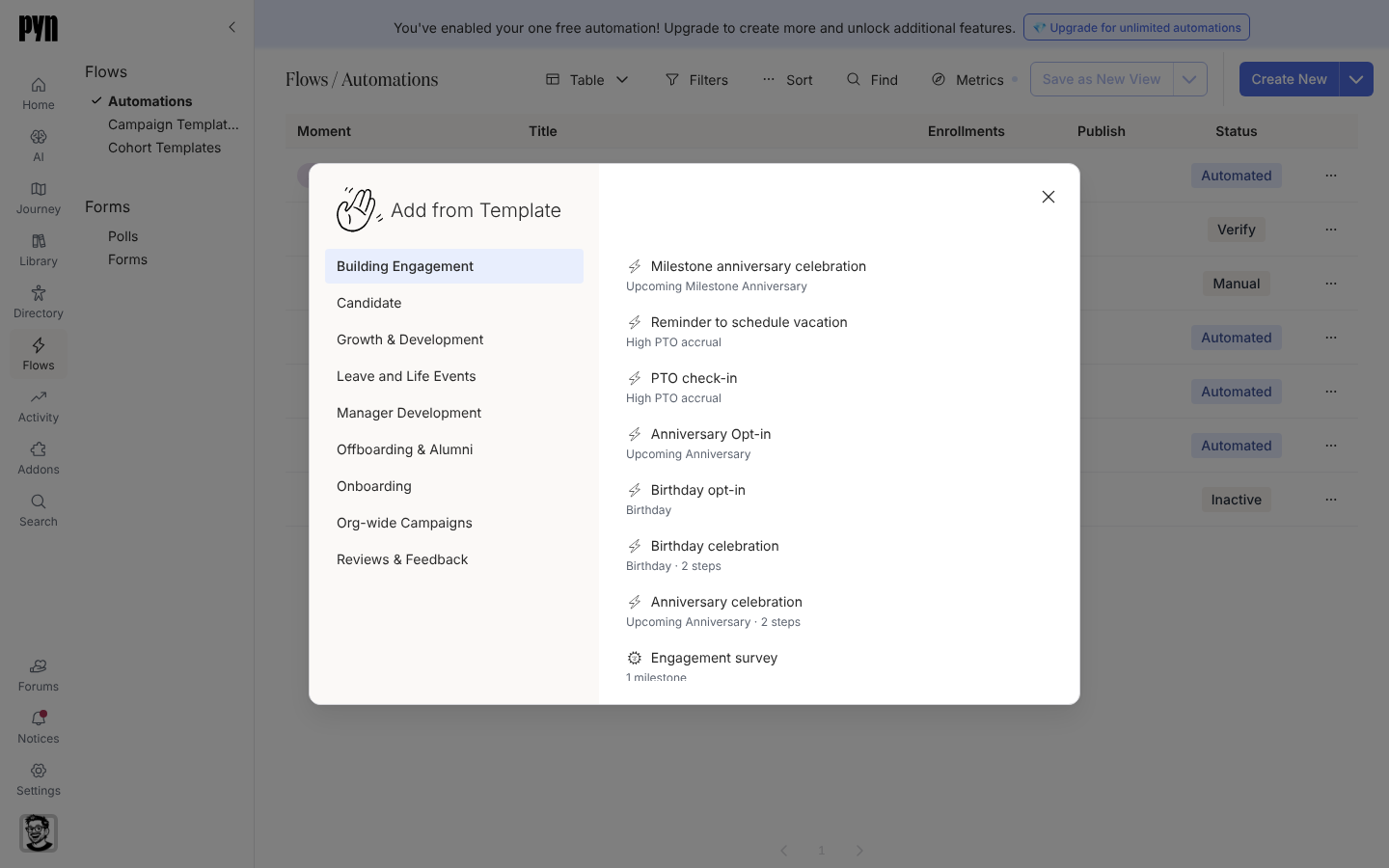
Add from Template copies a ready-made automation into your workspace. -
Select the trigger card. Configure reads “This flow runs based on the employee’s Birthday. This is the birthday on the Employee Record.” and the recurrence offers every year only.
-
Open Audience. Set Lifecycle to Current, and under Excluded add your No birthday messages group.
-
Open each step and rewrite the copy in your voice. For the message to the employee, keep it short and avoid mentioning age:
Happy birthday, @principal.preferredName! Hope you have a great day. From all of us at @company.name.
-
Select Publish, then Use This and choose Automated.
What you should see
Section titled “What you should see”Under Enrollments, people are enrolled seven days before each anniversary and birthday, with the anniversary or birthday as Reference Date. The manager’s message shows as delivered on the day of enrollment and the employee’s message as scheduled for the day itself. Someone who joined on 29 February is celebrated on 28 February in non-leap years.
Next steps
Section titled “Next steps”- Attach the three automations to the Birthday and Work anniversary moments on your Journey map if the template did not do it for you.
- Read Scheduling internals for exactly how recurrence years and leap days are counted.
Related
Section titled “Related”- Configure a date trigger for offsets and recurrence.
- Scheduling internals for the year-counting rules.
- Create an automation for the template catalogue.
- Steps and messages for Slack senders, channels and tokens.