

Create a conditional recipient
One step in your onboarding flow goes to the local People partner, but who that is depends on the employee’s region. A conditional recipient does that with ordered rules and a fallback, and you pick it in To on a step like any other recipient.
Before you start
Section titled “Before you start”- You are an admin or owner.
- The employee groups you want to route by exist.
- Any shared inbox a rule sends to is verified under Custom Email Recipients.
-
In Pyn, open Settings in the left navigation, then Conditional Recipients under General.
-
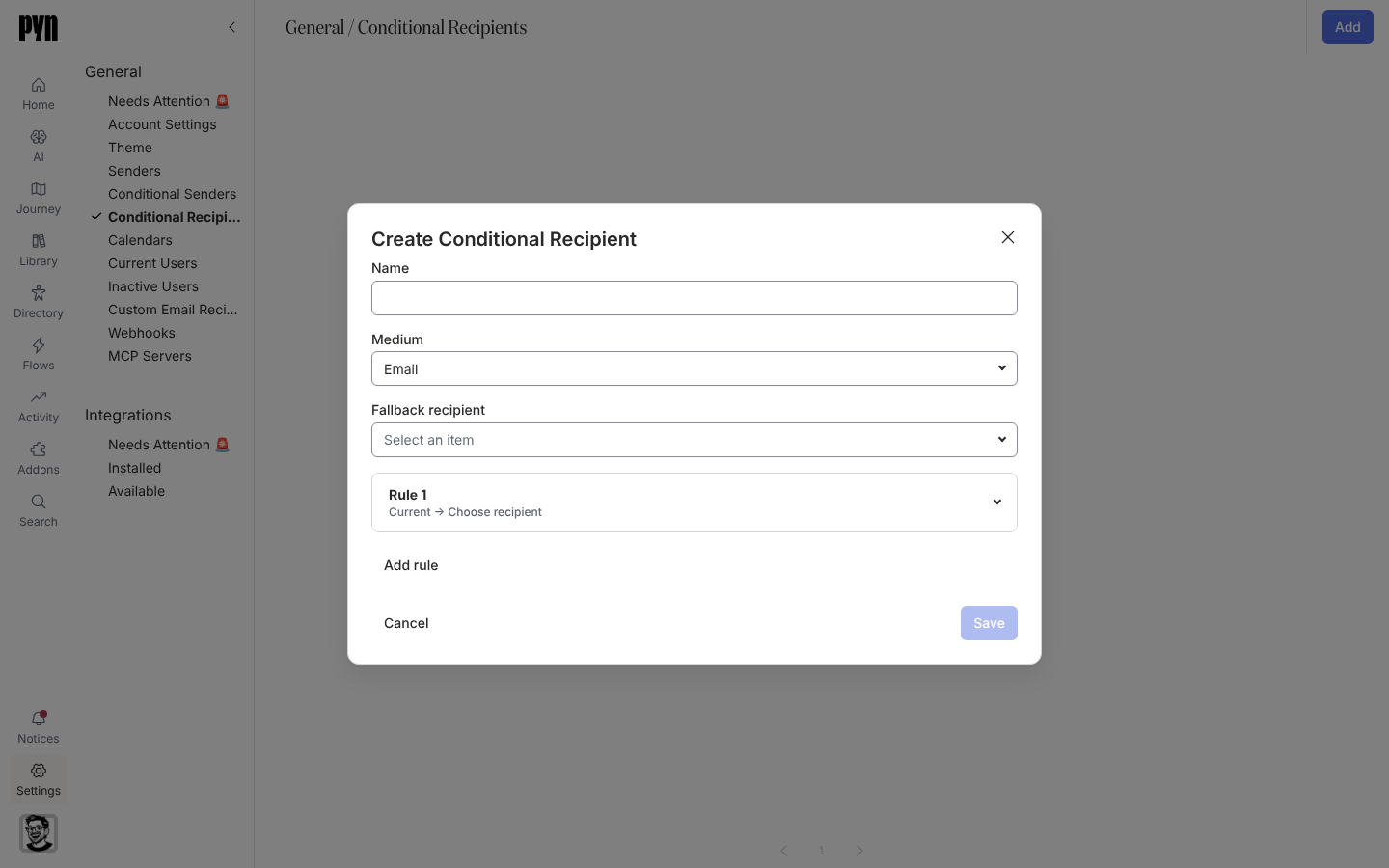
Select Add. The Create Conditional Recipient dialog opens.
-
Enter a Name and choose the Medium: Email, Slack or Teams. The medium cannot be changed once the conditional recipient exists, and only steps on that medium offer it.
-
Choose the Fallback recipient. It receives the step when no rule matches and is required.
-
Open Rule 1. Set its audience (Lifecycle, Included, Excluded) and choose Send to: Employee, Buddy, HRBP, Manager or Skip-level Manager, or on an email medium Employee (Personal) or a custom email recipient. The Audience Preview underneath shows who the rule covers.
-
Select Add rule for each further case, up to 20. Use the arrow and X buttons beside a rule (Move rule up, Move rule down, Remove rule) to order them; the first matching rule wins, and the last remaining rule cannot be removed.
-
Select Save. The button stays disabled until the name, the fallback and every rule’s recipient and lifecycle are set.
-
Open a step in an automation, select To or a Cc row, and choose the conditional recipient under Conditional Recipients.
How rules are evaluated
Section titled “How rules are evaluated”- When the step runs, Pyn checks the rules top to bottom against the enrolled employee and sends to the first match’s Send to recipient. The Fallback recipient receives it when no rule matches.
- A rule’s audience works like a step audience: lifecycle stages plus included and excluded groups. Every rule needs at least one lifecycle stage. See How audiences match.
- Rules are read when the step sends, so editing a conditional recipient changes every step that uses it.
- A conditional recipient has up to 20 rules and one medium, and a rule cannot point to another conditional recipient.
What you should see
Section titled “What you should see”The new row lists the Name, Medium and number of Rules; select it to edit, or archive it from its … menu. On a step of the same medium, To and each Cc row list it under Conditional Recipients, and on a Post to Channel step it follows the channels in To. Once an employee is enrolled, their step under Enrollments names the person the rules chose. If saving fails the dialog shows “Could not save conditional recipient” or the reason, for example “Every rule needs at least one lifecycle stage”.
Related
Section titled “Related”- Create a conditional sender to route who a step comes from the same way.
- Choose recipients and Cc for the recipients a rule can send to and how to pick one on a step.
- Settings, General for where Conditional Recipients lives.