

Steps and messages
A step is one thing Pyn does for one enrolled employee: send an email, post to a Slack channel, invite someone to a calendar event, raise a Jira ticket. Automations and campaigns are lists of steps. Each step has its own schedule, sender, recipient, audience and message, and when it runs Pyn turns it into one delivery per recipient, which you follow in Messages.
Step types
Section titled “Step types”Select Add a step on an automation, or Add Step on a campaign, to open the Add Step dialog. Its categories are Communication, AI & Context, Tasks & Activities, Documents & Forms and Integrations. The rows you can add are:
| Step | Category | What it does |
|---|---|---|
| Send Direct Message | Communication | A Slack direct message to the employee or someone around them. Add a direct message step. |
| Send Email to Employee | Communication | An email to the employee, their manager, buddy, HRBP or a custom address. Add an email step. |
| Post to Channel | Communication | A post in a public Slack channel. Post to a channel. |
| Invite to Calendar Event | Tasks & Activities | An invitation to a Google or Outlook calendar event. Invite to a calendar event. |
| Add to Channel | Tasks & Activities | Adds the employee to a Slack channel. Add to a channel. |
| Raise Ticket | Tasks & Activities | Creates a Jira issue. Raise a ticket. |
| Add Message to Employee Context and the other AI & Context rows | AI & Context | Write to the employee’s AI context in workspaces with the AI area. See AI. |
Rows that appear greyed in the dialog, such as Send Teams Message, Send Email to Mailbox, Send In-App Notification, Create Task and everything under Documents & Forms and Integrations, cannot be selected. A banner on Integrations reads Some steps are only available with the associated integration and plan. To email a shared mailbox, add a Send Email to Employee step and choose a custom email recipient under To; see Choose recipients and Cc. Post to Channel, Add to Channel and Raise Ticket need Slack or Jira connected and enabled for the workspace.
There is no separate acknowledgement or content step. A button in the message does that job: see Add a button to a message.
Anatomy of a step
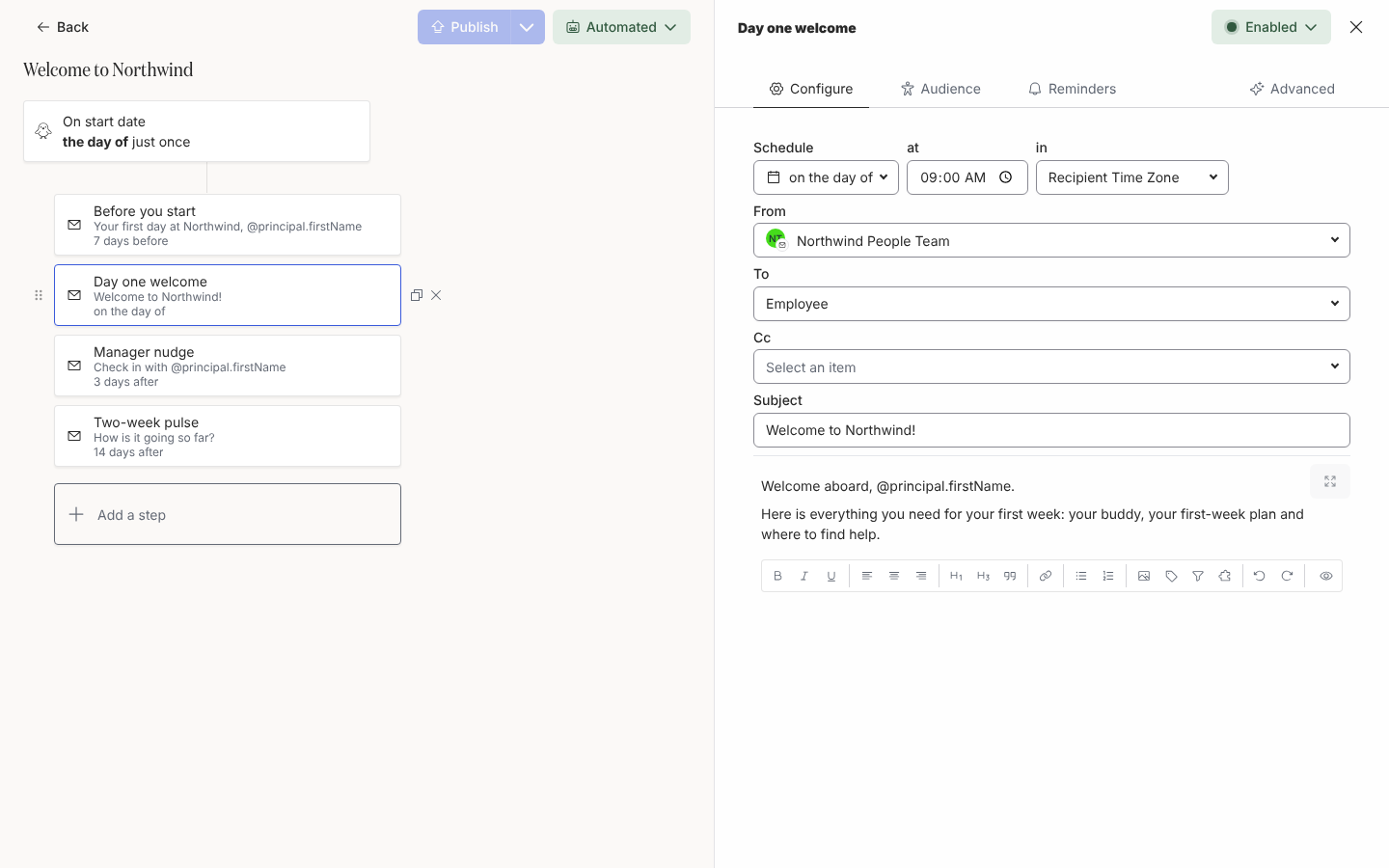
Section titled “Anatomy of a step”Select a step card to open it in the drawer on the right. The header holds the step’s title, which you edit with the pencil, and a state button that reads Enabled or Disabled; a disabled step stays in the automation but never sends.
| Tab | What you set there | Pages |
|---|---|---|
| Configure | Schedule (when, at what time, in which time zone), From (the sender), To (the recipient) and Cc, the Subject on an email, and the message itself with its toolbar, Preview and Send a test to yourself. Calendar, channel and ticket steps show their own fields here instead of a message. | Schedule a step, Choose a sender, Choose recipients and Cc, Format a message, Preview and send a test |
| Audience | Lifecycle, Included and Excluded groups that narrow which enrolled employees receive this step, with an Audience Preview. | Set a step audience |
| Reminders | Up to three follow-ups to the recipient, and under them up to three Escalations to someone else. Shown on message steps only. | Add reminders, Add escalations |
| Advanced | Days of Week, On Non-Delivery Days, Skip if overdue at enrollment, the Slack unfurling switches and, on an email, the Email body choice between Composed message and Raw HTML. | Schedule a step, Deactivate link and media unfurling |
From step to delivery
Section titled “From step to delivery”When an enrollment reaches a step, Pyn works out the recipients (the step’s To resolved for that employee, filtered by the step’s audience), picks the sender, fills in the tokens for each recipient and creates one delivery per recipient, scheduled for the step’s time in the chosen time zone. A step with nobody to send to is skipped. Each delivery then moves through the statuses in Delivery statuses.
A new step starts with sensible defaults: on the day of the reference date at 10:00 in the Recipient Time Zone, Monday to Friday, moved to the previous delivery day when it lands on a weekend, To set to Employee, audience Current, and Enabled.
Managing steps
Section titled “Managing steps”- Drag the handle at the left of a card to reorder steps; the list shows them in schedule order.
- The copy icon on a card duplicates the step directly below it as a draft; the cross removes it.
- Titles save as you type. A step without a title shows its type, for example Send Email.
- Changes to a published automation’s steps take effect when you Publish again; see Publish an automation.
Where it is in the app
Section titled “Where it is in the app”Steps live inside an automation (open /flows/home in Pyn, select Automations, then an automation) or a campaign (open /activity/home, select Campaigns, then a campaign). The step drawer is the same in both places, except that a campaign step has an absolute Scheduled date and a list of recipients rather than one relative recipient.
Related
Section titled “Related”- Automations for the trigger and audience the steps hang off.
- Campaign templates for steps on a calendar date.
- Step options for every field in one table.
- Messages to follow each delivery a step produced.