

Create a relationship group
Who has no buddy three weeks in? Who manages someone? A relationship group answers a question like that and stays current as relations change in your HRIS.
Before you start
Section titled “Before you start”- You are a workspace admin.
- The relation is in your data: manager, buddy, mentor and HRBP each come from your HRIS or an Employee File upload. Employee properties lists the columns.
-
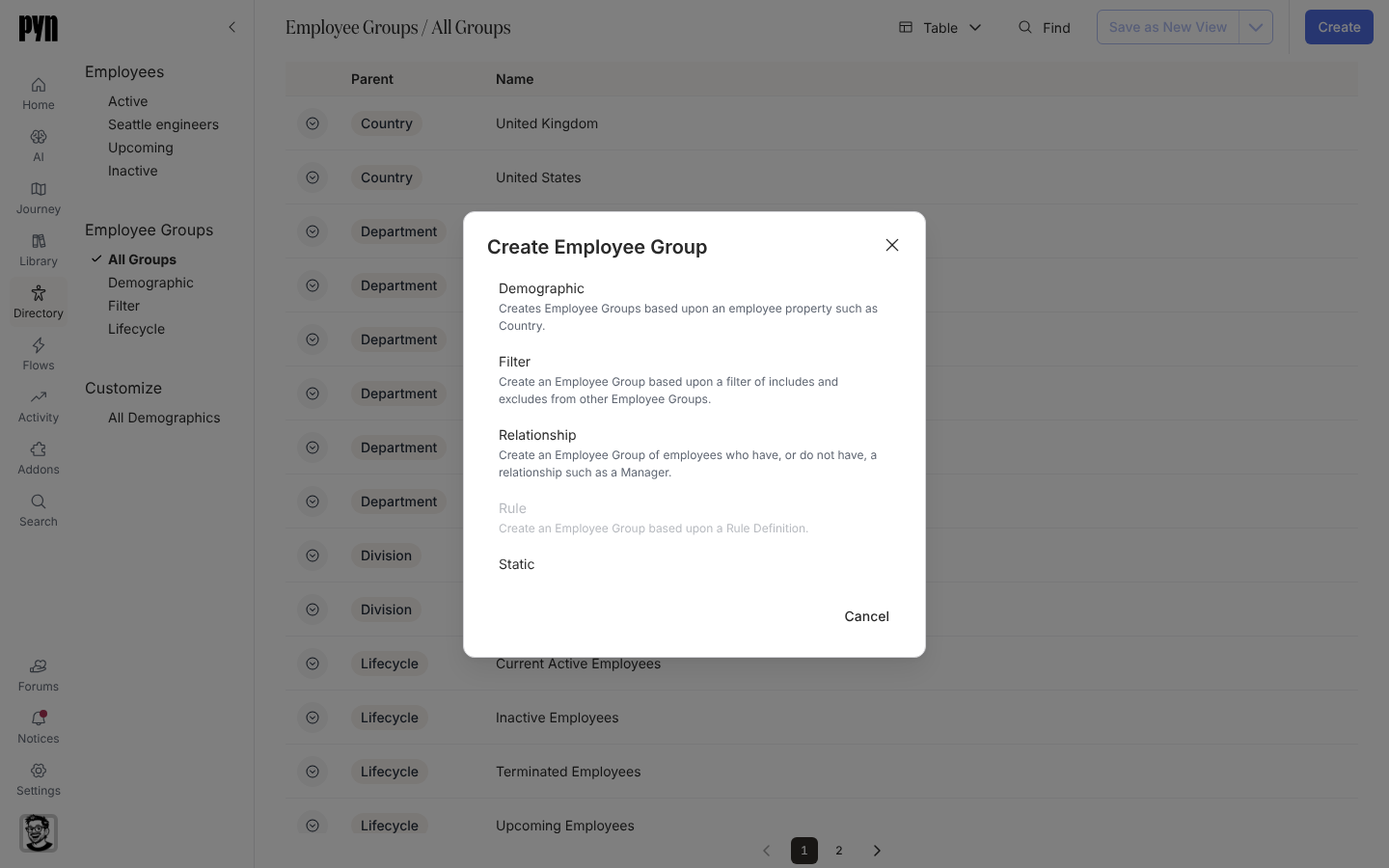
In Pyn, open Directory in the left navigation, then select All Groups under Employee Groups.
-
Select Create, then Relationship in the Create Employee Group dialog.
-
Under Select a Relationship, choose one: Buddy, Buddy to others, HRBP, HRBP to others, Manager, Manager of others, Mentor or Mentor to others.
-
Under Group Members, choose the side you want. The labels change with the relation, for example Employees with a buddy or Employees without a buddy, Employees who manage someone or Employees who do not manage anyone.
-
Type a Group Title, or leave it to take the label you chose.
-
Select Create, then Done.
What you should see
Section titled “What you should see”The group opens in its panel and is listed in All Groups with the relationship icon. Adding employees to the group may take a few minutes, as the dialog says; then Group Employees: lists everyone on the chosen side. Use the group in an automation’s audience, or open it after each HRIS sync to see who still lacks the relation.
Related
Section titled “Related”- Fix a missing manager, time zone or email for the people the group finds.
- Group types for the seeded relationship groups.
- Automations for sending to the group.