

Enrollments
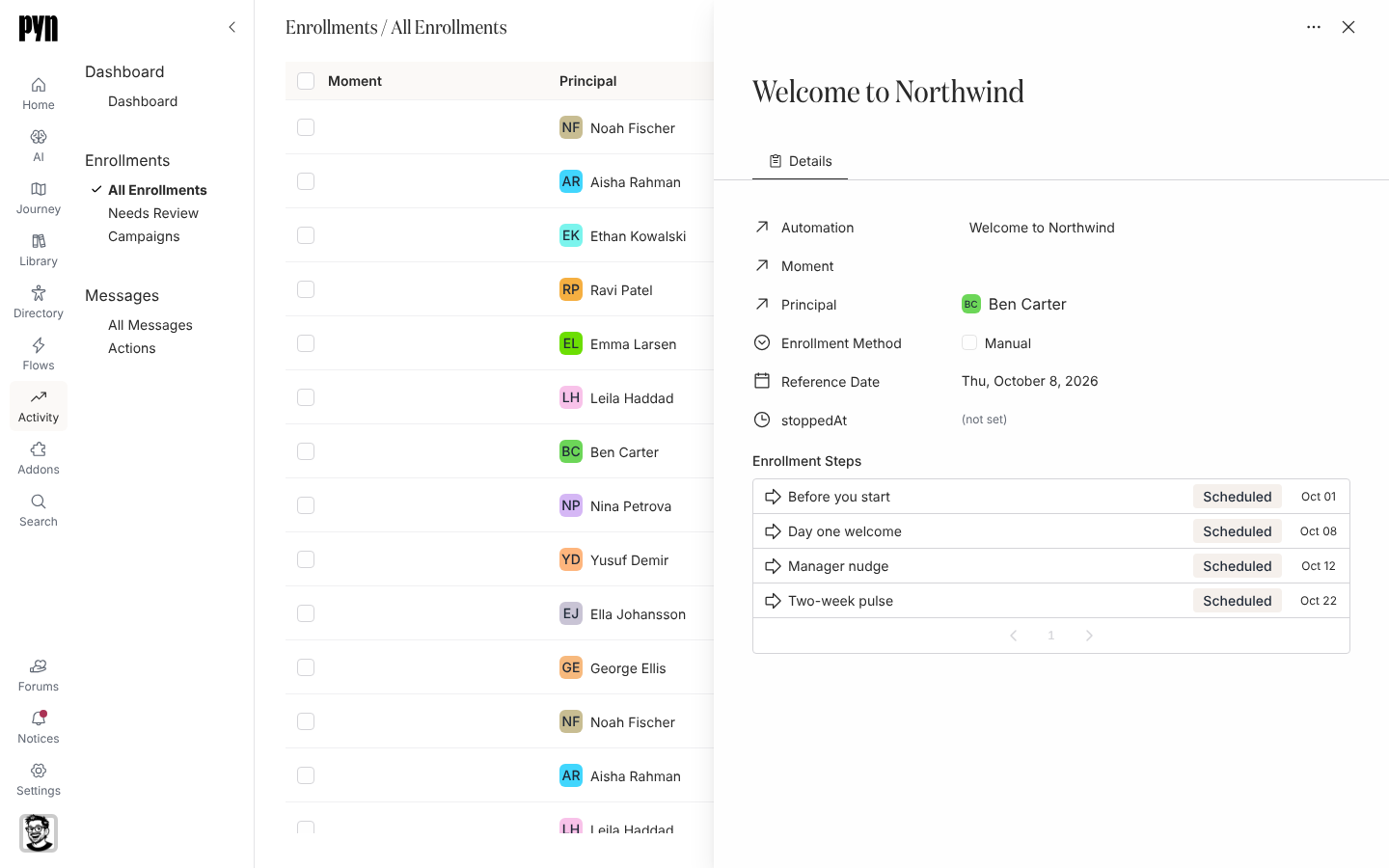
When an automation’s trigger fires for an employee, or you enrol people by hand, Pyn creates an enrollment: a copy of the automation’s steps scheduled from that person’s Reference date. The enrollment is where you check that the right messages are lined up for the right person, and where you intervene when they are not.
The three views
Section titled “The three views”- All Enrollments lists every automation and campaign enrollment, newest first. Columns: Moment, Principal (the employee), Automation (the published version it runs), Progress (sent steps over total, red when a message bounced) and Reference. Filters narrows by Automation or Moment.
- Needs Review lists enrollments that are Paused because they were created in Verify Mode. Each row has a Verify button in place of its progress bar.
- Campaigns is a calendar of campaign enrollments and their steps, by month or year.
What you can do here
Section titled “What you can do here”- Open an enrollment to read its steps and dates.
- Review and unpause enrollments that are waiting in Needs Review.
- Stop an enrollment so nothing more is sent.
- Reschedule a campaign step by dragging it on the calendar.
- Enrollment, step and delivery statuses explains every status.
Where it is in the app
Section titled “Where it is in the app”Open Activity in the left navigation; it lands on All Enrollments. Needs Review and Campaigns are listed under Enrollments on the left. An enrollment opens in a panel on the right at /activity/home; a step opens its own page at /activity/step/<id>.
Related
Section titled “Related”- Automations for the triggers that create enrollments and the Update Enrollments prompt after a republish.
- Messages to look at steps across every enrollment.
- Employees for the Enrollments list on an employee’s profile.