

Add a Slack sender
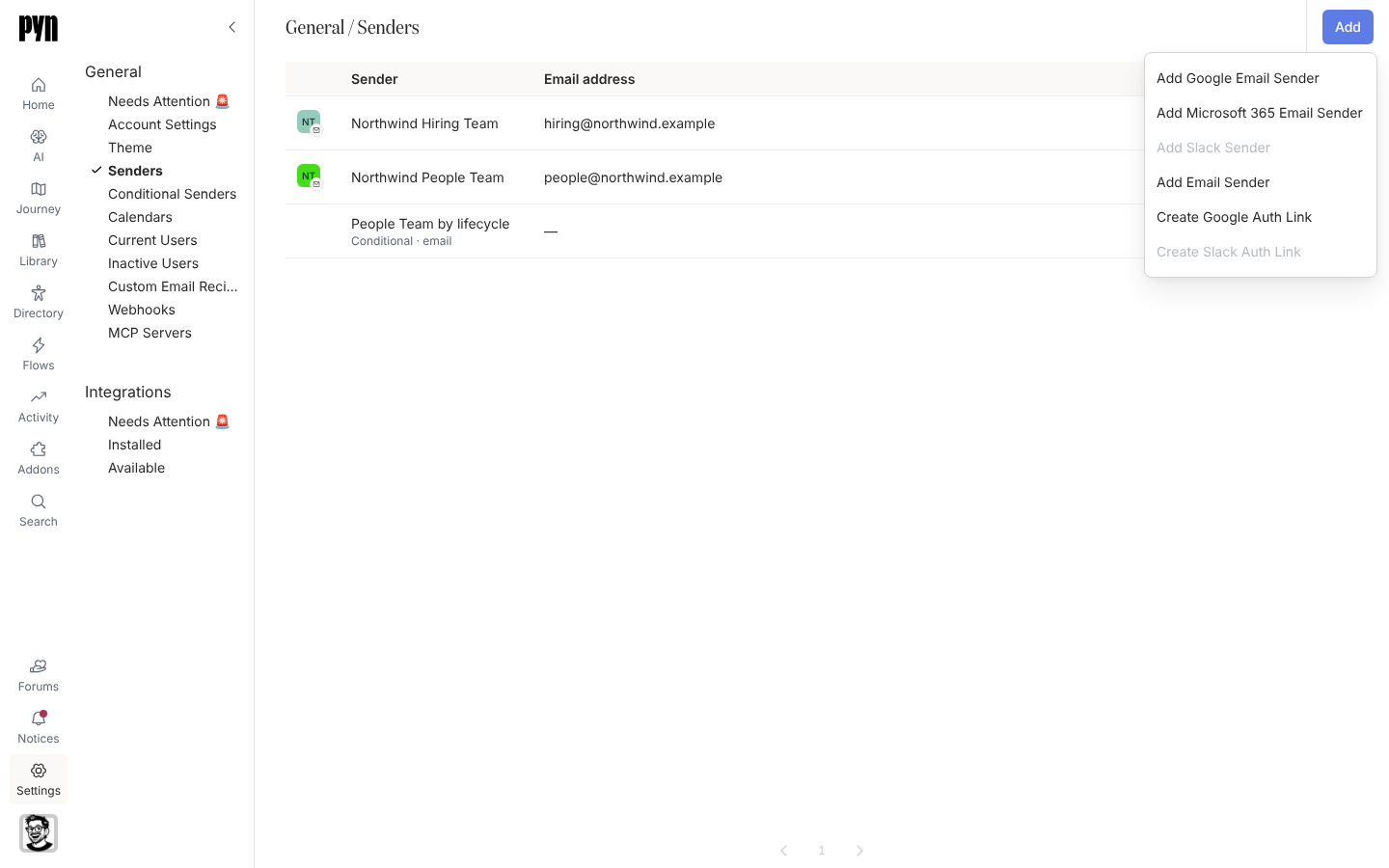
You want a Slack message to come from you, with your name and avatar, so the recipient can reply to you directly. A Slack sender is your own Slack user, authorised to let Pyn post on your behalf in the Slack workspace that is connected to Pyn.
Before you start
Section titled “Before you start”- The Slack integration is installed and Active under Settings > Integrations. Until it is, Add Slack Sender is disabled.
- You are signed in to Pyn as yourself. Slack senders are authenticated by their user, so each person connects their own.
- If more than one Slack workspace is connected, the menu lists Add Slack Sender for each, so you can pick the right one.
-
In Pyn, open Settings in the left navigation, then Senders under General.
-
Select Add, then Add Slack Sender.
-
Slack opens. Check the workspace shown in the top right is the one connected to Pyn, review the permissions and select Allow. Pyn asks for
channels:read,channels:write.invites,chat:write,groups:read,groups:write.invites,im:readandim:writeon your user. -
Slack returns you to Pyn. Your Slack name and avatar appear in the Senders list.
-
Open the sender’s … menu and select Test Connection. “Test successfully sent. Check your Slack account for the test message.” confirms it.
What you should see
Section titled “What you should see”The row shows Active, and the sender appears in the From list of Slack steps next to Pyn Bot. If the row later shows Requires reauth, open the sender and select Reconnect; the panel explains “This sender will not be able to send as it requires re-authentication. This can happen if a password is changed or credentials are revoked.” If the test reports “Slack appears to be configured, but we could not find you as a Slack Member to send the test message.”, your Pyn email does not match any Slack member’s email in that workspace.
Related
Section titled “Related”- Senders for the other sender types.
- Slack for installing the integration and the Pyn Bot.
- Create an auth link to connect someone without a Pyn login.