

Export a group's employees
You want the people in a group in a spreadsheet: to check who a filter group has picked up, to hand a department list to its leader, or to compare a static group with the list you built it from. The group’s panel exports its members as a CSV straight to your downloads.
Before you start
Section titled “Before you start”- You are an Admin or Owner: Directory is in the navigation for admins only.
- The group exists under Employee Groups; every kind can be exported, including the demographic and lifecycle groups Pyn seeds. A filter or relationship group that is still being evaluated exports the members it has so far.
-
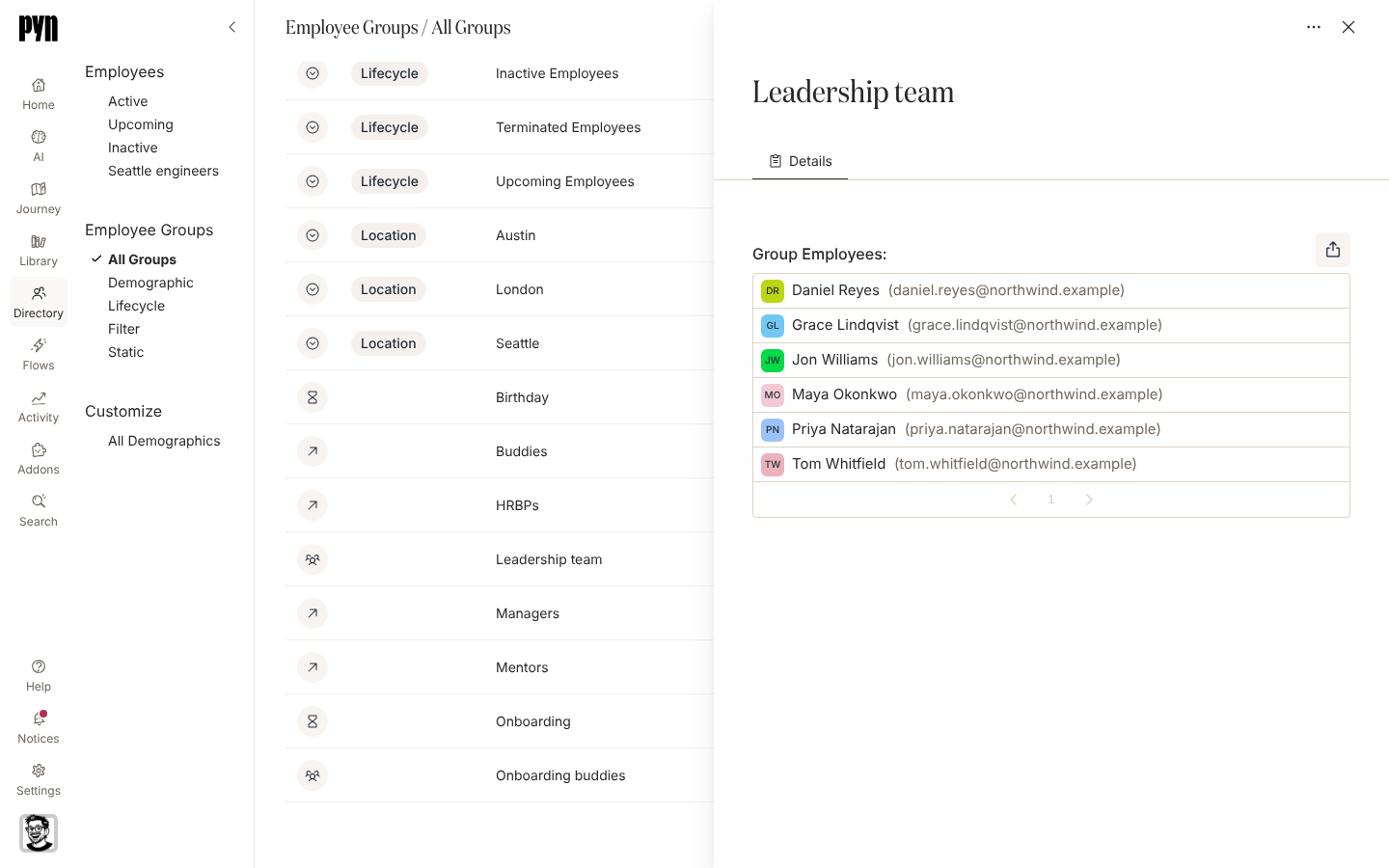
In Pyn, open Directory in the left navigation and select All Groups under Employee Groups, or one of the views Demographic, Lifecycle, Filter or Static.
-
Select the group. Its panel opens on the right with Details at the top and Group Employees: beneath.
-
Select the export button at the right of Group Employees: (an arrow leaving a tray; it reads Export group employees to a screen reader). The button is greyed while the file is being built.
-
Your browser downloads the file, named after the group: leadership-team-employees.csv for a group called Leadership team.
What you should see
Section titled “What you should see”A CSV with one row per member and the columns name, primaryEmail, personalEmail, jobTitle, department and startDate; a column is empty where Pyn holds no value. The file comes from your browser at once, so nothing appears under Notices, unlike an employee view export.
Related
Section titled “Related”- Employee Groups for the five kinds of group and where each comes from.
- Export employees to export a saved Employees view instead, with the view’s columns.
- Group types for how each kind is evaluated and when its members change.