

Rippling
The Rippling integration reads workers from Rippling’s API and keeps the Directory current: names, work and personal email, start and termination dates, title, department, manager, employment and worker type. Pyn reads only; nothing is written back.
Before you start
Section titled “Before you start”- You are an admin or owner in Pyn.
- Either you can sign in to Rippling as an administrator and authorise Pyn, or a Rippling admin has created an API key for Pyn.
Connect
Section titled “Connect”-
In Pyn, open Settings in the left navigation, then Available under Integrations.
-
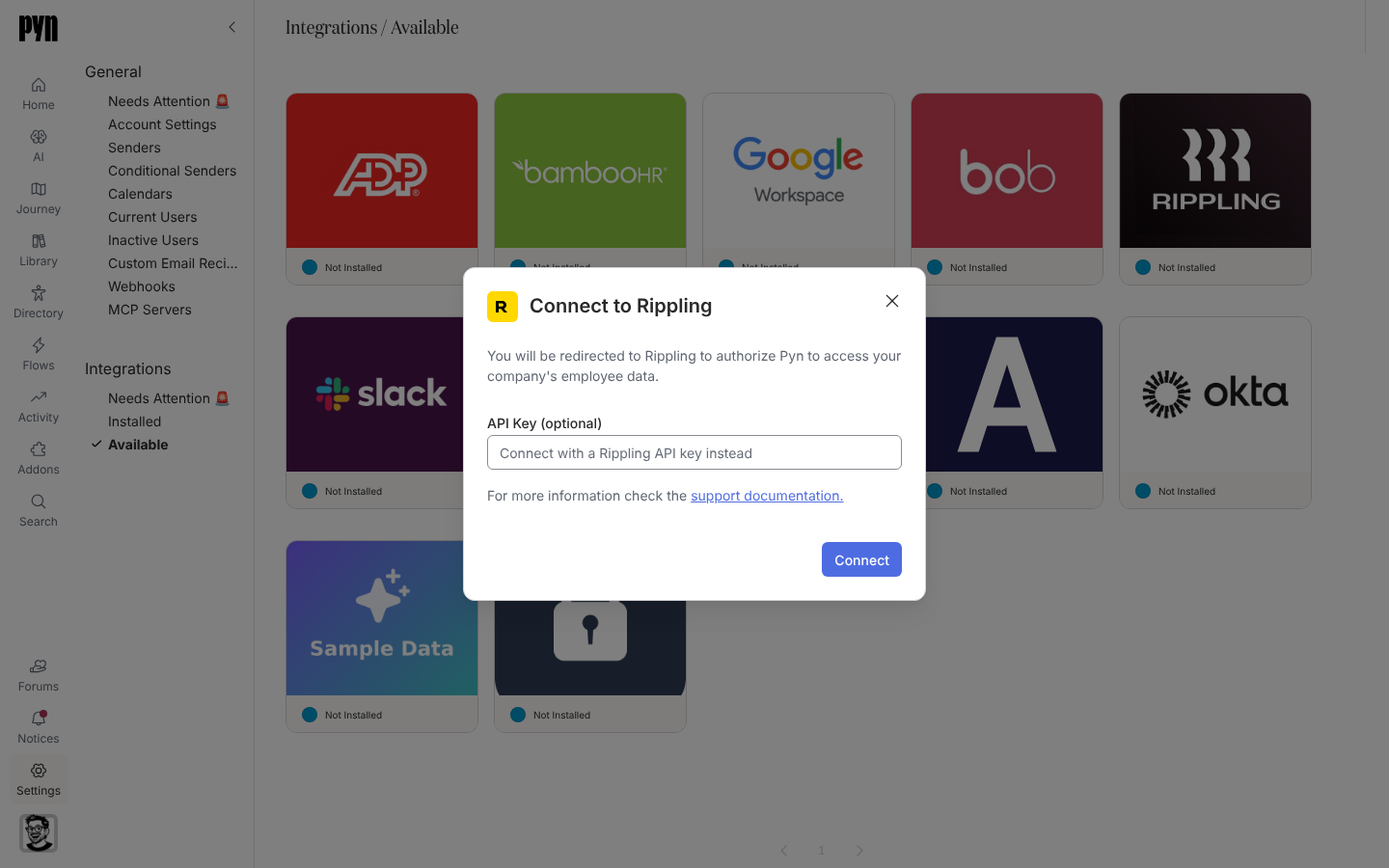
Select the Rippling tile. The Connect to Rippling dialog opens: “You will be redirected to Rippling to authorize Pyn to access your company’s employee data.”
-
To sign in, leave API Key (optional) empty and select Connect. Authorise Pyn in Rippling and return.
-
To use a key instead, paste it into API Key (optional) (“Connect with a Rippling API key instead”) and select Connect.
-
The panel reads “You’re connected. Syncing can take a few minutes. Check the journey map then!”
What syncs
Section titled “What syncs”Pyn refreshes from Rippling every five minutes while the integration is active and records each run under History. The Details tab shows Expanded Data, the related records Pyn requests with each worker: Department, Employment Type, Manager and Teams; you can change the selection there.
| Pyn property | From Rippling |
|---|---|
| Display name, legal name, preferred name | The worker’s names |
| Work email, personal email | Work and home email addresses, with the user’s emails as fallback |
| Start date, tenure date | Start date (tenure mirrors it) |
| Termination date | Termination or end date |
| Job title, department, location | Title, department name and work location |
| Employee type, employment type, worker type, time type, exempt | Employment type and classification |
| Manager | Manager, when Manager is expanded |
| Avatar, birthday, country, postal code, time zone | Profile photo and address; time zone from country and postal code |
See HRIS fields for the matrix.
Test it
Section titled “Test it”Open the Rippling tile under Installed, open the … menu and select Test Connection. “Successfully tested the connection to Rippling.” confirms it; “An error occurred connecting to Rippling. Please Reconnect or contact support if the issue persists.” means the credentials no longer work. Then check Employees.
Reconnect or disconnect
Section titled “Reconnect or disconnect”- Reconnect opens Reconnect to Rippling: “Enter a new Rippling API key to reconnect this integration.” Reconnecting always uses a key; the sign-in flow is for the first connection.
- Deactivate stops syncing; Activate resumes. Archive removes the integration from Installed.
Troubleshooting
Section titled “Troubleshooting”| What you see | What it means |
|---|---|
| History: “Error: Authentication failed, please reconnect” | The key was revoked or the authorisation withdrawn. Reconnect with a new key. |
| History: “Error: Insufficient permissions to access Rippling” | The key cannot read workers or one of the expanded records. Widen its scopes in Rippling. |
| History: “Could not connect to Rippling, please reconnect” | Rippling refused the connection; reconnect, and contact support if it repeats. |
| Managers missing | Manager is not in Expanded Data. Tick it on the Details tab. |
Related
Section titled “Related”- Integrations for the catalogue.
- HRIS fields for the field matrix.
- Sync cadence and matching for schedules and matching.
- Employees to check the synced records.