

Set a moment's properties
The properties on a moment turn the map into a plan: filter by Current State to see gaps, by Priority to see what is next, by Department or Owner to see who holds it. Each property saves the instant you choose a value.
Before you start
Section titled “Before you start”- You are a workspace admin.
- You know who owns the moment. Owner and Stakeholders are chosen from the workspace’s users, so invite anyone missing from Settings first.
-
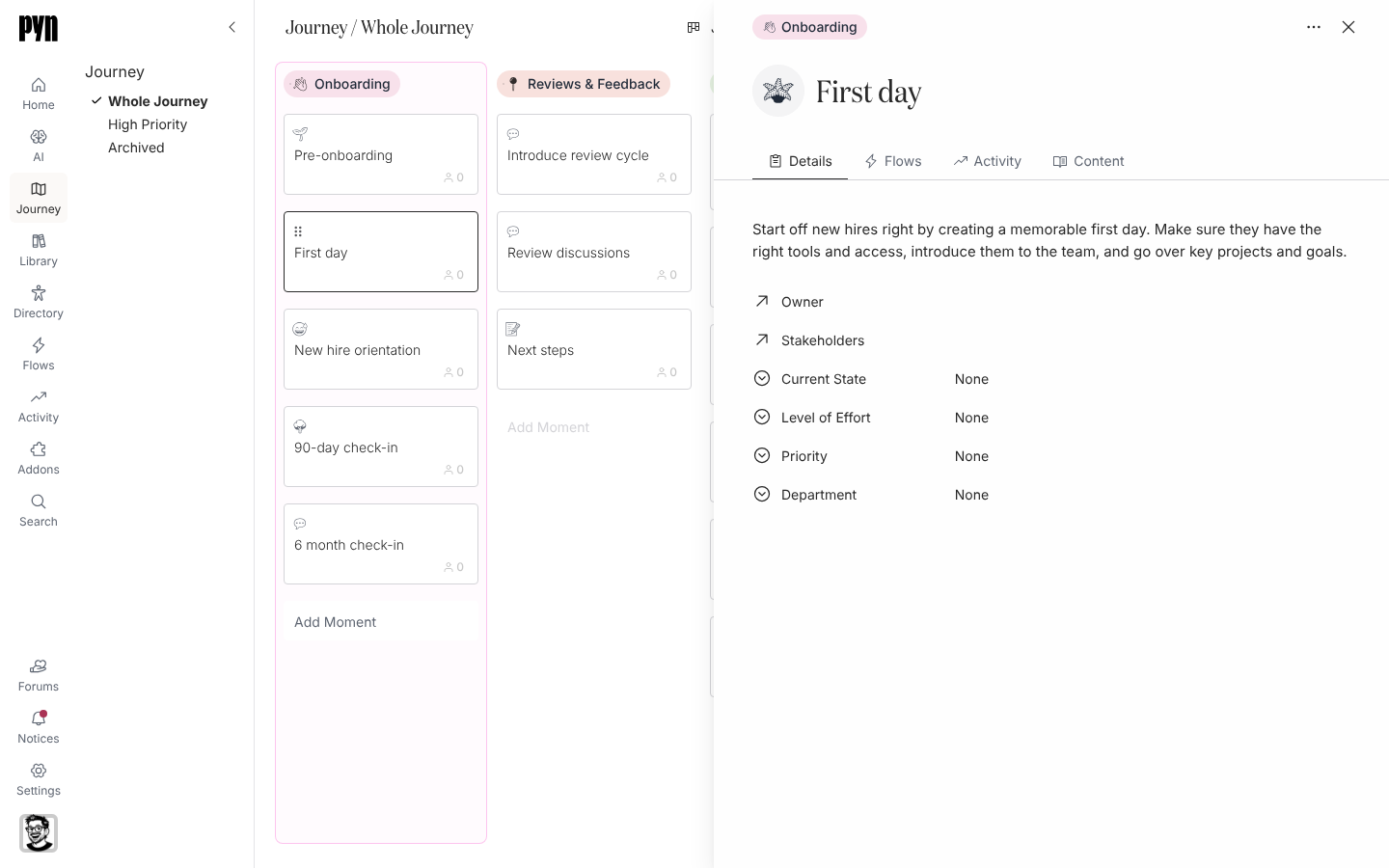
In Pyn, open Journey in the left navigation and select the moment’s card. Its panel opens on the right on the Details tab.
-
Select Current State and choose Unknown, We have this, Needs improvement or Do not have this yet.
-
Select Level of Effort and choose Low, Medium or High.
-
Select Priority and choose Low priority, Medium priority or High priority. Moments set to High priority appear on the High Priority view.
-
Select Department and choose the team responsible, for example People Operations or L&D.
-
Select Owner and pick one user; select Stakeholders and pick everyone else involved.
-
To change the title, emoji or description, select each at the top of the panel and edit it in place.
What you should see
Section titled “What you should see”Each value shows as a coloured chip on the Details tab as soon as you pick it, and the panel can be closed at any point. Open Filters on the board and the moment now matches the values you set. The full list of options is in Moment properties.
Related
Section titled “Related”- Moment properties for the meaning of every option.
- Filter the map to see only the moments that match a property.
- Build your journey map for a method that uses these properties to prioritise.