

Change the mode of an automation
The mode decides whether the trigger is allowed to enrol people and whether their steps send without review. A new automation starts in Manual; the usual path is Verification while you check the first few enrollments, then Automated.
Before you start
Section titled “Before you start”- Changing the mode needs the admin or owner role.
- Publish first. The mode controls enrollment, but the steps that run come from the published version. An unpublished draft in Automated mode enrols people into the last published version.
-
In Pyn, open Flows in the left navigation, then Automations, and select the automation.
-
Select the mode button at the top (it reads Draft, Automated, Verification, Manual or Inactive), then Change Mode. An inactive automation shows Use This instead; select that.
-
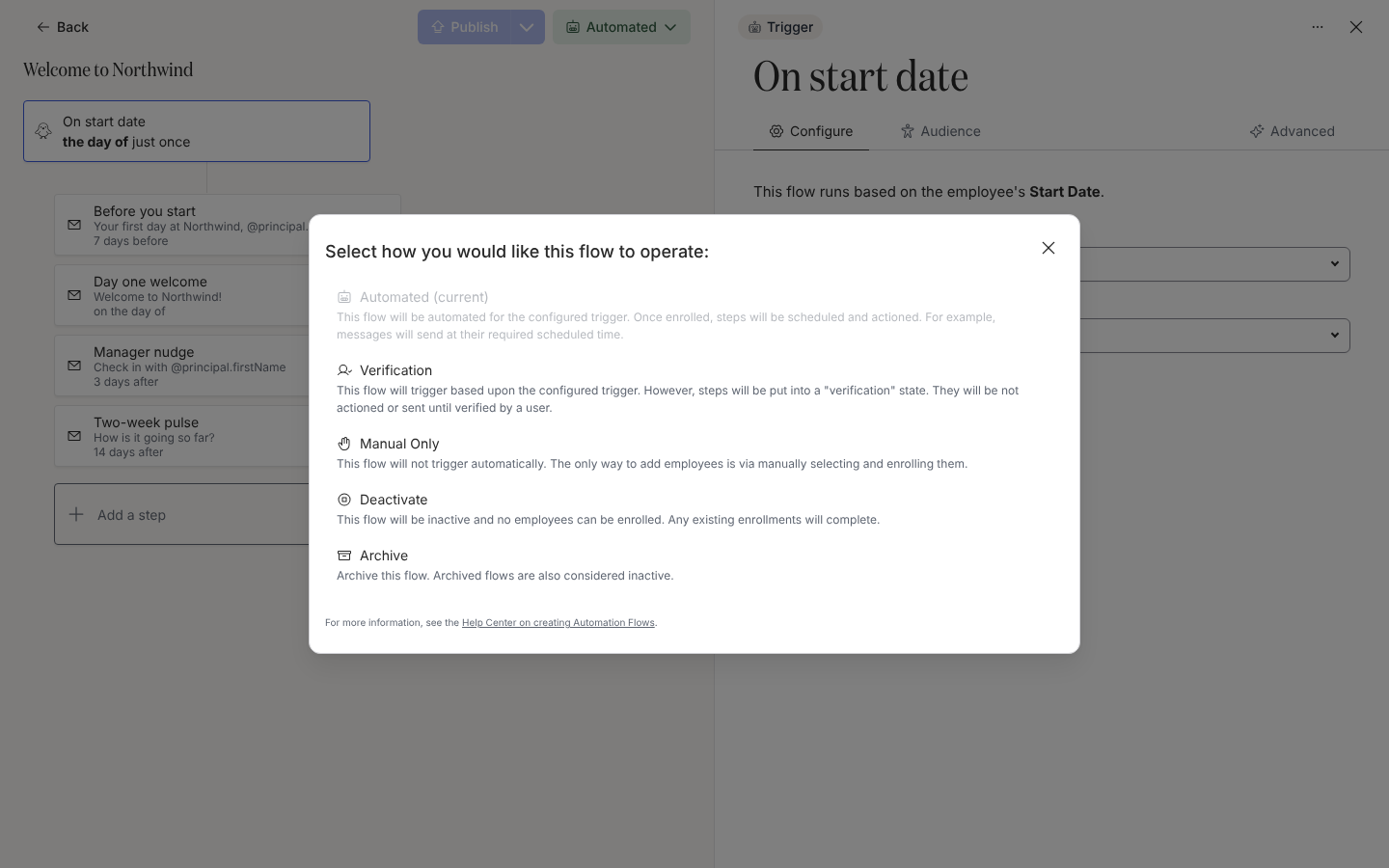
In Select how you would like this flow to operate:, choose:
- Automated: “This flow will be automated for the configured trigger. Once enrolled, steps will be scheduled and actioned.”
- Verification: “This flow will trigger based upon the configured trigger. However, steps will be put into a “verification” state. They will be not actioned or sent until verified by a user.”
- Manual Only: “This flow will not trigger automatically. The only way to add employees is via manually selecting and enrolling them.”
- Deactivate: “This flow will be inactive and no employees can be enrolled. Any existing enrollments will complete.”
- Archive: “Archive this flow. Archived flows are also considered inactive.”
-
The dialog closes and the mode button updates. Choosing Automated shows “Congrats! Your automation is fully automated.”
What you should see
Section titled “What you should see”The Status chip in the Automations table matches the new mode. In Verification, new enrollments appear in Needs Review as paused. In Automated, they appear under All Enrollments as pending with their steps scheduled. In Inactive, no new rows appear and existing ones finish.
Related
Section titled “Related”- Publish an automation for versions and updating enrollments.
- Automation and enrollment states for how the mode maps to enrollment state.
- Enrollments to review and unpause.