

Create a filter group
You keep building the same audience in every flow: current employees in Engineering who are not in the leadership team. A filter group saves that definition once, and every flow can include it.
Before you start
Section titled “Before you start”- You are a workspace admin.
- The groups you want to combine are demographic groups, such as departments, countries and locations. A filter group takes no static, relationship, lifecycle or other filter groups; include those in an automation’s audience directly.
-
In Pyn, open Directory in the left navigation, then select All Groups under Employee Groups.
-
Select Create, then Filter in the Create Employee Group dialog. The Add Filter Group page opens.
-
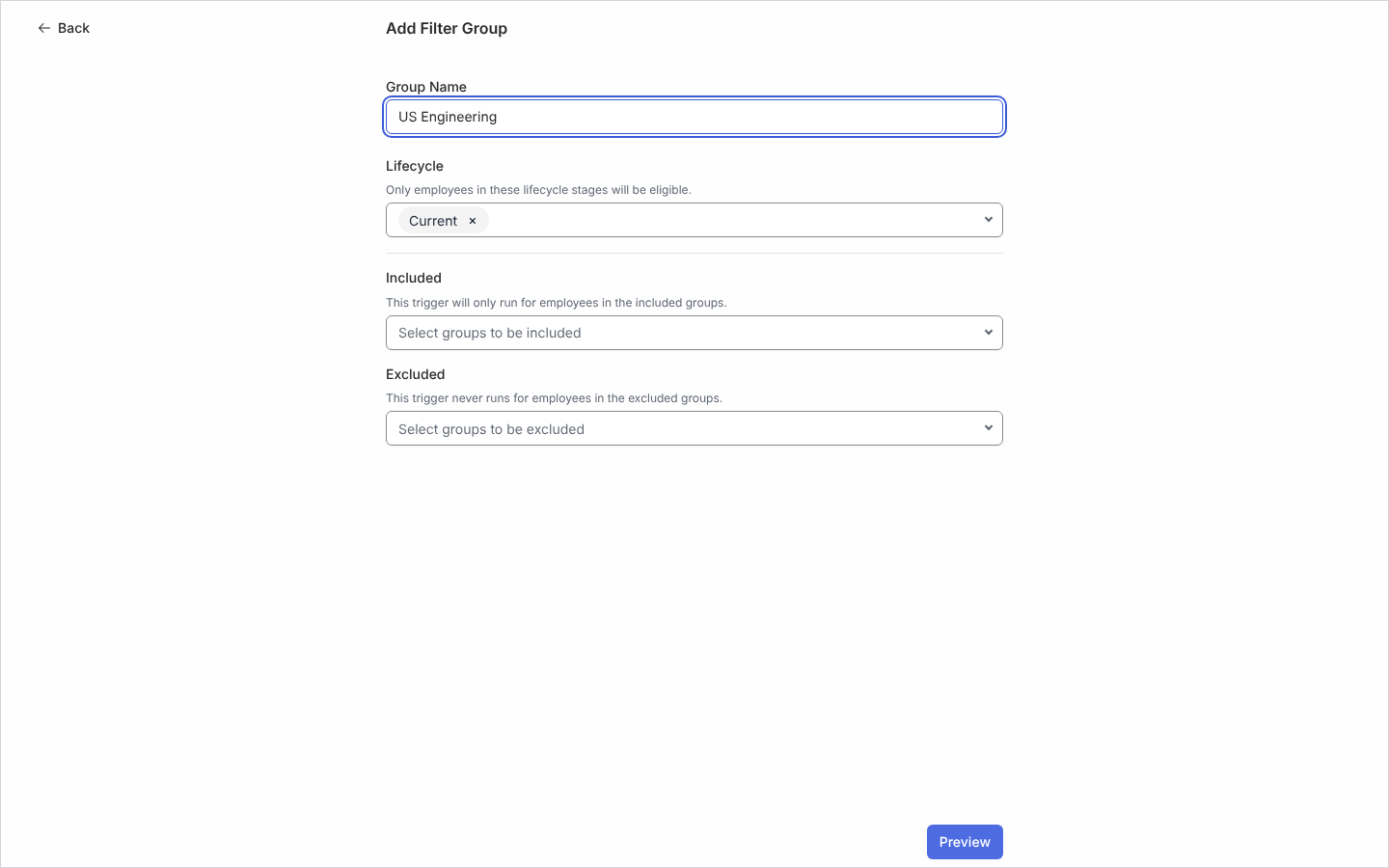
Type a Group Name, for example “US Engineering”.
-
Under Lifecycle, choose the stages to allow. Current is chosen for you; open the selector to add a stage such as Joiner, or remove one with its x. Nothing chosen matches nobody.
-
Under Included, search for and add the groups a member must be in; under Excluded, the groups that remove them. Groups with the same parent, such as two countries, mean “in any of these”; groups with different parents must all match. Someone in an excluded group is left out whatever else they match.
-
Select Preview. The Confirm Filter Group page lists the matching employees; read it, then select Confirm.
-
On Your filter group has been created. select Done. The group’s panel opens.
What you should see
Section titled “What you should see”The panel reads This filter group is still being evaluated for your employees until Pyn has checked everyone, which can take several minutes in a large workspace, then Details shows Last Evaluated and Group Employees:. Configure shows the audience read-only. The group is listed under Filter and All Groups and can be chosen in any automation’s audience. If something goes wrong the page reads There was an error creating the filter group; select Back, check the audience and confirm again.
Related
Section titled “Related”- How audiences match for how included, excluded and lifecycle conditions combine.
- Group types for how a filter group is re-evaluated.
- Automations for using the group.