

Invite your team
You want colleagues in the workspace: an HR partner to write messages, an IT admin to connect systems, or a manager who should review enrollments. You invite each by email and choose how much of Pyn they see.
Before you start
Section titled “Before you start”- You are an Owner or Admin. Power Users and Users cannot invite.
- You know which role to give. In short: Admin for people who manage settings, integrations and the directory; Power User for people who build and publish flows; Limited User for people who read the journey, library and activity. Roles and permissions has the matrix.
-
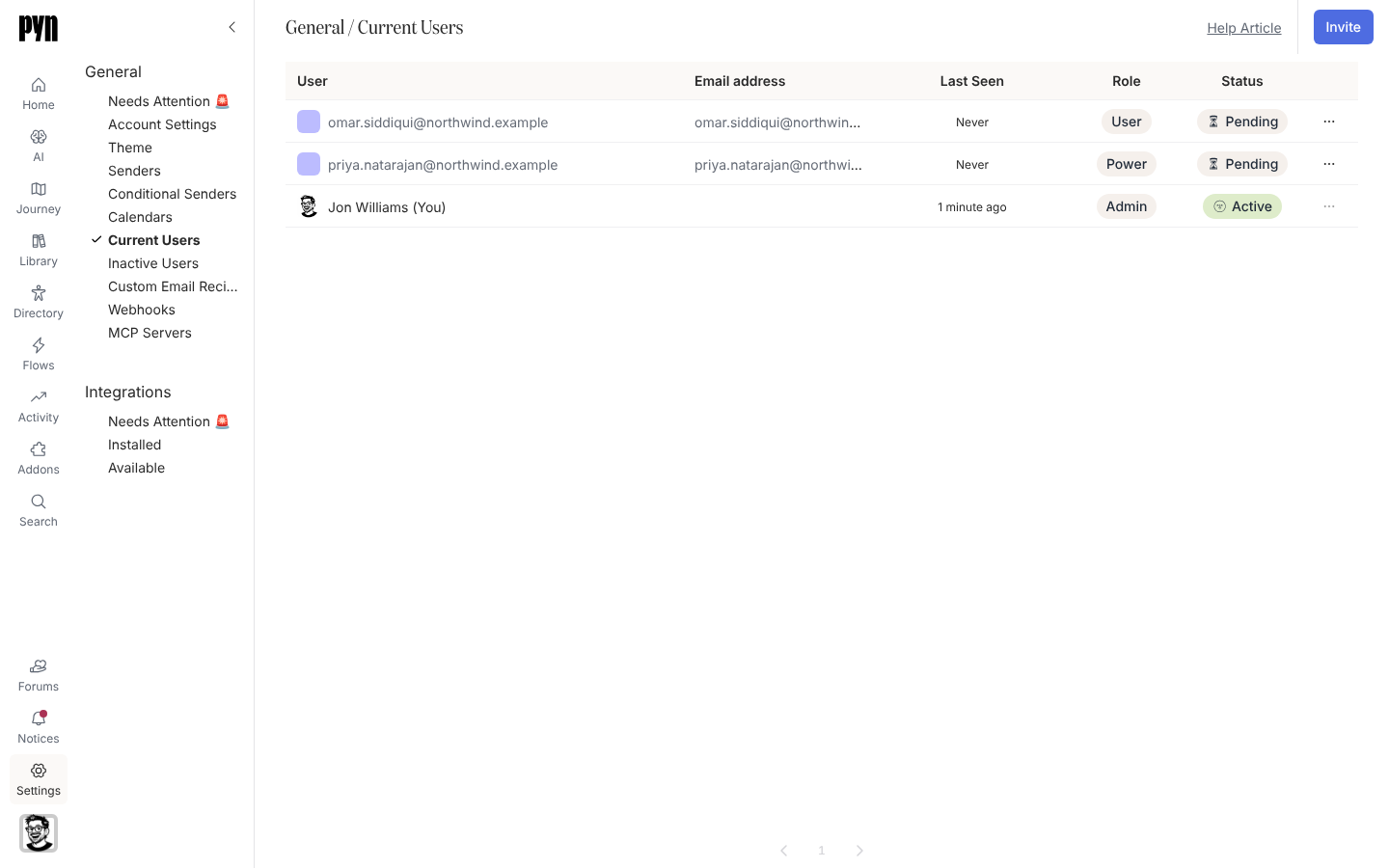
In Pyn, open Settings in the left navigation, then under General select Current Users. The Invite button is in the top-right corner; it is also on Journey and on the Invite team members card on Home.
-
Select Invite. The Invite user dialog opens with the line “Invite a user to your organization’s workspace.”
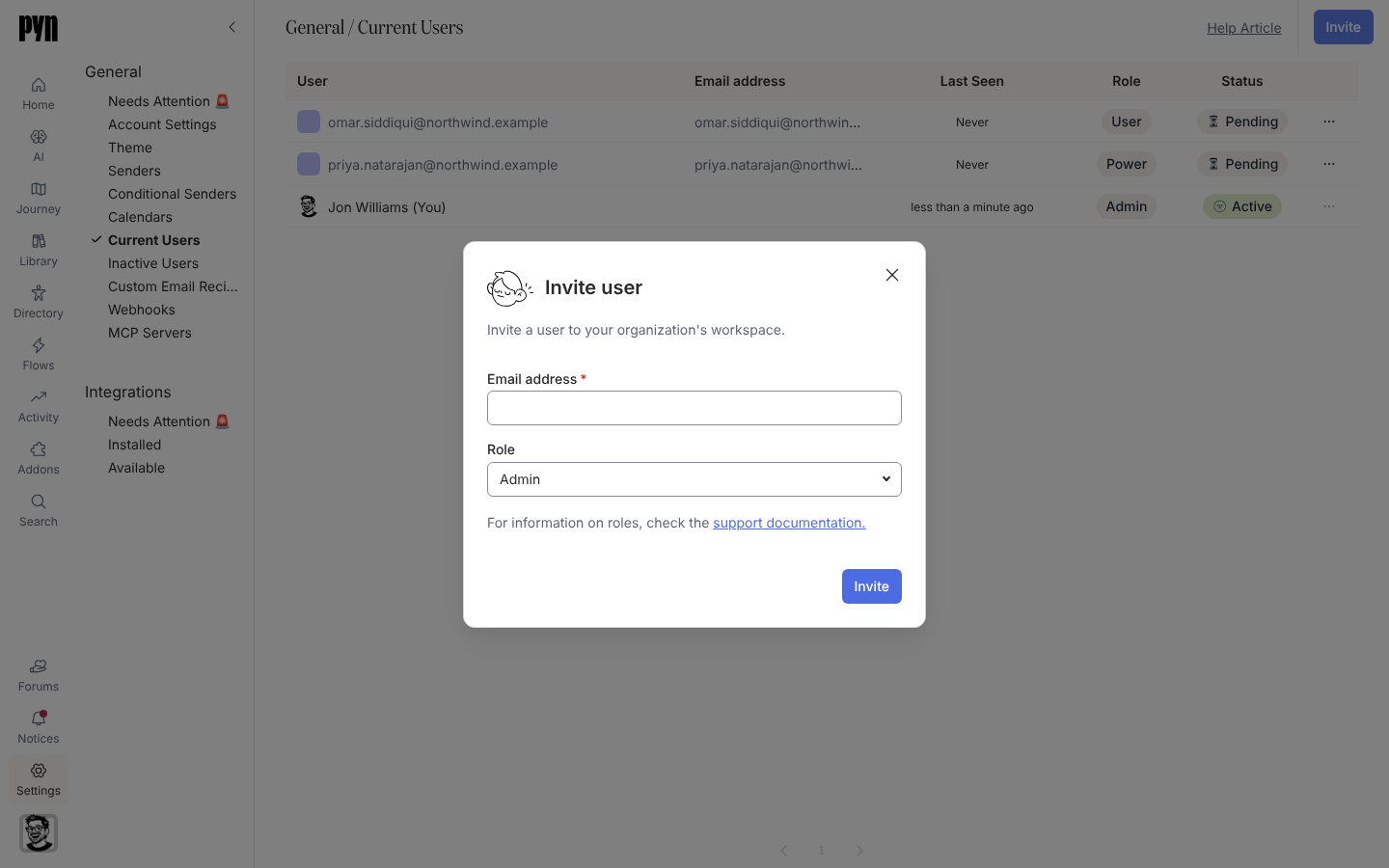
The Invite user dialog from Settings, Current Users. -
Enter the Email address. Use the address the person signs in with at work; Pyn links the invitation to that exact address.
-
Choose the Role: Admin (the default), Power User or Limited User.
-
Select Invite. The dialog shows Success! and “They will receive an email from Pyn inviting them to join your workspace.” Select Done.
What you should see
Section titled “What you should see”The person appears in Current Users with the role you chose and status Pending. When they sign in with any option for that address, their status becomes Active and Last Seen starts updating. The Invite team members card on Home ticks once the workspace has more than one user.
After the invitation
Section titled “After the invitation”Open the row’s menu, the button at the right end of the row, to:
- Resend Invite while the status is Pending. Pyn confirms Invite Sent, or Invite Not Sent if the email could not go out.
- Assign User Role, Assign Power User Role, Assign Admin Role or Assign Owner Role to change the role. Only an Owner sees the Owner option, and only an Owner can change another Owner. You cannot change your own role.
- Archive to remove the person’s access. Archived users disappear from Current Users; inviting the same address again restores them.
A separate Inactive Users view under General lists users whose account has been deactivated.
Troubleshooting
Section titled “Troubleshooting”- They signed in but see Create a Workspace for your team. They used a different email address from the one you invited. Invite that address, or ask them to sign in with the invited one.
- They see Pending even though they signed in. Check Last Seen; if it is blank, the sign-in was with another address. If it has a time, reload the page.
Related
Section titled “Related”- Roles and permissions for exactly what each role sees and can do.
- Sign in for what the invitee goes through.
- Complete the getting-started checklist for the Home card this ticks.
- General for the Current Users and Inactive Users lists.