

Configure a group change trigger
A Group Change trigger watches the groups you pick. The moment an employee is added to one of them (or removed, if you choose Employee leaves group), Pyn enrols them with today as the reference date. It fits transfers between departments, moves to a new office, promotions tracked by a level group, or anyone you drop into a static group by hand.
Before you start
Section titled “Before you start”- The groups exist in Directory > Employee Groups. Demographic groups (one per department, location and so on) are created for you; filter and static groups you create. See Employee groups.
- A Group Change trigger fires on changes after the first HRIS load of the workspace. Everyone who was already in the group when you connected your HRIS is not enrolled.
-
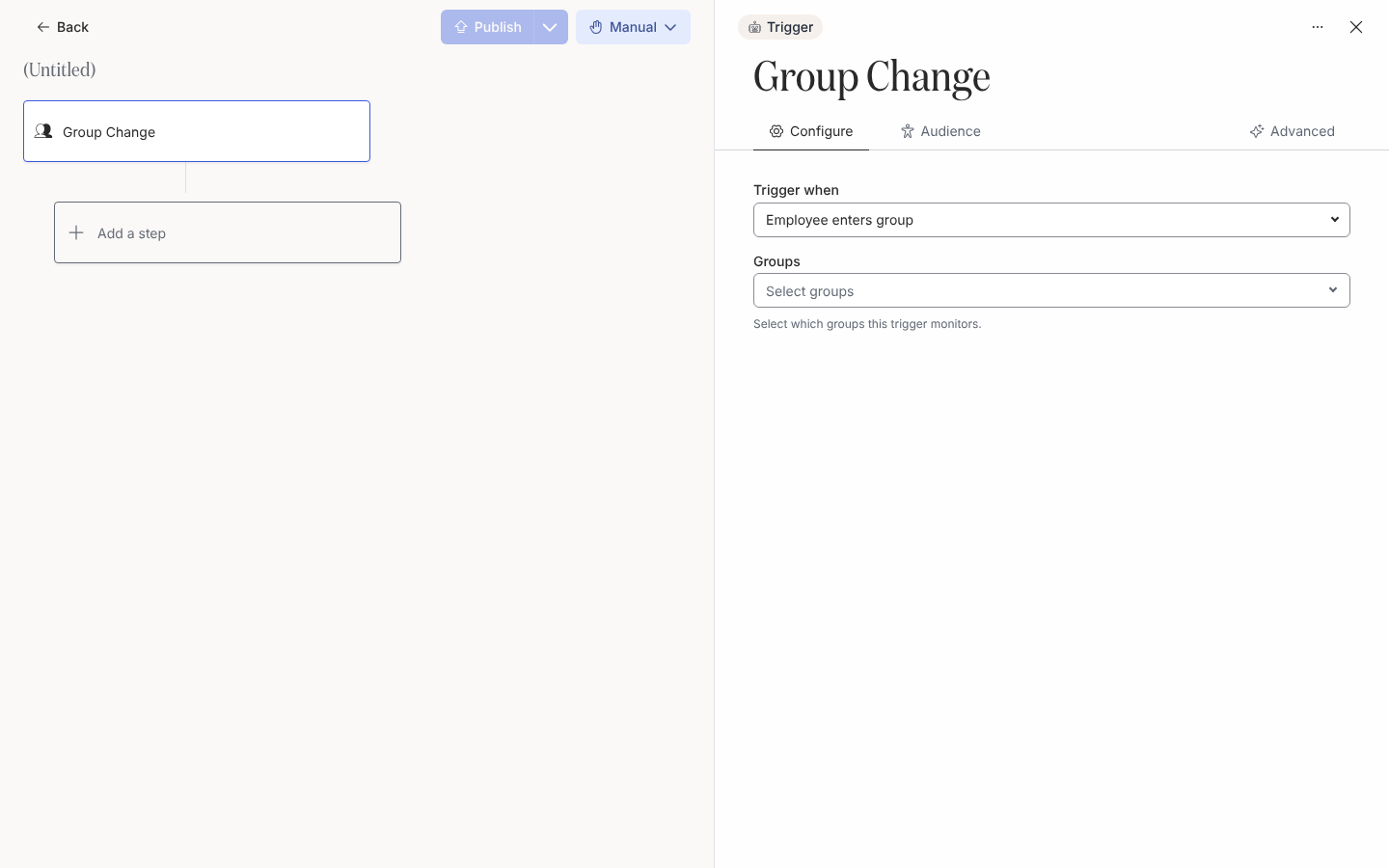
In Pyn, open Flows in the left navigation, then Automations. Select Create New, choose Team and Org Changes, then Group Change. On an existing automation, select the trigger card.
-
On Configure, under Trigger when, choose Employee enters group or Employee leaves group.
-
Under Groups, open the picker and tick each group to watch. The description reads “Select which groups this trigger monitors.” You can pick several; the trigger fires for a change in any of them.
-
Open Audience if only some of the people who move should be enrolled, for example current employees only.
-
Select Publish.
What you should see
Section titled “What you should see”When someone joins (or leaves) a watched group, they appear under Enrollments within the hour with today’s date as Reference Date. The default Prevent repeat enrollments for this trigger is 1 month.
Related
Section titled “Related”- Employee groups to create the groups the trigger watches.
- Set the audience for an automation to narrow who is enrolled.
- Trigger catalogue for the trigger’s defaults.