

Format a message
The same editor writes every email, direct message and channel post. It shows the message roughly as the recipient will see it, with a Slack avatar and timestamp on a Slack step, and keeps formatting that the medium supports: Slack has no alignment or headings, so those tools are hidden there.
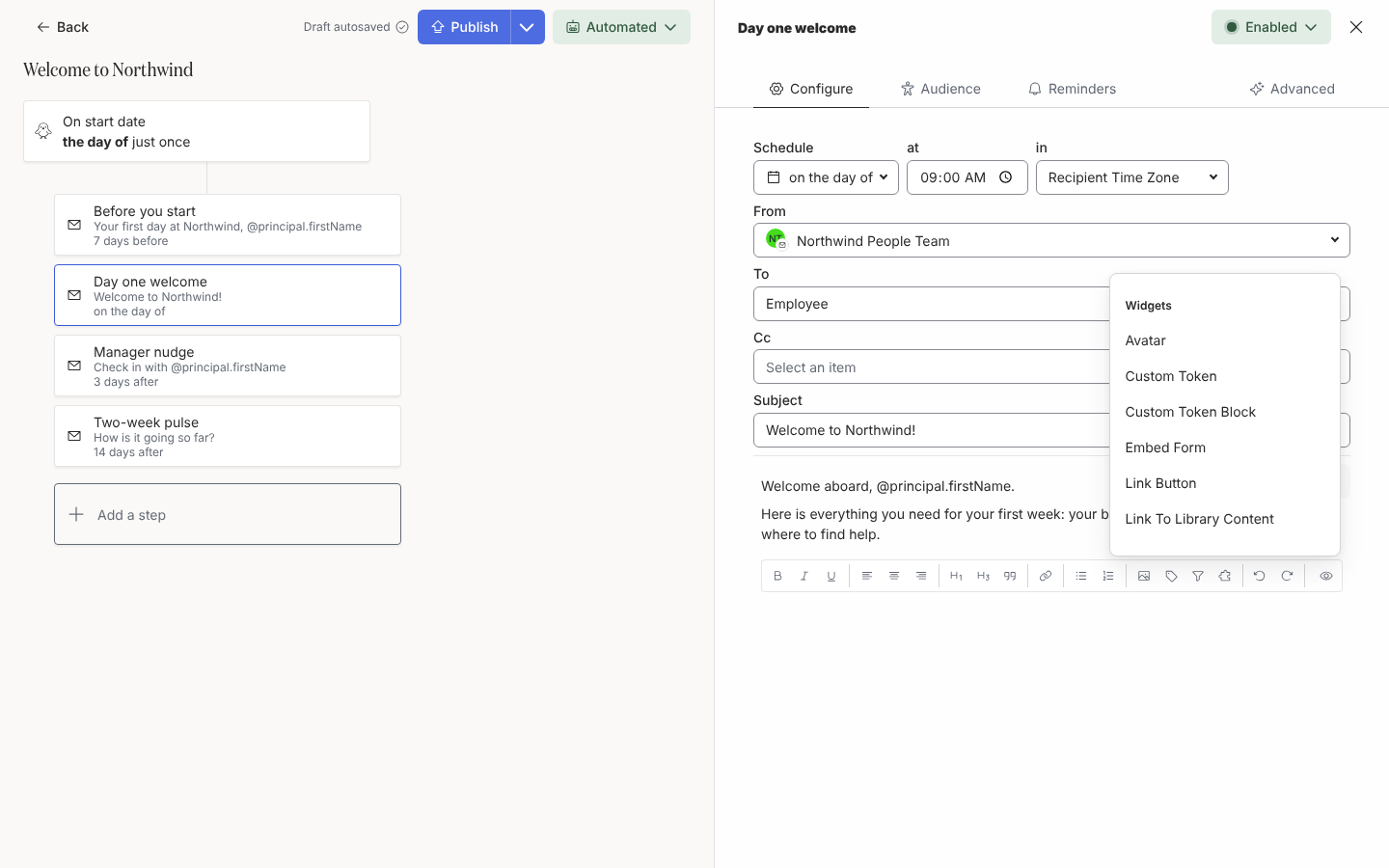
Select text and use the toolbar for bold, italic and underline, headings and quotes, bulleted and numbered lists, links (a web address or mailto:) and, on email, left, centre and right alignment. Undo and redo are in the toolbar too. Select Expand editor (the arrows icon above the editor) to write in a full-screen editor and close it to return.
Tokens
Section titled “Tokens”-
Type
@where the value goes. A list of tokens opens; keep typing to filter it, for example@prefforprincipal.preferredName. -
Select the token. It appears as a pill.
principaltokens are about the enrolled employee;recipienttokens are about whoever receives the message;date.referenceis the enrollment’s reference date. -
For a field that is not in the list, select Insert token in the toolbar, then Employee Field: choose the field, whether it applies to the Principal of automation or the Recipient of message, and an optional Fallback shown when the field is empty.
-
For a column from a mail-merge spreadsheet, select Insert widget, then Custom Token, and type the column name, for example
startLocation. Custom Token Block renders a multi-line value as its own paragraph or list.
Tokens lists every token with the text Pyn falls back to when the value is missing, for example Employee for a missing name.
Select Insert media (the picture icon) to upload an image, GIF or video from your computer or pick one from Media. Select an inserted image to align or resize it. Paste a YouTube link on its own line and it becomes an embedded player. A banner image renders best at 1200 by 250 pixels, or 1200 by 500 for a taller retina banner; see Insert media in a message.
Widgets
Section titled “Widgets”Insert widget (the puzzle icon) holds the interactive pieces: Avatar (the principal’s photo), Custom Token and Custom Token Block, Embed Form, Link Button, Mention Principal and Link To Library Content. Buttons and forms are covered in Add a button to a message.
Mention Principal is offered on Slack steps only. It inserts an @Principal pill that becomes a live Slack mention of the enrolled employee when the message sends, so “Please welcome @Principal to the team” notifies them.
Raw HTML for email
Section titled “Raw HTML for email”For a fully designed template that Pyn must send exactly as written, open the step’s Advanced tab and set Email body to Raw HTML. The body becomes an HTML field; write your markup there with Liquid output tags for tokens, for example {{ principal.preferredName }}. Pyn applies no theme or styling, the HTML is limited to 200,000 characters, invalid Liquid stops the automation publishing, and a name Pyn cannot resolve is left in the email as typed. Preview renders the HTML for the employee you pick, and Send a test to yourself sends it as a real send would.
Related
Section titled “Related”- Tokens for every token and its fallback.
- Insert media in a message for image sizes and the virus scan.
- Add a button to a message for Link Button, Link To Library Content and Embed Form.
- Preview and send a test to check the result before publishing.