

Preview and send a test
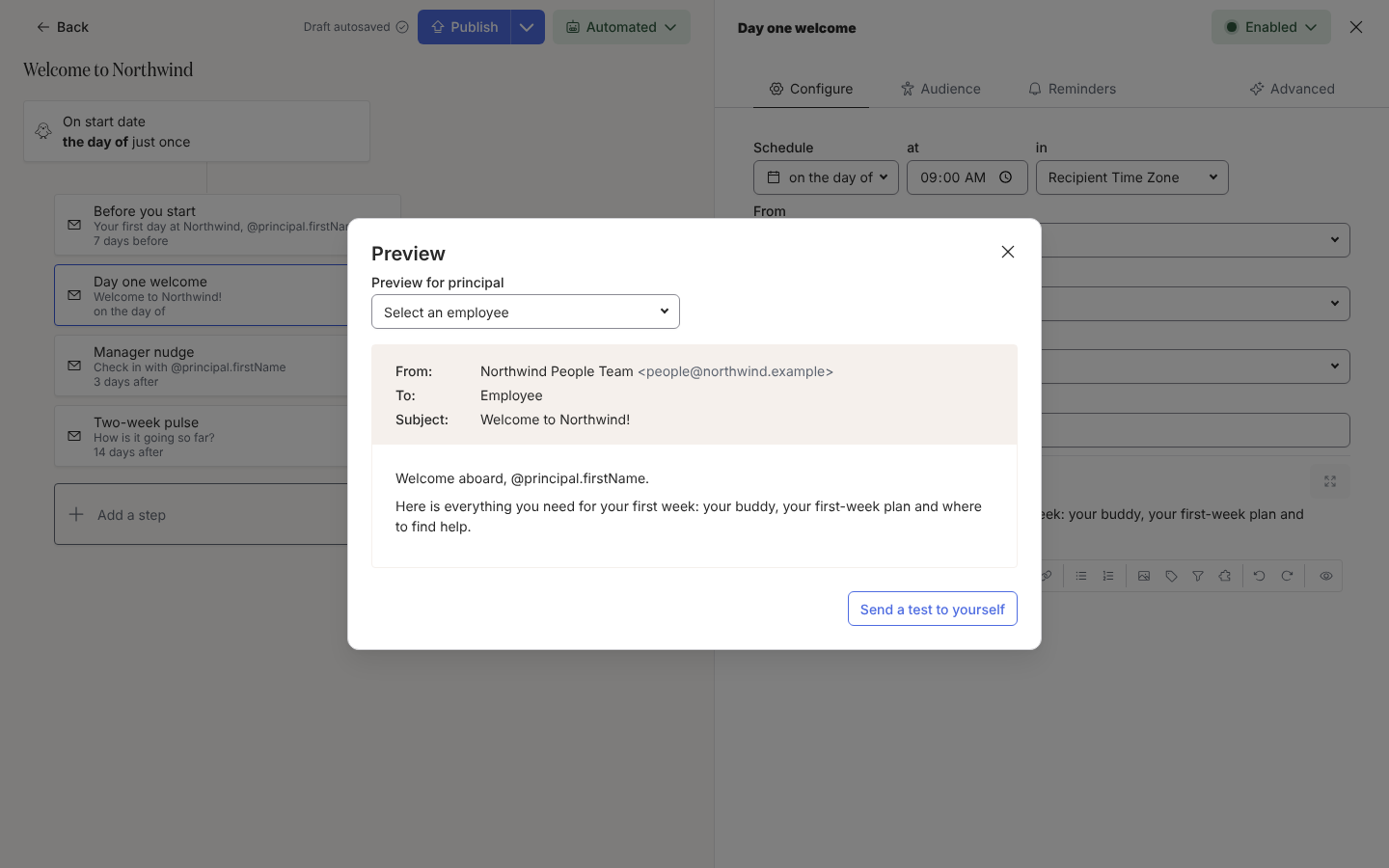
A message that reads well in the editor can still surprise you once the tokens are filled in. Preview shows the step for a real employee, and Send a test to yourself delivers it to your own inbox or Slack exactly as a real send would.
Before you start
Section titled “Before you start”- The step has a sender under From. Without one the test button is disabled and reads Set a sender to send a test on hover.
- Your own user is matched to an employee record (same work email), because the test is sent to that employee.
-
In Pyn, open the automation from Flows, Automations, and select the step.
-
Select Preview (the eye icon in the toolbar, or the Preview button under a raw HTML body). Pyn waits for your latest edit to save, then opens the Preview dialog.
-
Under Preview for principal, select an employee. Current employees and upcoming joiners are offered, so you can check a pre-start message against someone who has not started. The header shows the resolved recipient, for example the manager, and the sender a conditional sender picks for them.
-
Read the message with that employee’s tokens filled in. Select Clear recipient to go back to the raw template.
-
Select Send a test to yourself. A toast reads Test sent when it is on its way, or Could not send test if the sender cannot send.
-
Open your inbox or Slack and read it as the recipient would.
What you should see
Section titled “What you should see”The test is marked as a test: it does not appear in Messages counts and never triggers a flow from a form inside it. If an email preview reads Could not preview this email for the employee, the raw HTML has Liquid that fails for that person; fix it before publishing. To test timing as well as content, enrol yourself with Flag as Test: see Manually enroll employees.
Related
Section titled “Related”- Choose a sender if the test button is disabled.
- Manually enroll employees for a test enrollment that runs the whole flow.
- Tokens for the fallback text you see when a value is missing.