

Upload employees from a spreadsheet
Without an HRIS connection, a spreadsheet is how employees get into Pyn, and how they are kept current. Each upload is an upsert: rows are matched on your employeeId, changed values are updated, and people missing from the file are marked as removed from this source.
Before you start
Section titled “Before you start”- You are a workspace admin.
- Your file has a header row whose names are the property keys listed in Employee properties.
employeeIdandprimaryEmailare required on every row. The sample file (step 2) has every accepted column.
-
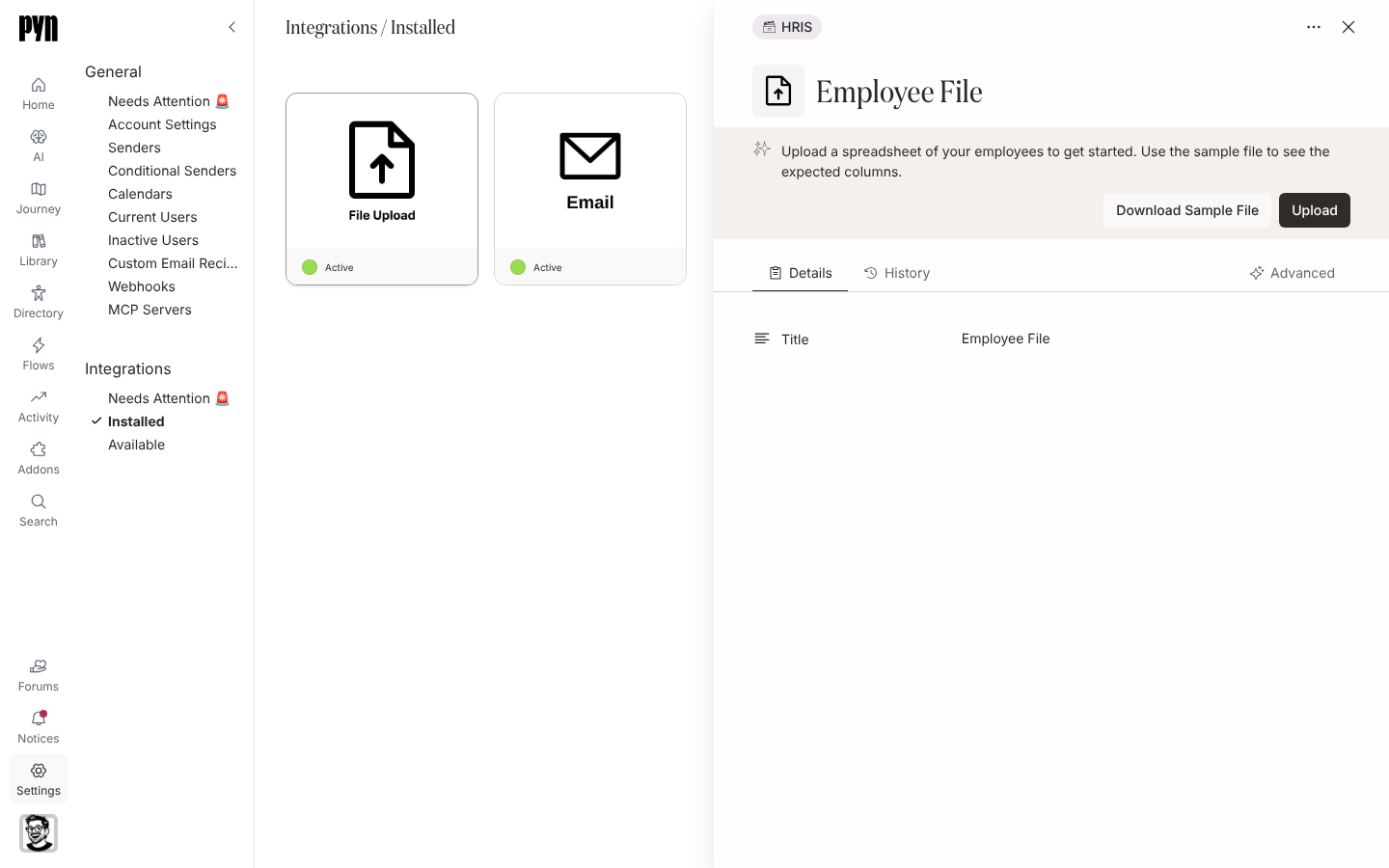
In Pyn, open Settings at the foot of the left navigation, then Integrations. Select Installed and the File Upload tile if you have uploaded before; otherwise select Available and the File Upload tile, which creates the integration and opens it. Either way the panel that opens is headed Employee File.
-
In the panel’s banner, select Download Sample File for a CSV with every column and example rows, and use it as your template.
-
Check the columns that need a particular format: dates as
yyyy-MM-dd;statusasactive,leaveorinactive;countryas a name or ISO code;timeZoneas an IANA name such asEurope/London(or leave it blank and supplycountryand, for the US, Canada and Australia,postalCode);birthdayasMM-dd;managerId,buddyId,hrbpIdandmentorIdas another row’semployeeId. -
Select Upload and choose the file.
-
Read the banner. Uploading… then Success! Uploaded N records. means every row passed; or a list of errors, each as Row #n: followed by the column and the value received, for example Unknown timezone or Could not determine timezone from country. Fix every listed row and upload again; a file with any failing row is not applied.
-
Open Directory in the left navigation. Processing takes a minute or two; profiles then appear or update under Active, Upcoming and Inactive.
What you should see
Section titled “What you should see”The History tab of the Employee File panel records each upload with a status dot. Advanced lists Fields in Employee File: every column seen and how many rows carried a value. In Directory, the new rows are present with the values from your file; a value another source already supplies (an HRIS, say) is not overridden, because Employee File comes after the HRIS sources in the merge order.
Related
Section titled “Related”- Employee properties for every column and the merge order.
- Export employees to start your next update from what Pyn has.
- Employee File for the integration itself.