

Read the Dashboard
You want one number for how much Pyn sent last month and how much of it landed. The Dashboard totals deliveries for a date range and breaks them down by automation or by step.
Before you start
Section titled “Before you start”- The Dashboard is enabled for your workspace. When it is, Dashboard is the first view under Activity; when it is not, the list starts at Enrollments.
-
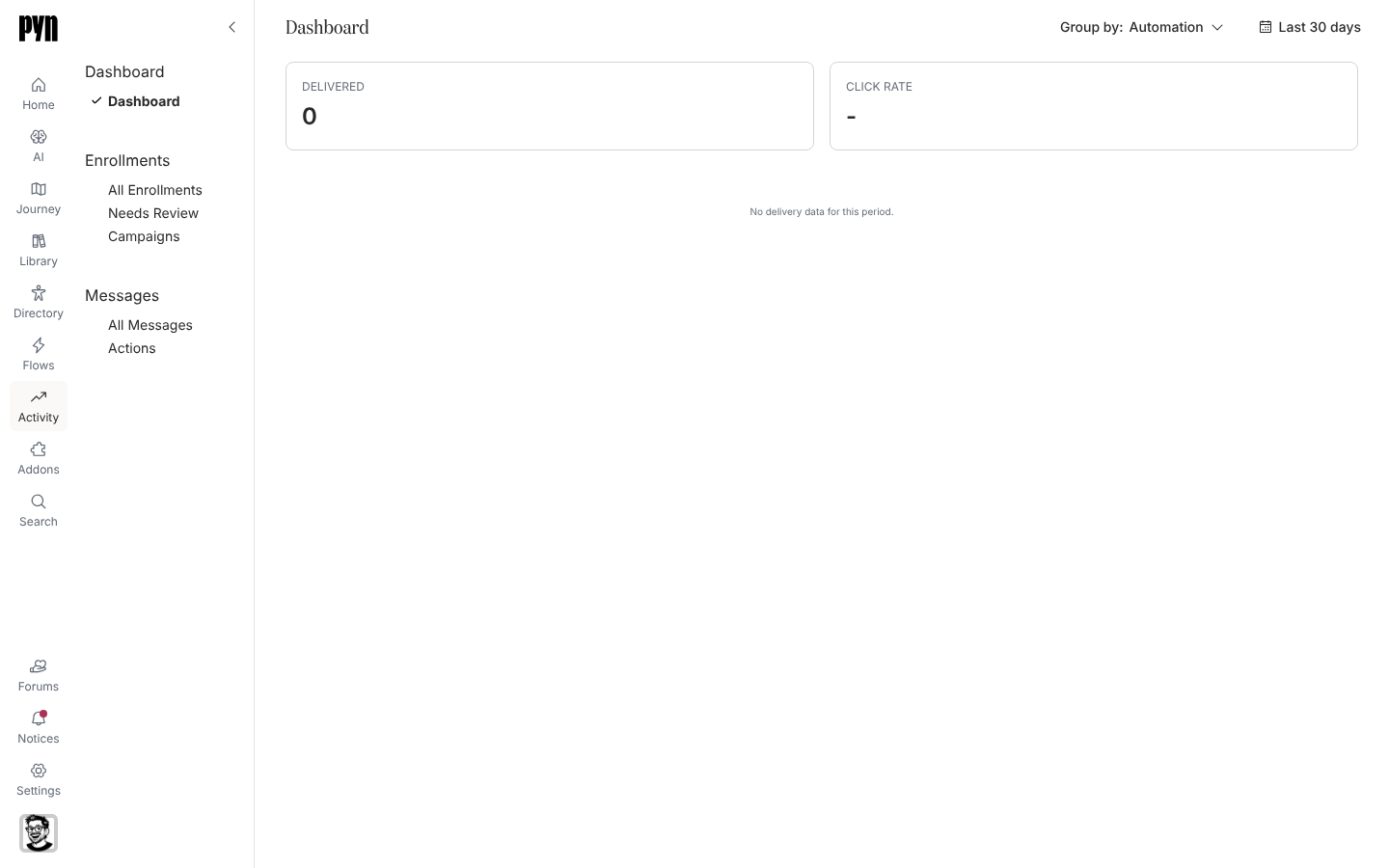
In Pyn, open Activity in the left navigation, then select Dashboard.
-
Read the tiles: Delivered is the number of deliveries that reached a recipient in the range, Click Rate is the share of those with a clicked link, and Action Rate is the share whose action was completed. Action Rate appears once more than three deliveries in the range were actioned.
-
Select the date button (it reads Last 30 days when the page opens) and choose Last 7 days, Last 30 days, Last 90 days, Last 12 months, Year to date or a custom range.
-
Select Group by: and choose Automation for one row per automation or campaign, or Step to expand each automation into its steps.
-
Read the table. Each row shows Delivered, Clicked and Click Rate, plus Actioned and Action Rate when actions exist in the range. A rate shows - when the row has no deliveries.
What you should see
Section titled “What you should see”Tiles with numbers and a table with one row per automation (or per automation and step). An empty range reads No delivery data for this period. For the same numbers laid over the lifecycle, open Read journey metrics.
Related
Section titled “Related”- Messages for the individual steps behind a row.
- Actions for who has and has not completed an action.
- Read journey metrics for deliveries, clicks and actions per moment.