

Activity
Flows decide what Pyn does; Activity shows what it did. When an automation enrols someone, Activity gets an enrollment with one step per message. When a step sends, each recipient gets a delivery with its own status, from Scheduled through Delivered to Clicked or Actioned. Open Activity to check that a new starter is getting their welcome sequence, to see who has not finished a form, or to fix a message that bounced.
Everyone in the workspace can open Activity. Stopping an enrollment needs the Admin or Owner role.
Concepts
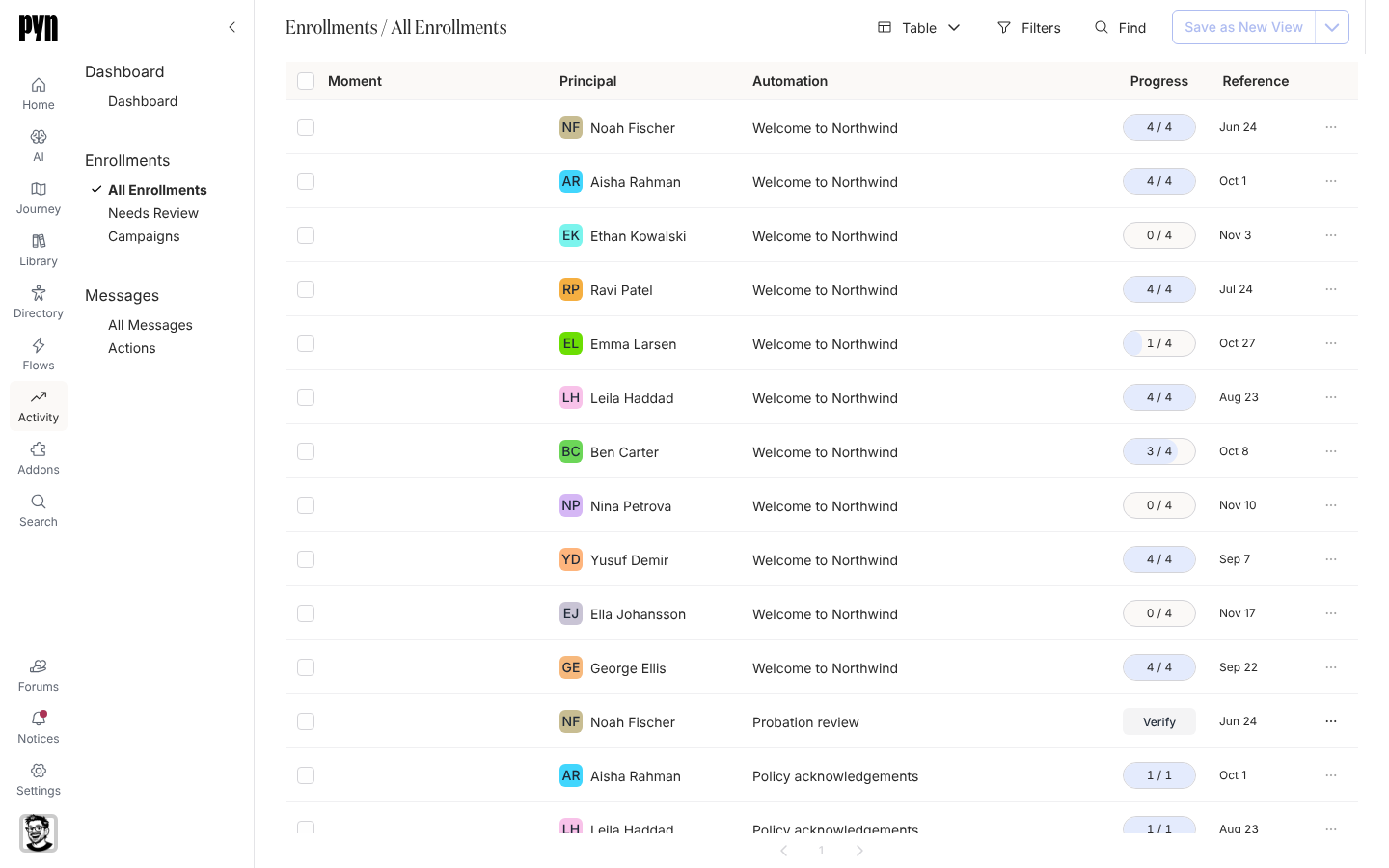
Section titled “Concepts”- Enrollment: one employee in one automation, or one run of a campaign. It carries a Reference date that every step is scheduled from, and a status of Paused, Pending or Complete.
- Step: one message or action inside an enrollment, in the order it sends. A step is Draft, Scheduled, Sending, Complete or Error.
- Delivery: one step reaching one recipient on one channel: an email, a Slack or Teams message, a calendar invite, a channel invite or a Jira ticket. Deliveries carry the engagement: Delivered, Clicked, Actioned, Bounced.
- Needs Review: enrollments created in Verify Mode wait here, paused, until you unpause their messages.
- Actions: deliveries that asked the recipient to do something, such as acknowledge a message or complete a form, with whether they have done it.
| View | What it lists |
|---|---|
| Dashboard | Delivered count, click rate and action rate for a date range, grouped by automation or step. Shown when the Dashboard is enabled for your workspace. |
| Enrollments > All Enrollments | Every automation and campaign enrollment, newest first, with its progress. |
| Enrollments > Needs Review | Paused enrollments waiting to be verified. |
| Enrollments > Campaigns | A calendar of campaign enrollments and their steps. |
| Messages > All Messages | Every step, with its sender, recipients, status and date. |
| Messages > Actions | Every delivery that asked for an action, with whether it was actioned. |
What you can do here
Section titled “What you can do here”- Check progress: Open an enrollment, Read the Dashboard.
- Fix things: Review and unpause enrollments, Stop an enrollment, Resend a bounced message, Pause a scheduled message.
- Trace a message: Read a message as it was sent, Reschedule a campaign step.
- Follow up: Track actions and export them.
Reference: statusesWhat Paused, Pending, Scheduled, Bounced, Clicked and every other status means, and what moves one to the next.
EnrollmentsAll Enrollments, Needs Review and the Campaigns calendar.
Where it is in the app
Section titled “Where it is in the app”Open Activity in the primary navigation on the left of every page, or open /activity/home. The views are listed down the left under Dashboard, Enrollments and Messages; it lands on All Enrollments.
Related
Section titled “Related”- Enrollments for who is in each flow and how far along they are.
- Messages for each step and delivery.
- Actions for what people were asked to do.
- Automations for the flows that create enrollments.