

Create a demographic
Your HRIS marks contractors with a type-of-contract field and you want to leave them out of a benefits campaign. Make the field a demographic and Pyn gives you a group per value to exclude.
Before you start
Section titled “Before you start”- You are a workspace admin.
- The property is a boolean, a single-select, or one of the text fields that qualify:
employmentType,executiveLeader,jobClass,location,typeOfContract,workOffice. Other text fields do not appear in the list.
-
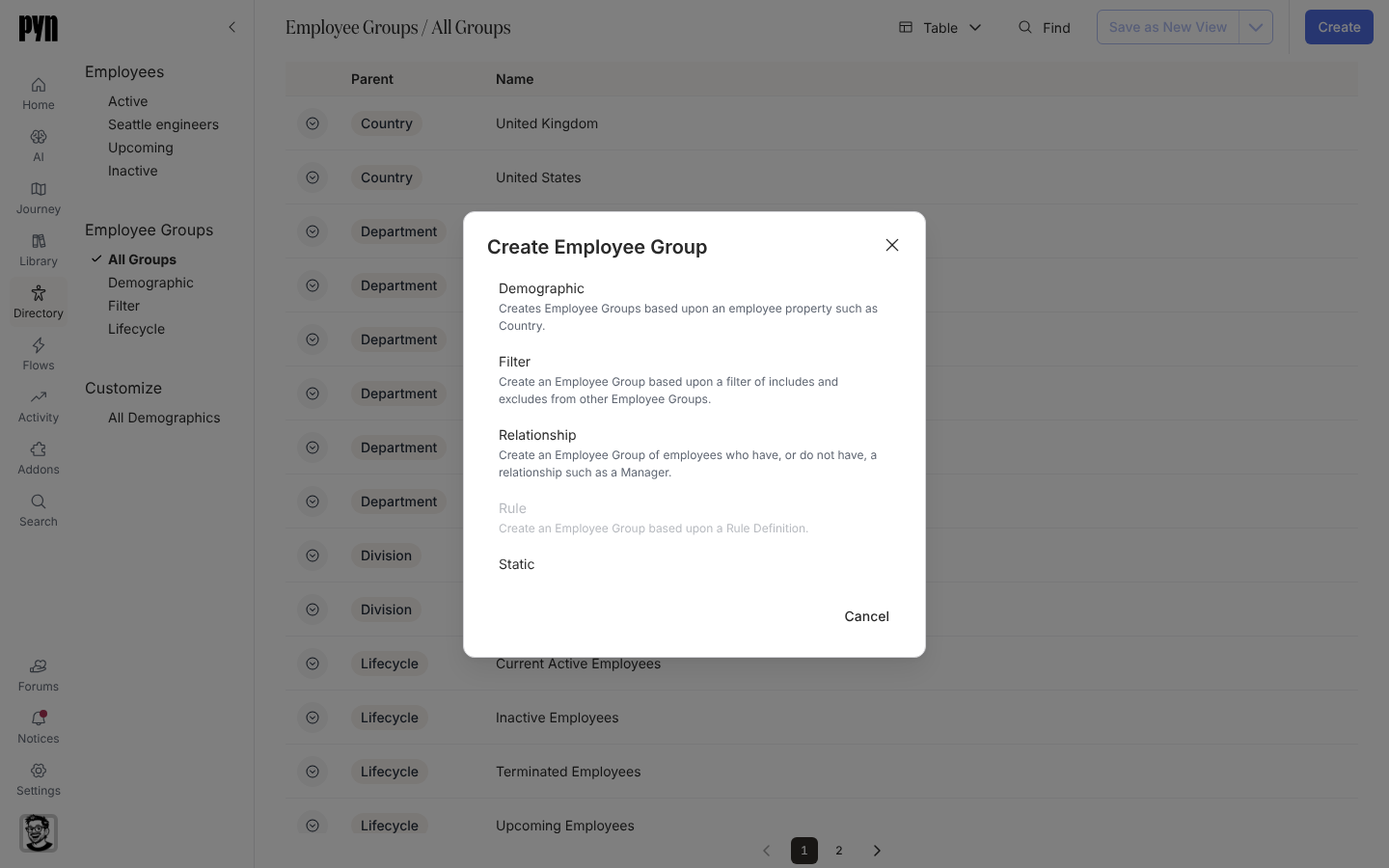
In Pyn, open Directory in the left navigation, then select All Groups under Employee Groups.
-
Select Create, then Demographic in the Create Employee Group dialog.
-
Under Select a Property, choose the property.
-
Type a Demographic Title. It defaults to the property’s name and becomes the prefix of each group, as in Job Class: Technician.
-
For a boolean property, fill Group Name when True and Group Name when False, for example “Executive leaders” and “Everyone else”. Left blank, the groups are named Title: TRUE and Title: FALSE.
-
Select Create. The dialog reads Click done to open the new Demographic. Creating the groups for the demographic may take a few minutes; select Done.
What you should see
Section titled “What you should see”The demographic’s panel opens with This demographic is still being calculated for your employees until the first evaluation, then Demographic Groups lists one group per value. The demographic is listed under Customize > All Demographics, and its groups under Employee Groups > Demographic with the demographic as their Parent. Each group can be included or excluded in an audience.
Related
Section titled “Related”- Group types for what qualifies and the seeded demographics.
- Archive a demographic to retire one.
- Employee properties for the properties and their keys.