

Add an upcoming employee
An offer is signed but the person will not be in your HRIS until payroll sets them up, and you want their welcome messages to start now. Add them as an upcoming joiner; when the HRIS record arrives with the same work email, Pyn merges the two.
Before you start
Section titled “Before you start”- You are a workspace admin. The button is hidden from other roles.
- You know their start date and country. A time zone is required too; the dialog defaults it to the workspace’s zone.
-
In Pyn, open Directory in the left navigation, then select Upcoming under Employees.
-
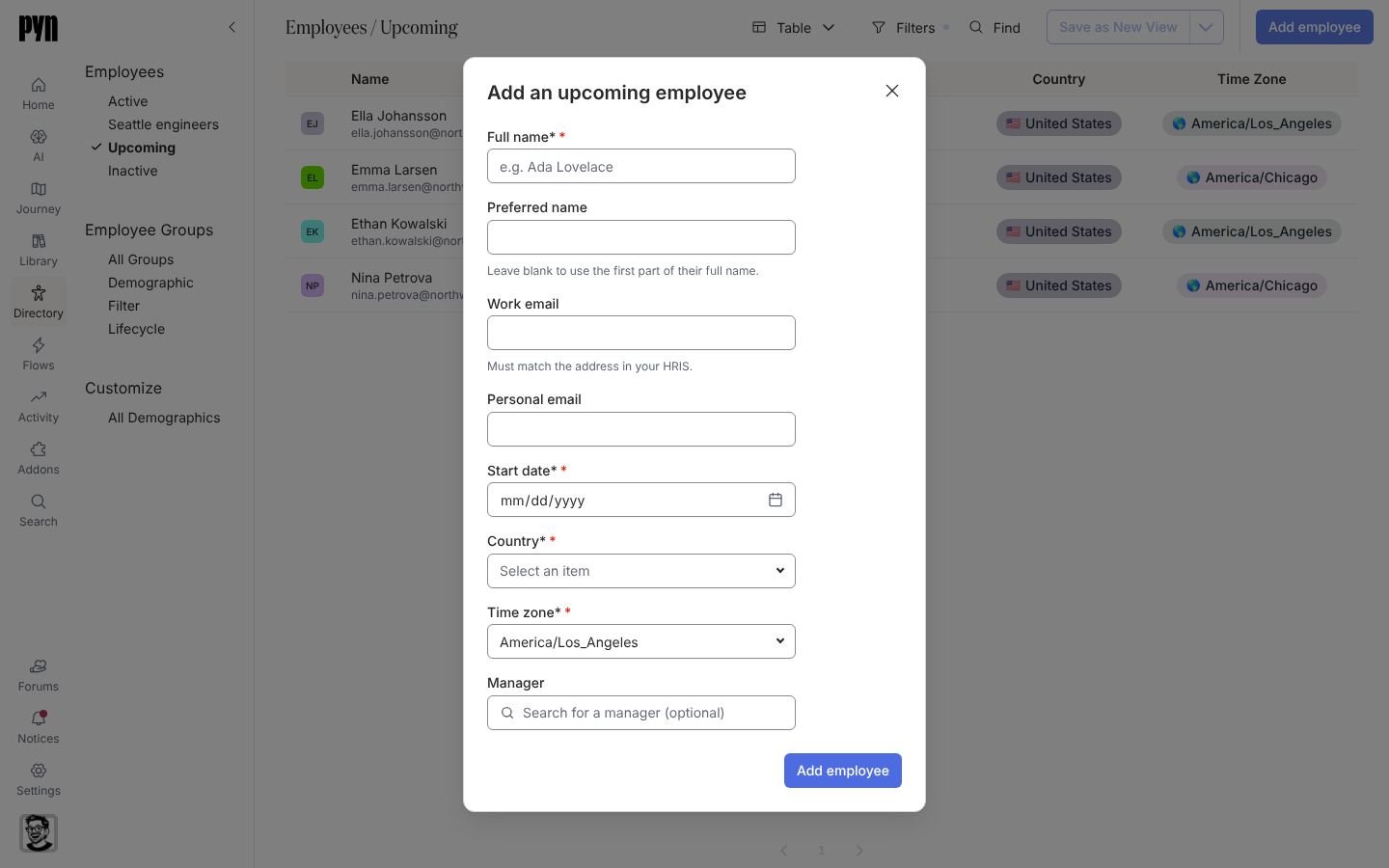
Select Add employee. The dialog Add an upcoming employee opens.
-
Fill Full name and, if they go by something else, Preferred name. Left blank, the preferred name is the first word of the full name.
-
Fill Work email if the mailbox exists (it must match the address your HRIS will send later), otherwise Personal email so preboarding has somewhere to go.
-
Fill Start date, choose Country and check Time zone.
-
Search for their Manager and select them; Clear removes the choice.
-
Select Add employee.
What you should see
Section titled “What you should see”The dialog reads [Name] has been added as an upcoming joiner. Select Done and the person appears on Upcoming with their start date; on the day they start they move to Active. If the manager could not be linked, the dialog says so and you can supply the manager through a spreadsheet upload. Any automation triggered by start date and open to upcoming joiners enrols them from here.
Related
Section titled “Related”- Upload employees from a spreadsheet for many people at once, or for the fields the dialog does not ask for.
- Fix a missing manager, time zone or email if the record needs correcting.
- Automations for what enrols a joiner.