

Configure a date trigger
Date triggers run off a date on the employee record: Start Date for the lifecycle and anniversary triggers, Termination Date for Off-boarding, Birthday for the birthday templates, and any other date property you choose under Employee Properties. You set two things on the Configure tab: when the flow starts relative to that date, and how often it repeats.
Before you start
Section titled “Before you start”- The automation has a date trigger. The trigger card shows the trigger’s emoji and a line such as the day of just once.
- Decide whether you want the flow to start early. Starting a week before the date does not move the reference date: steps are still scheduled around the date itself.
-
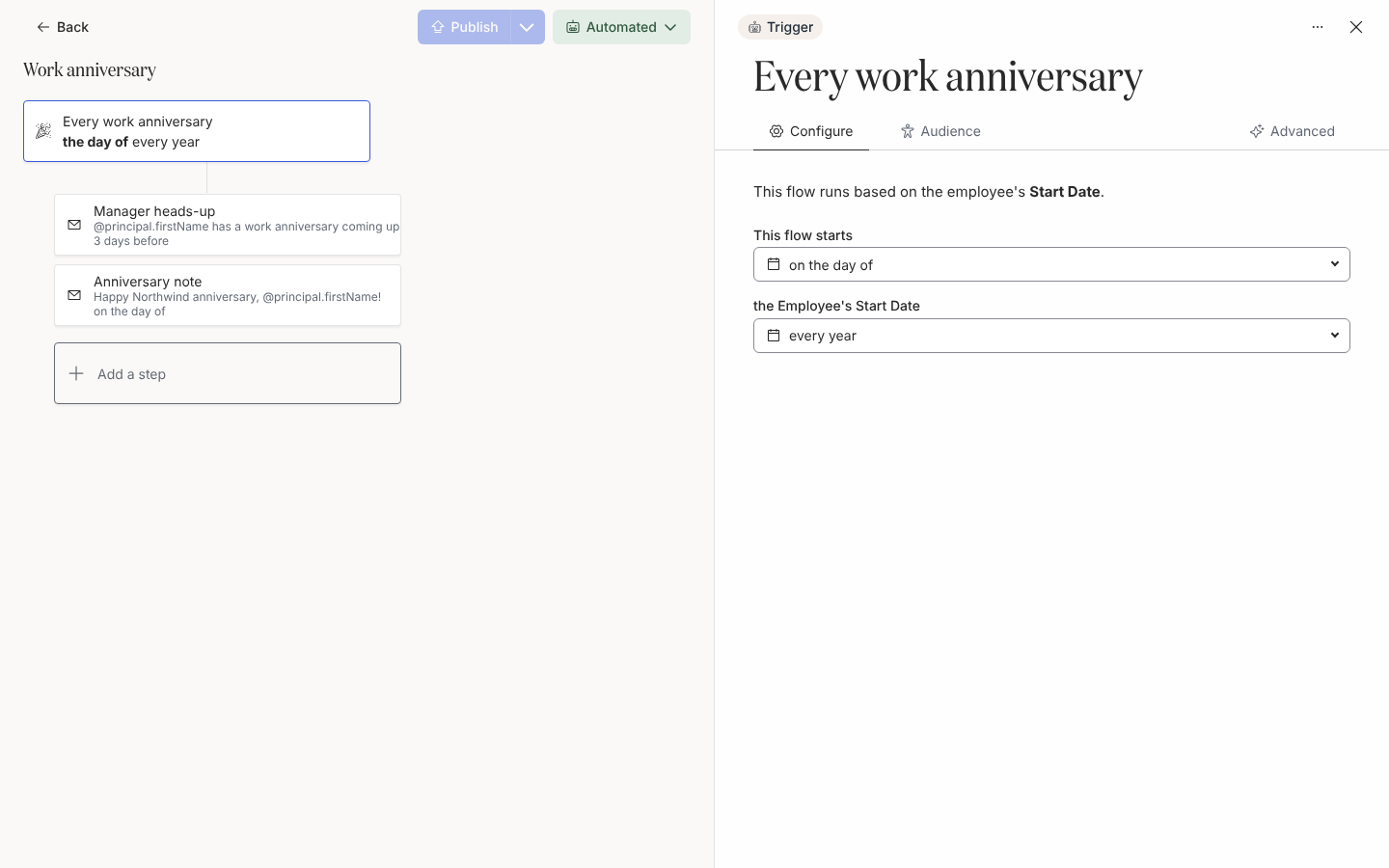
In Pyn, open Flows in the left navigation, then Automations, and select the automation. Select the trigger card at the top of the canvas if the drawer is not already open on Configure.
-
Read the first line: “This flow runs based on the employee’s Start Date” (or the field you chose). For Birthday it adds “This is the birthday on the Employee Record.”
-
Under This flow starts, open the menu and pick an offset: 2 weeks before, 1 week before, the day before, on the day of, the day after, 1 week after, 2 weeks after, 1 month after, 2 months after, 3 months after or 6 months after. The menu also lets you type a custom number of days, weeks or months.
-
Under the Employee’s Start Date (the label names the field), choose the recurrence: just once, every year, every year after the first, every other year, every 2 years, every 5 years or every 10 years. A Birthday trigger offers every year only.
-
Select Publish. Date triggers are evaluated on every HRIS refresh and on a background pass about every six hours, so the first enrollments appear within a few hours of publishing when someone’s date matches today.
What the reference date will be
Section titled “What the reference date will be”The reference date is the employee’s date itself (projected to the matching year for a recurring trigger), not the day the trigger fired. A flow set to start 1 week before an anniversary has the anniversary as its reference date, so a step scheduled on the day of lands on the anniversary and a step 7 days before lands on the day the flow started. Scheduling internals explains the window and adjustment rules behind this.
What you should see
Section titled “What you should see”The trigger card summarises your choices, for example 1 week before every year after the first. Once published, employees whose date matches appear under Enrollments with the matched date as their Reference Date.
Related
Section titled “Related”- Trigger catalogue for the default offset and recurrence of each date trigger.
- Scheduling internals for windows, adjustments and the one-day minimum between re-enrollments.
- Birthdays and anniversaries for a complete worked example.
- Prevent repeat enrollments for what happens when a date is corrected.