

Open an enrollment
A new starter asks what they will receive, or a manager says they never got the day-one nudge. The enrollment answers both: it lists each step with its status and the day it sends.
-
In Pyn, open Activity in the left navigation. It opens on All Enrollments.
-
Narrow the list. Select Filters and pick an Automation or a Moment, or select Find and type the person’s name.
-
Read the row. Progress shows how many steps have sent out of the total; hover it when it is red to read This enrollment has bounced messages or This enrollment has invalid messages. Reference is the date the steps count from.
-
Select the row. The enrollment opens in a panel on the right.
-
On Details, read Reference Date, Automation, Moment and Principal. A test enrollment carries the banner Hey, this is a test enrollment.
-
Under Enrollment Steps, read each step: its title, a status such as Scheduled or Complete, and its date. A completed step whose message bounced for someone shows a red status with the tooltip Completed with bounces.
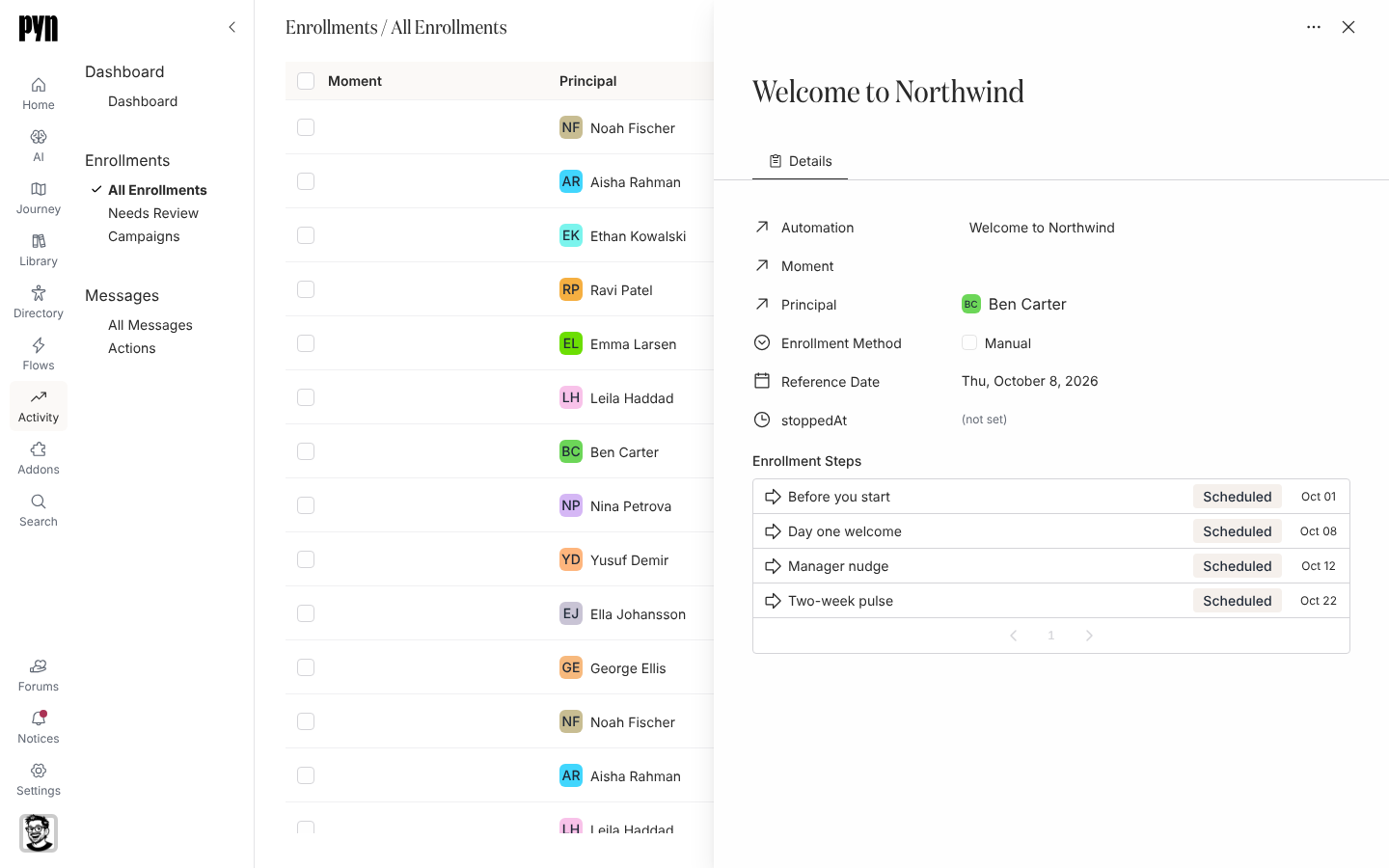
An enrollment's panel lists its details and every step with a status and date. -
Select a step to open it on its own page, where you can read the message as each recipient saw it. Read a message as it was sent continues from there.
What you should see
Section titled “What you should see”A panel with the enrollment’s details and its steps in schedule order, and a step page when you select one. Steps that read Draft belong to a paused enrollment: Review and unpause enrollments explains how to release them.
Related
Section titled “Related”- Read a message as it was sent for the step page and each delivery.
- Enrollment, step and delivery statuses for what each status means.
- Read an employee profile for the same enrollments from the person’s side.