

Read an employee profile
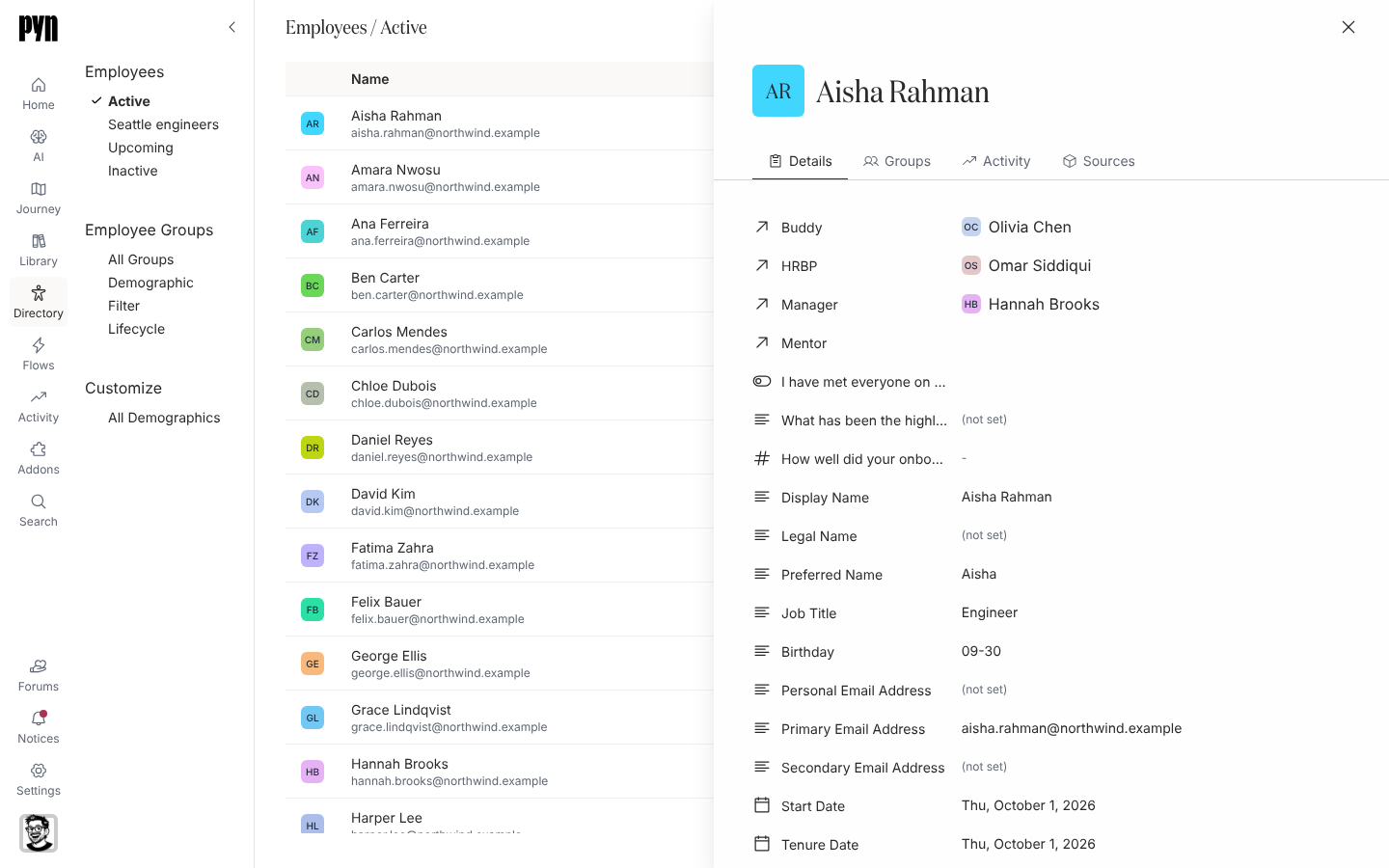
The profile is the merged view of one person: what Pyn will use when it schedules a message for them, sends to their manager or decides which groups they are in.
-
In Pyn, open Directory in the left navigation and select the person’s row, or find them with Search.
-
On Details, read the fields: Preferred Name, Display Name, Legal Name, Job Title, the email addresses, Business Unit, Department, Division, Location, Team, Birthday, Start Date, Termination Date, Tenure Date, Time Zone and the rest. Fields your source does not supply are blank; Probation End Date appears only when a source supplies it.
-
Below the fields, read the relations: Buddy, HRBP, Manager and Mentor, each a link to that person’s profile.
-
Open Groups for every group the person is in: the demographic groups for their department and so on, their lifecycle group, and any filter, relationship or static group that includes them.
-
Open Activity. Outstanding lists deliveries whose action they have not completed (No outstanding actions when there are none), Deliveries lists every message sent to them, and Enrollments lists their enrollments with a status pill. Select an enrollment to open it in Activity.
-
Open Sources to see the records the profile is built from, one per system: a HiBob employee, an Employee File row, a Slack member. Sources is shown to power users, admins and owners.
What you should see
Section titled “What you should see”A panel with the person’s avatar and name in the header, the four tabs, and values you recognise from your HRIS or spreadsheet. The avatar shows initials when no source supplies a picture.
Related
Section titled “Related”- Employee properties for the meaning of each field.
- Fix a missing manager, time zone or email when a value is wrong or blank.
- Open an enrollment for the enrollments the Activity tab links to.