

Send a direct message by email when someone is not in Slack
Some people are not in Slack on the day a message is due: a new starter whose account is created on their first morning, or a contractor without a seat. A Send Direct Message step can send its message by email to anyone Slack cannot reach, so the welcome or the nudge still arrives.
Before you start
Section titled “Before you start”- The step is a Send Direct Message step in an automation or a campaign. A Post to Channel step has no email fallback, because a channel has no email address.
- The workspace has an email sender: a verified email sender, or a Google Workspace or Microsoft 365 sender. See Choose a sender.
-
In Pyn, open the automation from Flows, Automations, and select the Slack step.
-
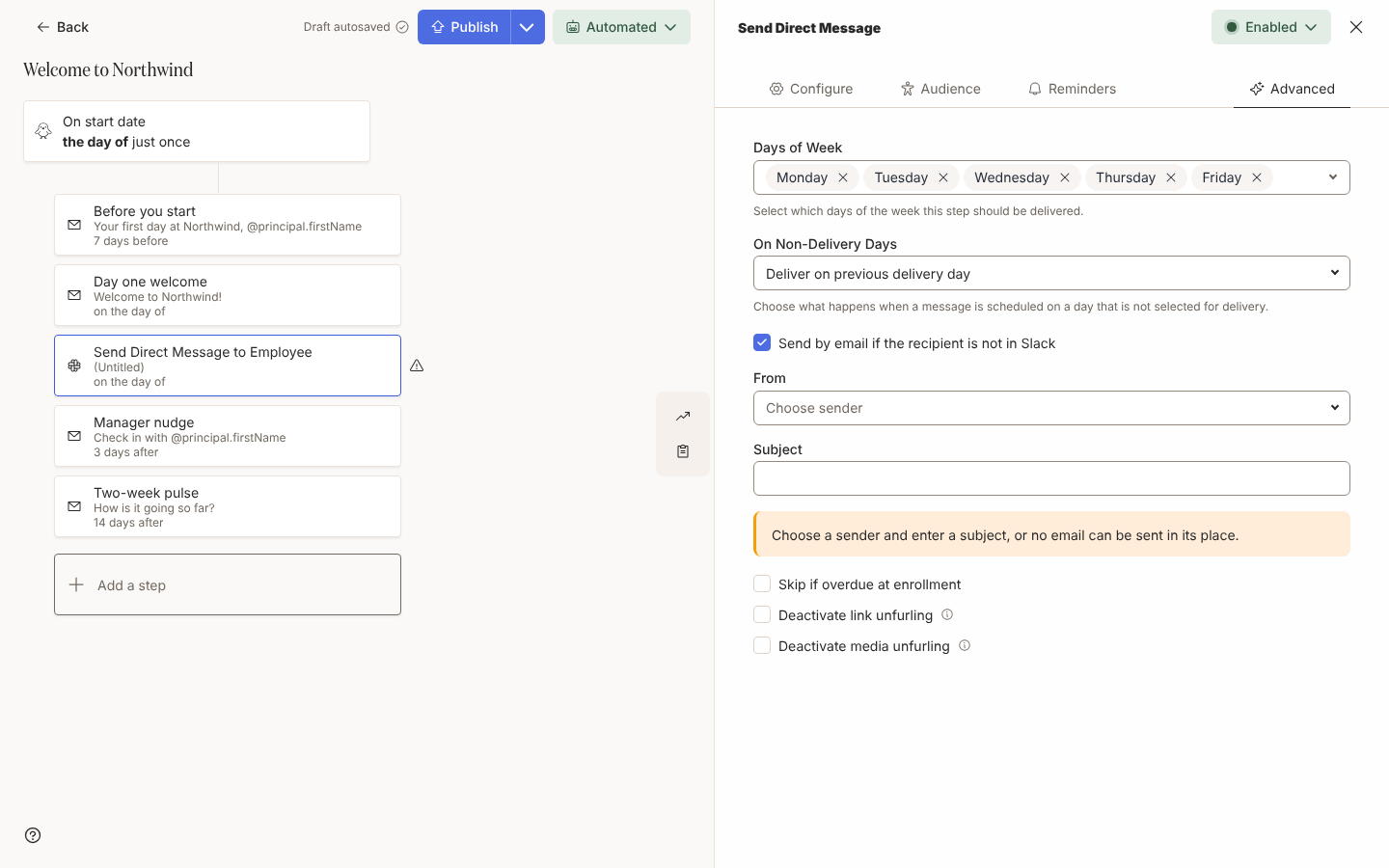
Select the Advanced tab.
-
Tick Send by email if the recipient is not in Slack. From and Subject appear beneath it, with the warning “Choose a sender and enter a subject, or no email can be sent in its place.”
-
Under From, choose the email sender the email comes from.
-
Under Subject, enter the subject line for the email. Type
@to insert a token such as@recipient.preferredName. -
Close the drawer, then Publish the automation.
On a campaign
Section titled “On a campaign”Open the draft Slack message from Activity, Campaigns, select its Advanced tab and tick the same box. A campaign step is sent without being published, so check that both From and Subject are filled before you set it to Automated: a step that is missing either sends no email.
What you should see
Section titled “What you should see”While the box is ticked without a sender or a subject, the step card warns Falls back to email, but has no sender or subject for the email. and the automation cannot be published.
When someone who is not in Slack reaches the step, the Slack delivery reads Bounced and Pyn sends the same message by email, from the sender and under the subject you chose. Open the step from the enrollment in Enrollments and pick that recipient: the bounced message carries a banner, “The recipient could not be sent this message, so it was sent by email instead.”, with a View email link. The email carries “This email was sent in place of a message the recipient could not be sent.” with View message to go back. If the email bounces as well, or the enrollment is stopped before the email sends, the banner on the Slack message says so.
A resend of the Slack message that bounces again does not send a second email.
Related
Section titled “Related”- Add a direct message step for the Slack step itself.
- Choose a sender for the email senders you can pick under From.
- Delivery statuses for what Bounced means on a delivery.
- Resend a bounced message once the person has joined Slack.