

Read a message as it was sent
A manager says the check-in email never arrived, or you want to see how a token rendered for one person. The step page shows the message as it was sent to each recipient, with the status of every delivery.
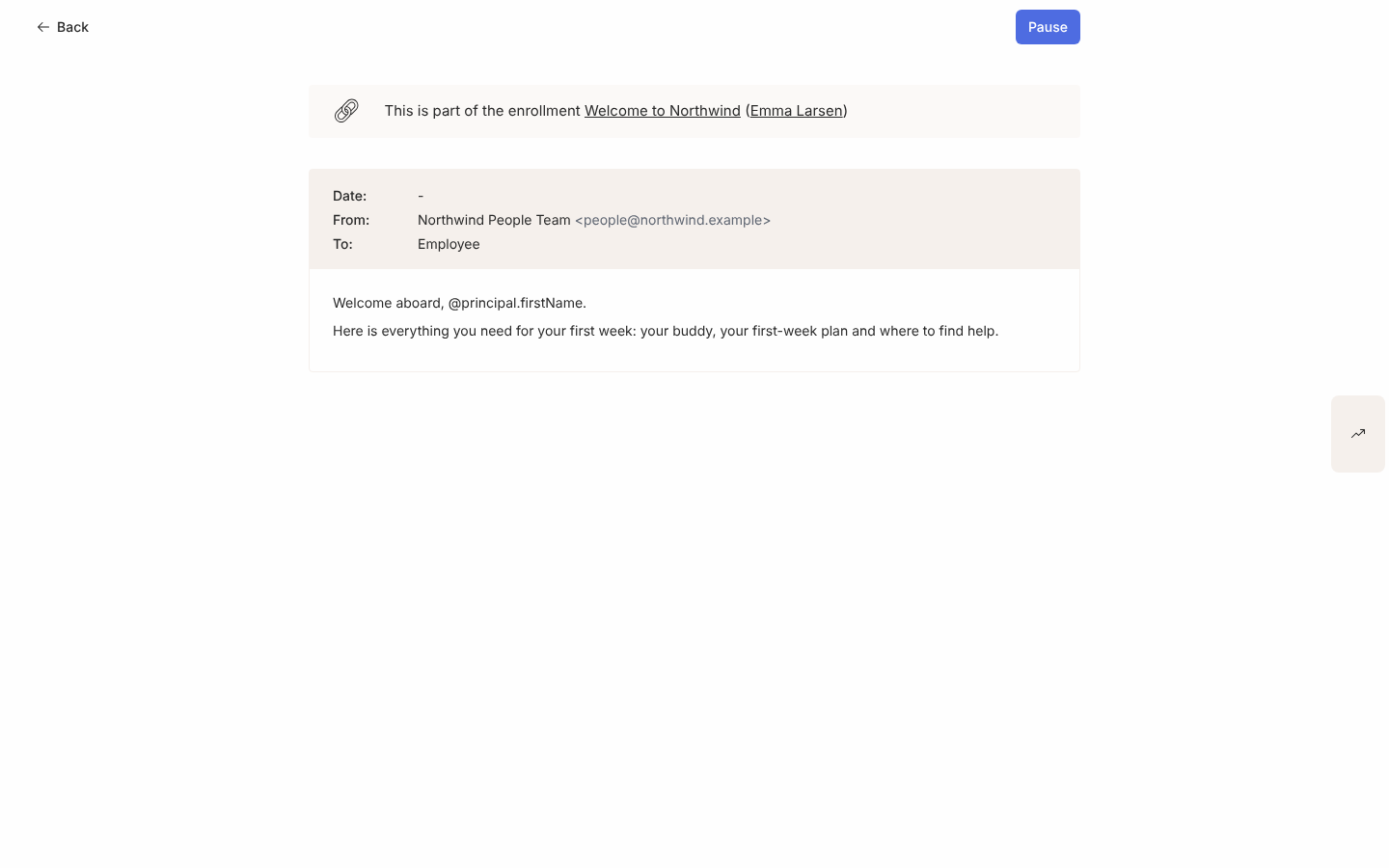
-
In Pyn, open Activity in the left navigation, then select All Messages under Messages.
-
Select Filters, then Status, to narrow to Complete steps; or select Find and type a word from the message.
-
Select the row. The step opens on its own page. The banner at the top reads This is part of the enrollment (or the campaign) with a link back to it. A sent step shows its status chip on the right; a scheduled step shows Pause there instead.
-
Use the recipient selector above the message to switch between recipients. The page loads with the last delivery selected; each choice shows that person’s rendered message, with the sender, the recipient and the time.
-
A bounced delivery shows the banner This message bounced when sending. Resend a bounced message explains the Resend button on it.
-
Select Activity in the rail on the right to open the drawer. It lists every delivery for the step with its status.
-
In the drawer’s header, select Export deliveries to download
pyn-deliveries.csvwith each recipient’s name, email, status, delivered time, first click and first action.
What you should see
Section titled “What you should see”The message rendered for the chosen recipient, their delivery’s status (Delivered, Clicked, Actioned or Bounced) and, in the drawer, the same for everyone else. Back at the top left returns you to the list you came from.
Related
Section titled “Related”- Open an enrollment for the person’s whole sequence.
- Resend a bounced message when a delivery failed.
- Enrollment, step and delivery statuses for what each delivery status means.