

Add a trigger to a moment
A moment with no flows shows nobody in it, even when employees go through that experience every week. A trigger on the moment itself records each employee the moment it fires for them, so the Employees metric and the moment’s badge count them, with nothing sent and no enrollment to review.
Before you start
Section titled “Before you start”- You are a workspace admin.
- Decide what marks the moment: a date on the employee record, a change of manager or group, a form submission or a timetable. The choices are the same as for an automation; see Choose a trigger.
-
In Pyn, open Journey in the left navigation and select the moment’s card. Its panel opens on the right.
-
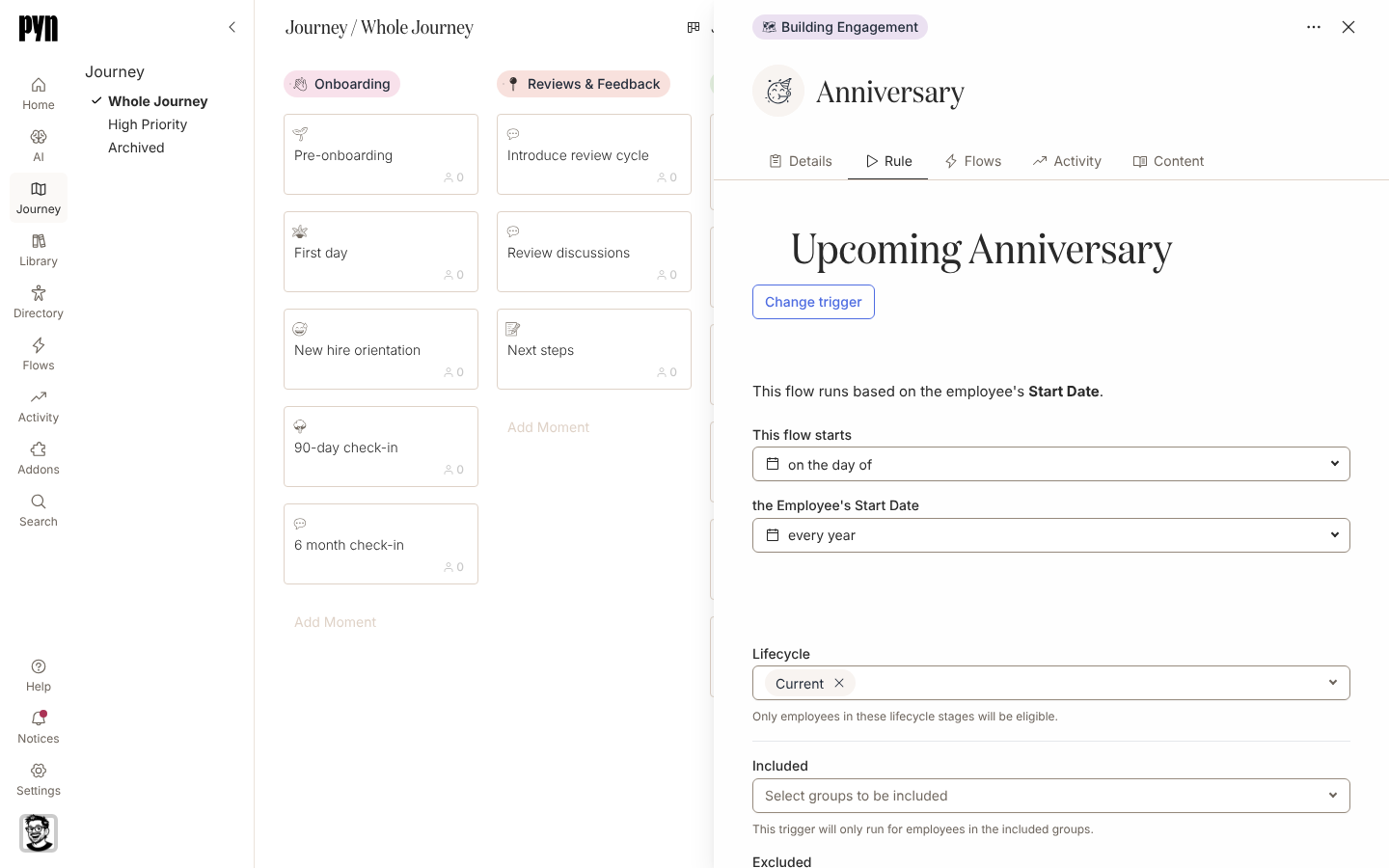
Select the Rule tab. A moment without a trigger reads “This moment has no trigger of its own. Employees are only in it through the flows linked to it.”
-
Select Add trigger. Select Trigger opens with the same categories as for an automation; pick the trigger.
-
The tab now shows the trigger’s name, its Configure settings, the Audience fields and Prevent repeat enrollments, one below the other. Adjust the trigger’s settings, for example the offset and recurrence of a date trigger.
-
Under Lifecycle, Included and Excluded, set who the trigger counts. The first trigger you add starts with Current employees and no groups; Audience Preview lists who matches today.
-
To swap the trigger later, select Change trigger and pick another; its settings replace the old ones.
What you should see
Section titled “What you should see”From the next time the trigger fires, each matching employee is recorded against the moment. On the board the Employees badge counts them alongside the people enrolled in the moment’s flows, for the date range chosen under Metrics; see Read journey metrics. Nothing appears under Enrollments or on the moment’s Activity tab, because the moment’s own trigger creates no enrollment and sends nothing. To send something at this moment, attach a flow as well; see Attach a flow or content to a moment.
Related
Section titled “Related”- Read journey metrics for the badge the trigger feeds.
- Attach a flow or content to a moment to send something at the moment as well as count it.
- Choose a trigger for which trigger fits which moment.
- Set the audience for an automation for how the lifecycle and group fields work.