

Connect an OpenID Connect provider
Your identity provider speaks OpenID Connect and you want it to sign people into Pyn and decide their roles. The Single Sign-On integration takes the provider, its issuer and a client with the authorisation code flow, checks the provider’s OpenID configuration, and shows the redirect URI and sign-in link you need.
Before you start
Section titled “Before you start”- You are an admin or owner in Pyn, and the Single Sign-On integration is enabled for your workspace.
- Someone can create a confidential client in your provider: “The client needs the standard authorization code flow and a client secret.” Required claims are
openid,profileandemail; addgroups(Entra emitsroles) if you want role mapping. - You have the issuer, client ID and client secret. For Keycloak you need the Keycloak Server URL and Realm; Pyn composes the issuer from them.
-
In Pyn, open Settings in the left navigation, then Available under Integrations.
-
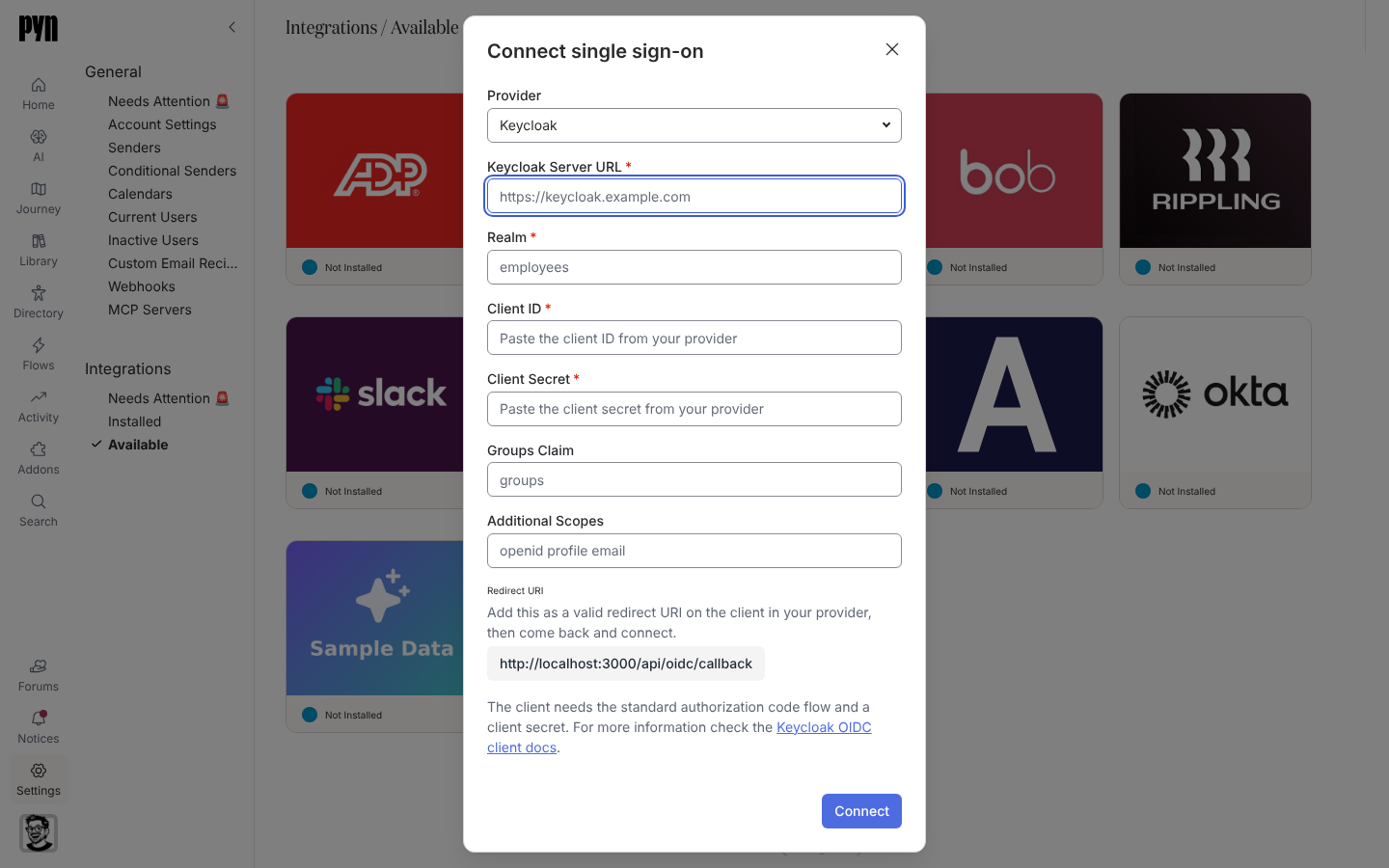
Select the Single Sign-On tile. The Connect single sign-on dialog opens.
-
Choose the Provider: Keycloak, Okta, Microsoft Entra ID, Auth0, Ping Identity or Single Sign-On for anything else.
-
For Keycloak enter the Keycloak Server URL and Realm; for the others enter the Issuer URL.
-
Enter the Client ID and Client Secret. Set Groups Claim if your provider uses a name other than
groups, and Additional Scopes if it needs more thanopenid profile email. -
Copy the Redirect URI shown in the dialog: “Add this as a valid redirect URI on the client in your provider, then come back and connect.”
-
Select Connect. The dialog shows “Checking those details with your provider…” and then a notice: “Single sign-on is configured. Use the sign-in link on the integration to let your people sign in with it.”
-
On the panel, under Group mappings, enter comma-separated group names for Owner groups, Admin groups, Power user groups and User groups, starting with the owners.
What you should see
Section titled “What you should see”The tile shows Active under Installed and the panel shows the Redirect URI and the Sign-in link: “Share this with your people to sign in through your provider. Opening it signs you in.” If the dialog refuses, read its reason: “That address answered, but not with an OpenID configuration.” means the issuer is not the base URL the provider publishes its configuration under; “Could not reach that issuer.” means it is not reachable from the internet; “The issuer needs to be a full URL, starting with https://.” is a format problem. Reconnect in the … menu reopens the dialog to change any of it.
Related
Section titled “Related”- Single sign-on for role mapping and what employees see.
- Connect Okta for the dedicated Okta integration.
- Users for the roles the group lists refer to.