

Create a campaign
An all-hands next month, a benefits window, a new policy with a deadline: a one-off message or a short series on fixed dates. Create the campaign on the calendar, add a step per message, and give each step its own date, time and recipients.
Before you start
Section titled “Before you start”- You are a Power User, Admin or Owner.
- A sender exists for the medium you will use; see Choose a sender.
- The recipients exist as employee groups, or you will pick people one by one.
-
In Pyn, open Activity in the left navigation, then select Campaigns.
-
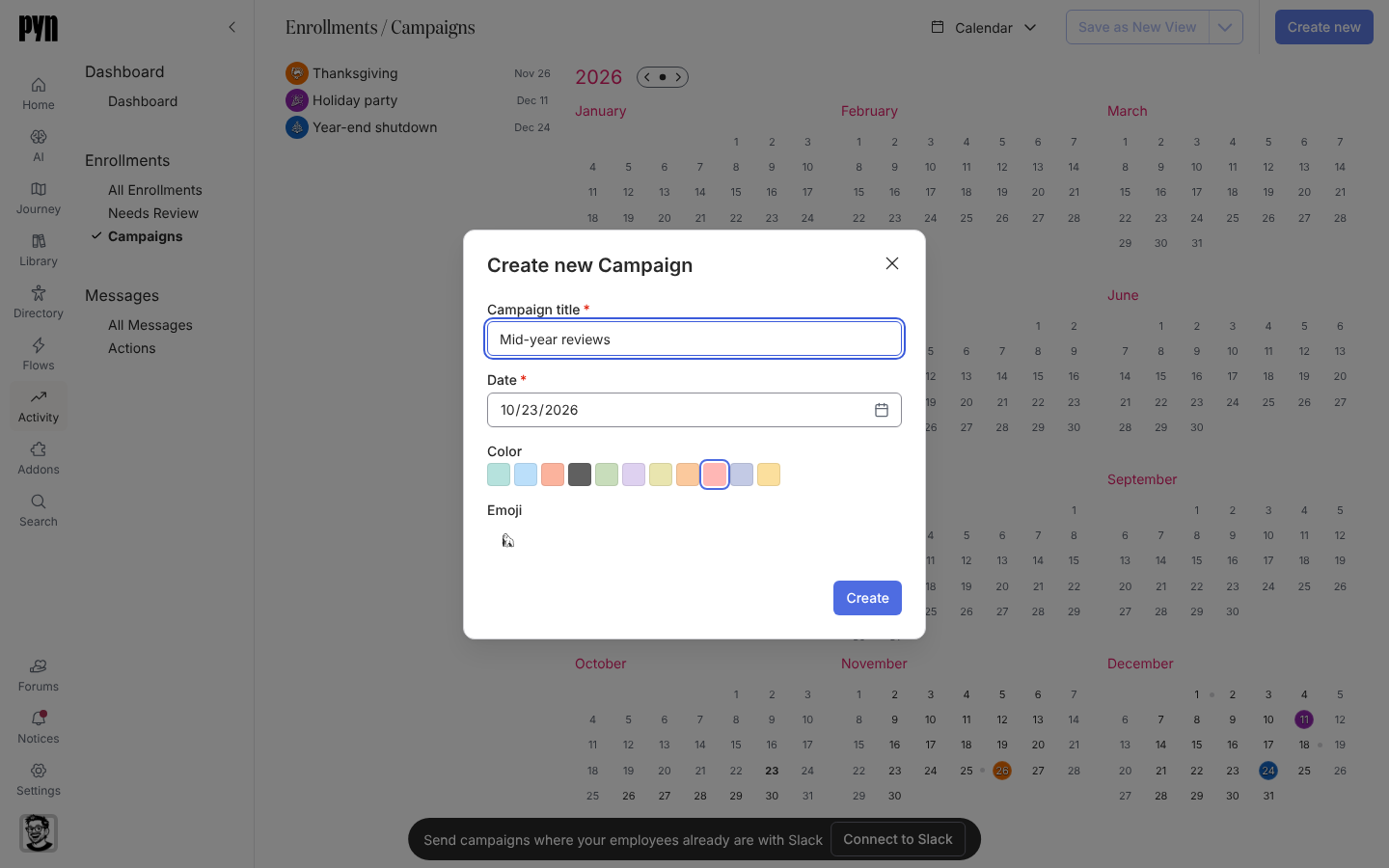
Select Create new in the top-right corner. In the Create new Campaign dialog, enter the Campaign title, set the Date (the campaign’s reference date, today by default), pick a Color swatch and an Emoji, then select Create. The campaign opens in the panel on the right and appears in the sidebar list.
-
In the sidebar, under the campaign, select Add Step, then a step type in the Add Step dialog, for example Send Email to Employee. The step is created on the campaign’s date and opens in the panel.
-
On Configure, set the Scheduled date, the time at which it sends and the time zone in which that is read. Under From, choose the sender.
-
Under To, select every recipient: employee groups, individual employees, or relative recipients. Everyone listed receives the step.
-
Write the Subject (email) and the message, using tokens such as
@recipient.preferredName. Select Preview, then Send a test to yourself. -
Select the state button in the panel header, which reads Draft, and choose Automated. The step is scheduled. Choose Manual instead to hold it.
-
Repeat from step 3 for each further message. To copy a step to another date, open it, select its menu, then Duplicate, and set the new Scheduled date.
What you should see
Section titled “What you should see”The campaign is a coloured date on the calendar and each step a dot on its send date; hover a step in the sidebar to highlight its date. Select a date to see what sends that day. As each step sends, its deliveries appear under Activity, All Messages, one per recipient, and the campaign moves to Complete when every step has finished. Reminders and escalations are not offered on campaign steps.
Related
Section titled “Related”- Steps and messages for everything in the step panel.
- Choose a sender if From is empty.
- Duplicate a campaign to run it again next year.
- Campaign states for Draft, Manual, Automated and Complete.