

Build your journey map
Goal: turn the starter Journey into your company’s plan: a board that shows only the moments you run or intend to run, says how well each is covered, and has a flow behind every high-priority moment.
Time: about 30 minutes for a first pass. Most teams come back to it each quarter.
You will end up with:
- a board with the categories and moments that apply to you, in the order employees meet them;
- a Current State, Priority, Level of Effort, Department and Owner on every moment you kept;
- a saved view called “Gaps” that lists the high-priority moments you do not cover yet;
- at least one flow attached to a high-priority moment, created from the template catalogue.
Before you start
Section titled “Before you start”- You are a workspace admin. Everyone can read the Journey, but changing it needs the Admin role.
- Employee data is in the workspace. Until it is, the board shows Your journey begins when you add employee data! with a button to upload a file or connect BambooHR.
- Set aside the people who will own moments: Owner and Stakeholders are chosen from the workspace’s users.
1. Read the starter map
Section titled “1. Read the starter map”Pyn gives every new workspace a map to start from, with categories such as Onboarding, Reviews & Feedback, Growth & Development, Building Engagement, Manager Development, Leave and Life Events, Org-wide Campaigns and Offboarding & Alumni, each holding the moments most companies run.
-
In Pyn, open Journey in the left navigation. The board opens on Whole Journey.
-
Scroll across the board once, left to right, reading the column headings and the cards. Each card is a moment; its badge shows how many employees were in that moment in the last 30 days.
-
Select any card to open its panel on the right, then select the tabs: Details for its properties, Flows for what is attached, Activity for enrollments, Content for library content.
-
Close the panel.
Do not change anything yet. The first pass is to recognise what is already there.
2. Trim the map to your company
Section titled “2. Trim the map to your company”-
Work column by column. For a moment you do not run and will not run, select its card, then Archive at the foot of the panel, and confirm. The card leaves the board. (Jury duty and Alumni recruitment are common first picks.)
-
For a whole category you do not run, open the category’s panel from its heading chip and archive it the same way.
-
For an experience that is missing, select Add Moment at the foot of the right column, type its title and press Enter. If it needs a new column, select Add Category at the right end of the board, name the category in the panel that opens, and then add moments to it.
-
Drag cards up and down, and between columns, until each column reads in the order employees live it. Drag column headings to order the categories.
3. Mark how well you cover each moment
Section titled “3. Mark how well you cover each moment”-
Select the first card on the board. On Details, set Current State to We have this, Needs improvement or Do not have this yet. Leave Unknown only when nobody in the room knows.
-
Set Level of Effort to how much work improving it would take: Low, Medium or High.
-
Set Department to the team responsible and Owner to the person accountable. Add Stakeholders if other teams are involved.
-
Close the panel and repeat for every card. Each value saves the moment you pick it, so you can stop and resume at any time.
This is the longest chapter. Forty moments at about half a minute each is twenty minutes; doing it with the people who own the moments is faster and more honest than doing it alone.
4. Decide what matters
Section titled “4. Decide what matters”-
Open Filters at the top of the board, hover Current State and tick Needs improvement and Do not have this yet. The board narrows to your gaps.
-
Go through the remaining cards and set Priority on each: High priority for the few you will fix this quarter, Medium priority for the next wave, Low priority for the rest. A rule of thumb: high priority goes to moments that reach many employees or carry risk (first day, leave, exit), and to gaps with a Low or Medium effort.
-
Hover Priority in Filters and tick High priority. You are now looking at the moments that matter most and are not covered.
-
Select Save as New View. The view opens and appears in the left rail as Whole Journey*; select the view-type button (it reads Journey), then Rename View, and name it “Gaps”.
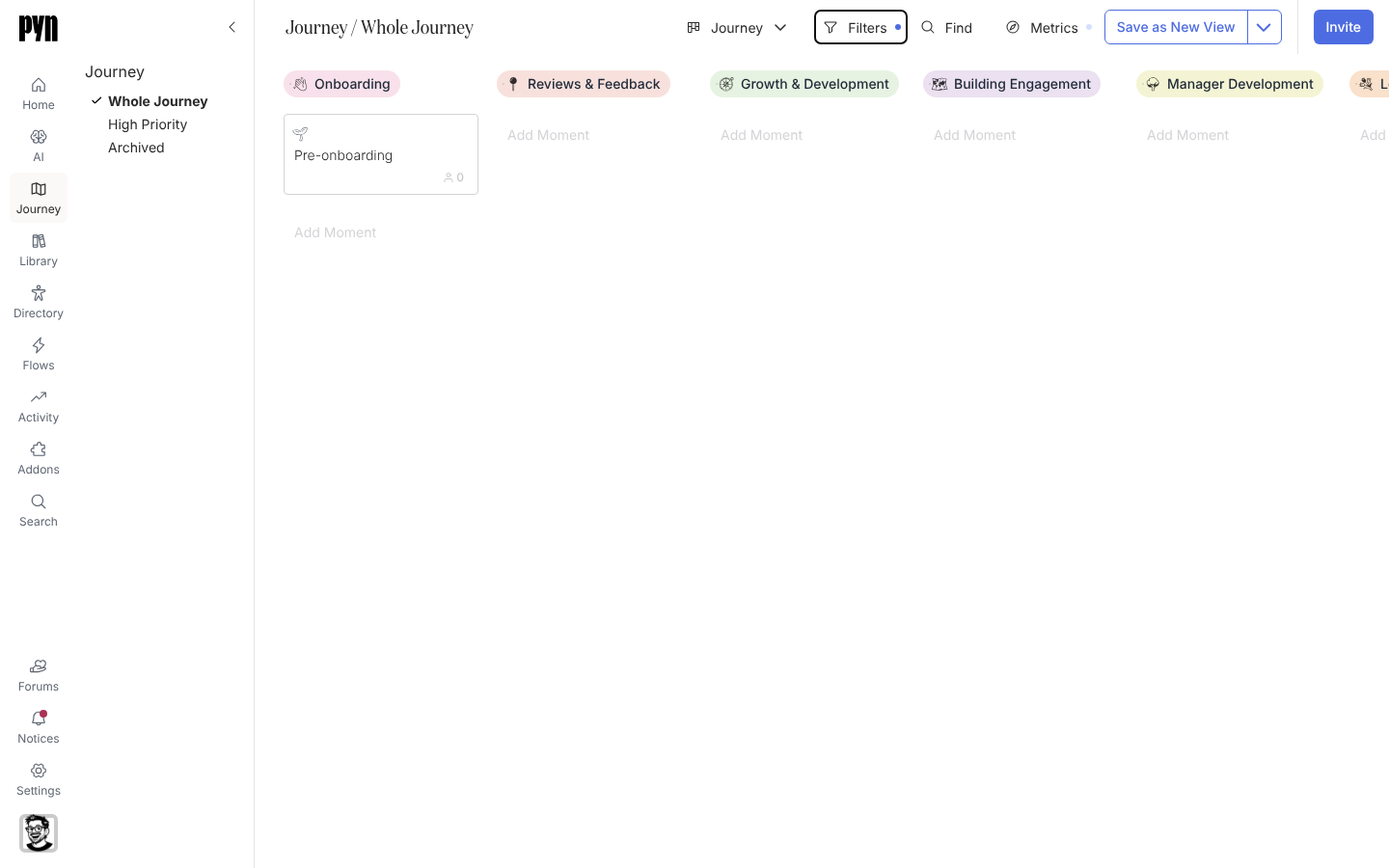
The seeded High Priority view shows everything you marked high priority, covered or not; your “Gaps” view shows only the uncovered ones. Both update as you change properties.
5. Put a flow behind each high-priority moment
Section titled “5. Put a flow behind each high-priority moment”-
On your “Gaps” view, select the first card.
-
Select the Flows tab. Under Templates, look for a catalogue flow that fits and select Add. The flow appears in the list above.
-
Select it to open it in Flows. Check the trigger and the audience, read every step, change the sender and wording to your voice, then publish it and set its mode. Automations explains each of these.
-
Back on the Journey, select the moment’s Content tab and add any catalogue content the flow’s steps link to, then open it, edit and Publish.
-
When the flow is live, set the moment’s Current State to We have this. It drops off your “Gaps” view.
-
Repeat for each card on the view. If no template fits, select Create flow on the Flows tab to start an automation from scratch in Flows and assign it this moment.
6. Keep the map honest
Section titled “6. Keep the map honest”-
Open Metrics, set Metric to Deliveries and Date Range to last 90 days, and read the badges: moments with flows show numbers, moments without stay at zero. Save this as a view too if you report on it.
-
Each quarter, return to “Gaps”, move the next moments to High priority, and repeat chapter 5.
-
Select the view-type button, then Export, to download the board as an image for your next leadership update.
Related
Section titled “Related”- Set a moment’s properties and Moment properties for the meaning of every option you used.
- Filter the map and Save a view to build views for each department or owner.
- Attach a flow or content to a moment for the moment panel in detail.
- Automations to finish the flows you added, and Content to edit the content they link to.