

Add a Google or Microsoft 365 sender
You want an email to come from a named person, with their signature and replies going straight to them. A Google Workspace or Microsoft 365 sender is that person’s mailbox, connected by signing in and granting Pyn permission to send. The person signs in themselves; an admin cannot connect someone else’s mailbox.
Before you start
Section titled “Before you start”- You are signed in to Pyn as the person whose mailbox you are connecting. To connect someone who has no Pyn login, create an auth link instead.
- Your organisation allows the Pyn app. In Google Workspace that may need an admin to approve the app; in Microsoft 365 the account needs an Exchange Online mailbox.
- Add Microsoft 365 Email Sender appears only in workspaces where Microsoft 365 is enabled.
-
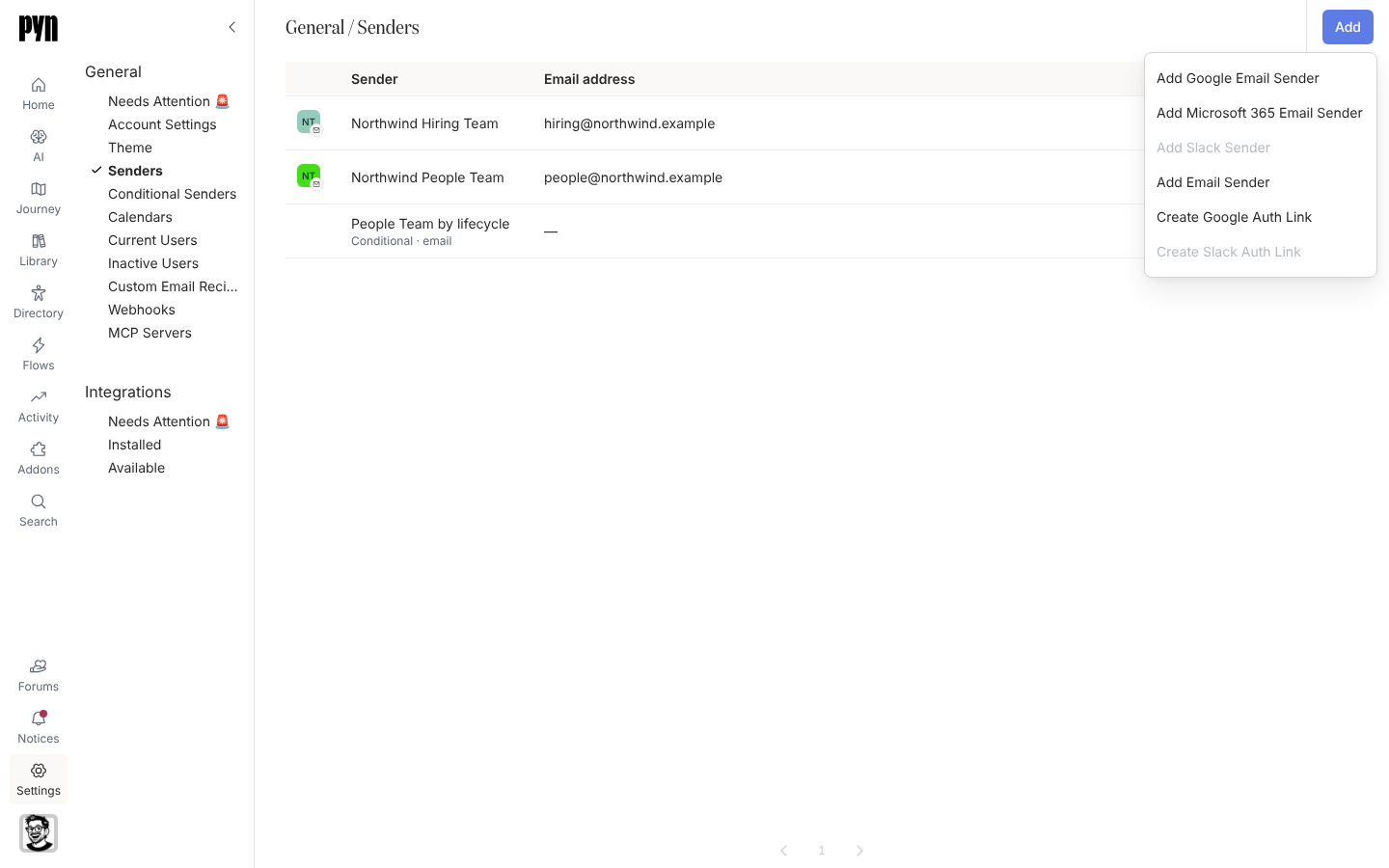
In Pyn, open Settings in the left navigation, then Senders under General.
-
Select Add, then Add Google Email Sender.
-
Google opens. Choose the account and select Allow. Pyn asks for your email and profile and for
gmail.send, which lets it send email as you; it cannot read your mail. -
Google returns you to Pyn. Your sender is listed with your name and address.
-
Open the sender’s … menu and select Send Test. “Test Message Sent” confirms it; check your inbox.
-
In Pyn, open Settings in the left navigation, then Senders under General.
-
Select Add, then Add Microsoft 365 Email Sender.
-
Microsoft opens. Sign in and accept the permissions. Pyn asks for
User.ReadandMail.Send. -
Microsoft returns you to Pyn. Your sender is listed with your name and address.
-
Open the sender’s … menu and select Send Test. “Test Message Sent” confirms it; check your inbox.
What you should see
Section titled “What you should see”The new row shows Active, and the sender’s panel lists the Sender Name, Email and the Google Hosted Domain or Microsoft Tenant. If the row later shows Requires reauth, the mailbox’s password changed or access was revoked; the owner of that mailbox opens the sender and selects Reconnect. If someone else tries, Pyn asks them to confirm they have permission for that address first.
Related
Section titled “Related”- Senders for the other sender types.
- Google Workspace for what the integration does and the scopes it uses.
- Microsoft 365 for the Microsoft side.
- Create an auth link to connect someone without a Pyn login.