

Connect a calendar
You want new starters added to the orientation event automatically. Connecting a calendar is a sign-in to Google or Microsoft followed by one choice: which calendar Pyn should read events from. A shared team calendar with only company events is the usual pick.
Before you start
Section titled “Before you start”- You are an admin or owner, and the account you sign in with can see and edit the calendar you want to use.
- Pyn asks Google for
calendar.calendarlist.readonlyandcalendar.events.owned, or Microsoft forUser.ReadandCalendars.ReadWrite, plus your email and profile. - The events you want to invite people to exist on that calendar as recurring series.
-
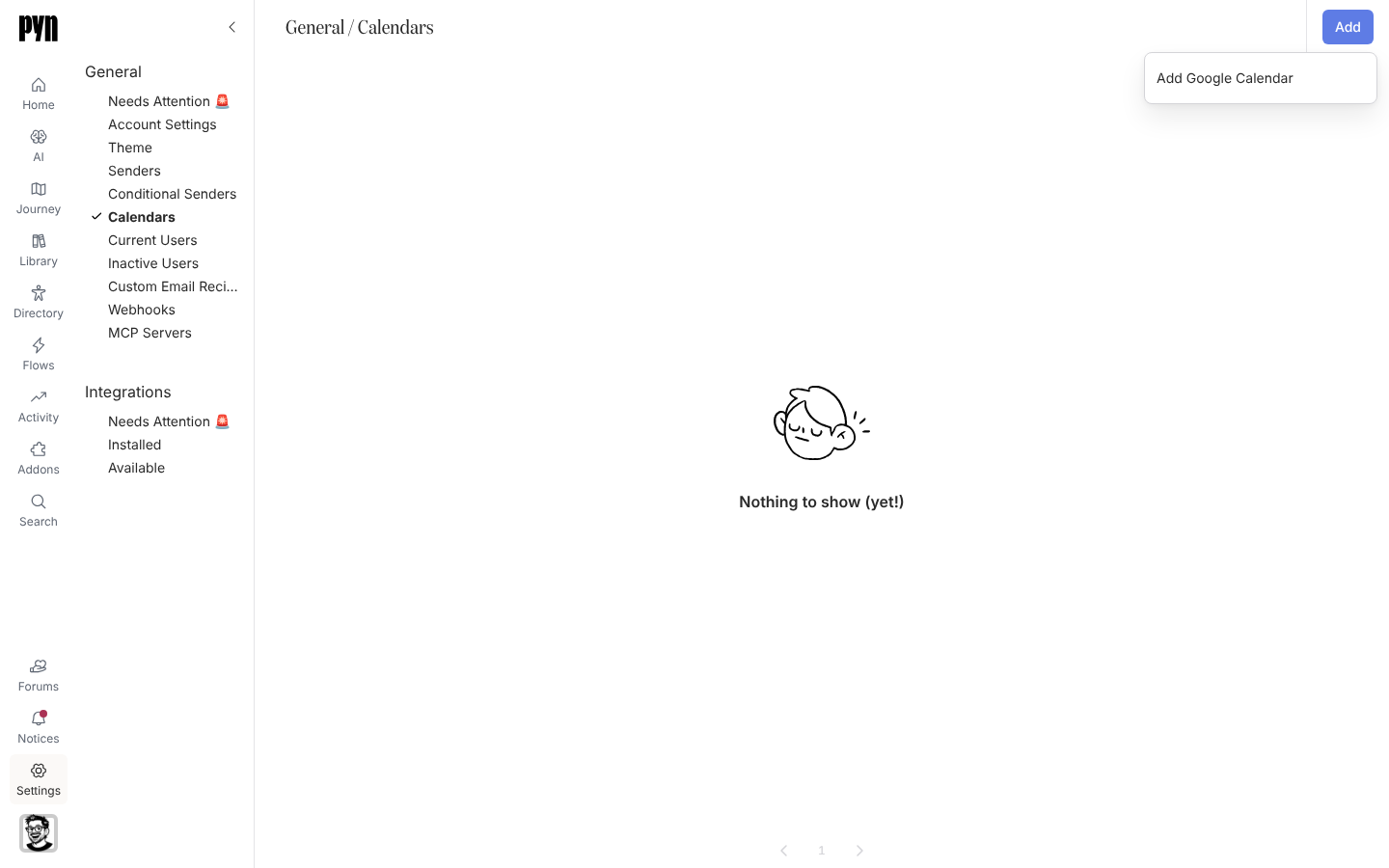
In Pyn, open Settings in the left navigation, then Calendars under General.
-
Select Add, then Add Google Calendar.
-
Google opens. Choose the account and select Allow.
-
Pyn opens Setup your Google Calendar with the heading Select your calendar: “You’re connected! Select the calendar that events will be picked from. Make sure it’s a calendar with only public events.” Select the calendar.
-
You return to the Calendars view. Open the new row; it reads “Pyn is syncing this calendar. This can take a few minutes.” until the events arrive.
-
In Pyn, open Settings in the left navigation, then Calendars under General.
-
Select Add, then Add Outlook Calendar.
-
Microsoft opens. Sign in and accept the permissions.
-
Pyn opens Setup your Outlook Calendar with the heading Select your calendar. Select the calendar to sync.
-
You return to the Calendars view. Open the new row; it reads “Pyn is syncing this calendar. This can take a few minutes.” until the events arrive.
What you should see
Section titled “What you should see”The row shows Active and the calendar’s name and owner. Its panel lists the synced events sorted by next occurrence, each with its day and time. In Automations, add an Invite to calendar event step and the events appear in its picker. If the list stays empty after a few minutes, open the … menu and select Refresh Events; if the row shows Requires reauth, select Reconnect and sign in again with the same account.
Related
Section titled “Related”- Calendars for how syncing works.
- Google Workspace for the integration behind Google calendars and senders.
- Microsoft 365 for Outlook calendars and senders.